❌

Reading view

How do I remove followers on Mastodon without blocking them? How do I “soft block”?

Mastodon has a “Following and followers” management section you can use to remove followers without having to block them:

  1. Sign in on your server’s website or web app
  2. Click on ⚙ Preferences
  3. Click on Follows and followers (if you’re on a phone click ☰ and then Follows and followers)
  4. In the Relationship section click on Followers
  5. Select the followers you want to remove
  6. Click on Remove selected followers

Does this block selected accounts?

No, it does not block them, it just removes them from your followers. If you block a follower, that removes their follow anyway and you don’t need to use follower management.

Why is it called “soft blocking” if it doesn’t block them?

The original way of doing this was by blocking someone to get them off your followers, then immediately unblocking them. The follower management system was introduced later.

How do I do an actual proper full block?

You can find a guide to blocking accounts on Mastodon here.

What about the other option that mentions domains?

If you click Remove followers from the selected domains, it will also remove all followers who are on the same servers as the followers you have selected. Be careful if you use this option, it may remove more followers than you expect.

What does Account Activity: Dormant mean?

It means the accounts listed haven’t posted in a while.

What does Account Status: Primary and Moved mean?

Primary accounts are normal accounts. Moved accounts are just redirecting to a different account elsewhere, and aren’t in use themselves.

↩ Back to the front page

  •  

Why is there sometimes a “More From…” section below links on Mastodon? What is “Author Attribution”?

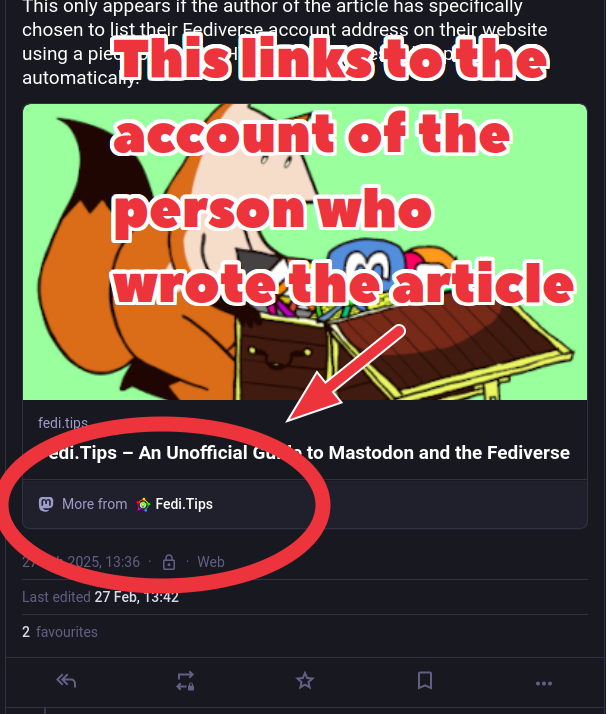
Screenshot of a Mastodon post featuring a link preview. Below the preview is a second link which says "More from..." and has a link to the account of the person who wrote the article being linked to in the preview.

When someone posts a website or article link on Mastodon, there is sometimes an additional section below the link’s preview which says “More from…” and has a link to an account profile (see the screenshot above for an example). This is a link to the account of the person who runs the website or wrote the article you have linked to. Click on their name to see their profile, and follow it if you want to.

This link to an account profile is also known as “Author attribution” because it is often used by people who write articles or blog posts.

Is this generated automatically?

No. The site owner or article author has to manually add a special piece of HTML code to their site or article to state their Fediverse account address (see the instructions below).

How do we know it’s genuinely their profile?

The link will only appear if the site owner or article author has both confirmed the account address on their website, and also confirmed their connection to that website in their Mastodon settings. They need to confirm at both ends or it won’t appear.

When does this “More from…” author attribution link appear?

It will appear whenever anyone posts a link to the site or article by that author on Mastodon, but it may not be visible in all apps yet as it is a relatively new feature.

I am a website owner or article author. How do I get a “More from…” link to appear underneath links to my site or articles?

Here’s a step-by-step guide:

  1. Log into your server’s website or web app
  2. Click ⚙ Preferences
  3. Click Public Profile (if you’re on the mobile website click ☰ at the top and then Public Profile)
  4. Click the Verification tab at the top
  5. Scroll down to the Author attribution section (DO NOT use the Website Verification section, that is for a totally different feature)
  6. Copy and paste the HTML code into your article or your website’s header
  7. Add the domain name of your website (or the website that carries your articles) into Websites allowed to credit you. If you’re posting on several sites you can add several domains but make sure there is only one per line.
  8. Click Save changes

If you’re an article author and are unsure how to add custom HTML, ask your website owner about it.

Can I use it with non-Mastodon Fediverse accounts?

It’s an open standard so other Fediverse platforms are free to implement it. However, it is a relatively new feature and so far it seems to just be working with Mastodon accounts.

Does this work when anyone posts the link on Mastodon? Or does it have to be the author posting it?

It works when anyone posts the link. The idea is to get more people to notice the author’s account and connect with them on Mastodon.

If there isn’t a “More from…” link, does that mean the author doesn’t have a Mastodon account?

Not necessarily. This is still a fairly new feature, and a lot of journalists and website owners that are on the Fediverse don’t yet know about this. It may take some time for every author and site owner to add the needed code to their site that allows this feature to function.

↩ Back to the front page

  •  

When I try to send a DM on Pixelfed, it says “You need to wait a bit before you can DM another account”. What do I do?

If you’ve just joined a Pixelfed server and try to send or reply to a DM, it may display an error message saying you need to wait a bit.

Don’t worry, this error message will stop appearing 72 hours after you’ve joined the server. It’s there to stop spammers, it’s nothing personal against you.

↩ Back to the front page

  •  

How do I import my Instagram account data to Pixelfed?

You can optionally import data from Instagram accounts to Pixelfed:

  1. Log onto your Pixelfed server’s website
  2. Click Account Settings
  3. Click Import
  4. Re-enter your Pixelfed password for security
  5. Click the Import button and select the ZIP file you got from Instagram

It says I have not been permitted to use this feature?

If you see this message, it’s nothing personal! It just means the Instagram import feature has been switched off on your server.

If a server is overwhelmed with new members, they often switch off Instagram imports to prevent the server crashing. Importing accounts takes up a lot of resources so it tends to get switched off if the server is having lots of new signups.

You might consider signing up on a different Pixelfed server if the one you are on is constantly overwhelmed.

How do I export a ZIP file of my data from Instagram?

There are various guides to exporting your data from Instagram, you can see Instagram’s own official data export guide here ⧉.

↩ Back to the front page

  •  

Can I re-use an old subdomain or domain when installing a brand new Fediverse server?

If possible, you should avoid re-using subdomains or domains when installing new Fediverse servers. If you set up a new server from scratch using exactly the same subdomain or domain as a defunct server, this may cause technical problems when you attempt to communicate with the rest of the Fediverse.

Can I set up a new subdomain on a previously used domain?

Yes! If the subdomain is brand new, that will avoid technical problems. With a brand new subdomain, the rest of the Fediverse will immediately see it correctly as a totally new server.

Could you give an example of what to do?

If you have an old server at social.example.com and it closes down, it would be a bad idea to set up a new server with that same address. Instead, you could use a different subdomain such as social1.example.com or fedi.example.com, or whatever you want to replace the word “social”. The important thing is that it isn’t identical to the old server’s address.

Why would re-use of a subdomain or domain cause technical problems?

All Fediverse servers store data about posts and accounts they have federated with. If they already have data about posts and accounts from a defunct server, this may confuse attempts by your new server to connect using the same address. This is especially true if a username on the old and new server is identical, because they will have different keys verifying their identity.

What if I re-install a server and use the database from an old server?

If you’re re-using the database of the old server as well as re-using that old server’s subdomain or domain, then this should avoid problems because it will be technically the same as the old server, using the same keys to verify accounts.

The problems occur if you’re installing on the same subdomain or domain using a brand new database with a brand new set of keys.

What are keys?

On Fediverse servers, keys are special codes used behind the scenes to confirm that a particular account created a particular post or followed a particular other account. Users never see them, but the software that runs servers depends on them to make sure they’re talking to the right account on the right server.

If I’ve already reused a subdomain or domain, will the technical problems ever go away?

The problems may eventually go away when other servers refresh the keys they use to verify identities. However, this can take a long time, and it’s much better to just avoid these problems altogether by using a new subdomain or domain.

↩ Back to the front page

  •  

How to customise your Mastodon server’s icons and thumbnail

Mastodon server admins can set their own icons for use on browsers and phones, as well as custom thumbnail artwork shown when the server is linked to or listed on sites or apps:

  1. Log into your server’s website or web app with the admin account
  2. Click on Administration
  3. Click on Server Settings
  4. Click the Browse buttons on the icons and thumbnail artwork and upload the images you want to use. You don’t have to upload them all, just upload what you want to customise.
  5. Click the Save Changes button at the bottom

What does “Server Thumbnail”, “Favicon” and “App Icon” actually mean in practice?

  • Server Thumbnail: The artwork which appears in link previews and in Mastodon server listings on websites and apps. It helps get across what kind of server you run.
  • Favicon: This is the icon that appears when people bookmark your server’s website on their web browser.
  • App Icon: This is the icon that appears on phones or tablets if people install your server’s website as a web app.

↩ Back to the front page

  •  

Should I publish server rules if I’m running a single-person Fediverse server?

Yes. It’s a good idea to have some server rules on your server’s public “About” page even if you’re the only person on your server.

The reason is other server admins may often be in situations where they have to decide whether they will federate with your server, especially if they’re running allowlist-based protection on their server. Being able to read your server’s rules tells them immediately what kind of standards they can expect from your posts, and what kind of safety risks they might face federating with you.

What kind of rules should I have?

As rules on single-person servers are entirely for the benefit of people on other servers, it’s a good idea to keep them short, quick to read and easy to understand. However, they need to be specific enough to give some idea of what you consider acceptable.

For example, here are the rules on my own single-person server ⧉. You might want different rules, but whatever they are they should be equally short and easy to understand.

Also bear in mind that these are rules for your server, so it may include some rules that aren’t general statements about the wider world. You might be personally okay with the concept of advertising existing somewhere else but not on your server, so you might have a rule saying “no advertising”.

Is it enough that I say “Be nice to everyone”?

No. Different people can have totally different concepts of being nice, so it’s important to have at least some specific rules to give some indication of what you consider acceptable.

Does it have to be as detailed as rules on public servers?

No, it’s better to keep it simple. Rules on a single-person server are just to indicate to other admins what kind of content you might post. Making such rules too complicated makes it harder for other admins to quickly assess your server.

Why can’t other admins just look at my account profile?

It’s not always easy to tell from an account exactly what rules it is following. Nasty hateful accounts can also post pretty inoffensive stuff too. Rules take away the guesswork involved, and make much clearer what admins can expect from federating.

Also, many single-person servers have multiple themed accounts run by the same person, so from the outside it looks like there are several people on the server. It’s also a pain to have to browse through multiple accounts instead of a single list of rules.

↩ Back to the front page

  •  

How to export and download your Mastodon post archive

Mastodon lets you download an archive of all the posts and media attachments you’ve ever published on your account. Here’s how to do it:

  1. Log in through your server’s website or web app
  2. Click on ⚙ Preferences
  3. Click on Import and export (if you’re using the mobile website click ☰ and then Import and export)
  4. Click on the Request your archive button. This will begin the archive creation process which may take a while, you will receive an email from your server when it is ready. You DO NOT need to stay logged in while this happens, it will happen automatically.
  5. When you’ve received an email from your server telling you the archive is ready, go back to the Import and Export page. (If you remained on the page since requesting the archive, refresh the page to show the download link.)
  6. Click on the Download your archive link and select where you want to save the file.

Does it include images etc that I’ve posted?

Yes, it includes your posts’ media attachments such as images, video, audio.

Does it include other people’s posts that I’ve boosted?

No. It’s just an archive of your own posts.

How often can I ask for an archive?

By default you can request an archive every seven days.

If I ask for another archive, does that have all the posts or just the ones since the last download?

Every archive has all the posts you’ve ever created.

This doesn’t include deleted posts though, these are actually deleted from the server, so if you’ve deleted posts since your last archive download they will not show up on newer archives.

How long is the archive available to download?

By default the archive is available to download for seven days, but different servers may have different download periods. Generally it’s a good idea to download it the same day that it is ready.

If the archive disappears before you downloaded it, you can request that the server creates the archive again.

How often should I download an archive?

It’s totally up to you, some people never download them while others do it regularly.

Is this the same thing as transferring your account?

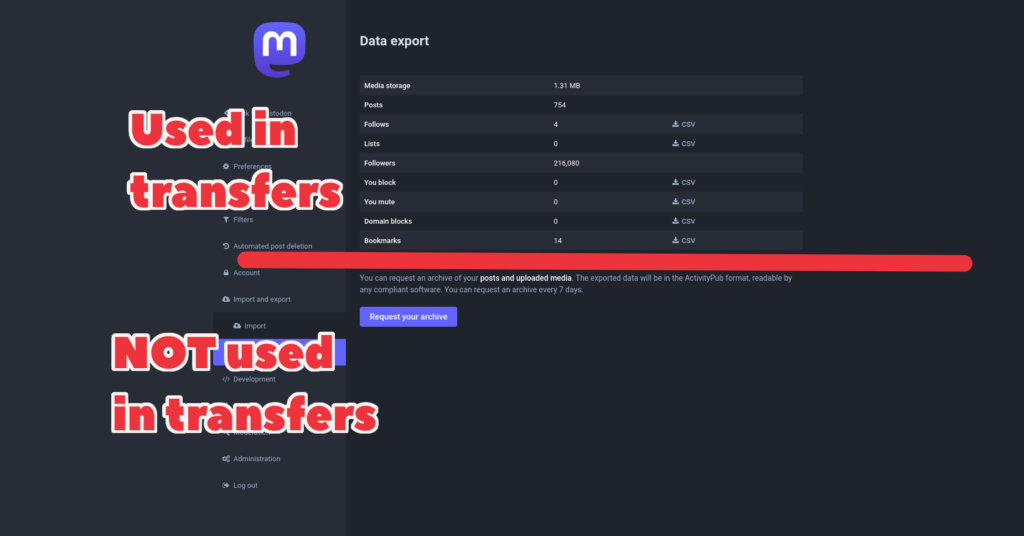
No. Account archives are totally separate from the account transfer system. They use different files and do different things. The only connection between the two is that they’re both done through the Import and export page.

Diagram of the import and export page, with the links used in account transfers at the top and the link for the archive at the bottom, with a bright red dividing line separating the two.

How do I view the archive?

This is a very good question! The Mastodon developers have provided no official way to view post archives. There are unofficial third party archive viewers, but these usually require a lot of technical knowledge to install and use. Here are some links to third party archive viewers:

Can I upload my post archive to my new account on another server?

No. The archive system is totally separate from the account transfer system, and the archive is NOT used in transferring accounts. The archive is mainly intended for your own personal records, so that you have a private offline copy of your posts and attachments.

There are no Mastodon servers which allow uploads of archives. If you attempt to upload it during an account transfer, it will just give you an error message.

I thought some servers allowed you to upload your archive so you could transfer your posts?

There have been some non-Mastodon Fediverse servers which have allowed uploads of Mastodon archives in order to “transfer” posts, but these clone the post archive as a set of totally new posts which look identical to the old posts but have none of the replies or shares of the old posts. This takes a lot of resources on servers, as it requires creating perhaps thousands of new posts all at once for everyone who uploads their archives, which can really slow the server down. This is possibly why Mastodon doesn’t allow it.

So, if I transfer my account to another Mastodon server, what happens to my old posts?

Your old posts remain on your old account, but the old account’s posts will redirect people to your new account. For example, if someone finds an old post of yours and clicks on the account name to see who wrote it, they will be directed to your new account.

Can I upload my post archive to my own server if it has technical problems and loses my posts?

Another really good question. As far as Fedi.Tips is aware this has never been done. Whether it’s possible or not is unclear.

↩ Back to the front page

  •  

Mbin: Reddit-style discussions and link sharing

Mbin is a Fediverse platform for threaded discussions in the style of Reddit and similar link aggregators. It’s still in early days, so the official Mbin documentation is aimed at techy people ⧉, but hopefully they will create a website for ordinary users soon. Techy people might also want to look at the Mbin source code ⧉. If you just want to see an example of what Mbin looks like, there’s a major server at Fedia.io ⧉ (but please bear in mind I can’t guarantee how reliable this is as the platform is still being worked on).

Wasn’t this called Kbin before?

Mbin is based on an earlier project called Kbin which had a different lead developer. The original Kbin project stopped development, but Mbin carried on and built upon the work of Kbin.

↩ Back to the front page

  •  

What are mentions on Mastodon? What does @-ing mean?

The word “mentions” on Mastodon and other social networks means typing @ and then a username, so that the username appears in your post. It’s also known as @-ing (pronounced “at-ing”) a person.

When you type @ and then begin typing the username, Mastodon will automatically suggest accounts that you can select if you want. You don’t have to accept these suggestions though, you can keep typing, and the suggestions will change as you type. The ultimate aim of a mention is to get an account’s complete Fediverse address to appear in the post. If the Fediverse account address you want isn’t in the suggestions, just ignore the suggestions and type the account address in full.

Why would I want to mention an account?

Mentioning an account can be useful for several reasons on Mastodon and the Fediverse:

  • Mentions cause a notification to appear in the account’s notifications section, so the account’s owner will know they have been mentioned.
  • It means other people reading the post will be able to click on the account’s mention which will take them to the account’s profile page. They will then know exactly who you are talking about, and perhaps follow them or interact with them in some way.
  • The “Mentions”/”Specific People” post visibility setting means only people mentioned in the post can see it. Have a look at the post visibility guide for more details.

Can I just mention Mastodon accounts? Or can I mention other Fediverse accounts as well?

You can mention any type of Fediverse account. All Fediverse accounts use the same address format of @ (user name) @ (server name).

Most Fediverse account types do notify the account owner if you mention them, but a few (PeerTube for example) do not have a notification system for mentions.

I tried to mention an account but it didn’t work. What went wrong?

If you can’t get a mention to appear properly in your post, hopefully one of these suggestions might help:

  • Are you using the correct Fediverse address for the account you want to mention? You can find the account’s address on their profile page.
  • Did you include the @ symbol at the start of the address? All Fediverse addresses begin with an @
  • Sometimes servers have trouble with mentions for accounts they have never “noticed” before. To solve this, copy and paste the account’s Fediverse address into the search box on your server. After you’ve done this once, mentioning the account should start working and the account should start appearing in the suggestions when you’re typing a mention too.
  • If the account is on a server that your server has defederated, you will not be able to mention them.

Where can I see when I am mentioned by other people?

Mentions will appear within your normal notifications in Mastodon. If you want to see just your mentions without the other notifications, go to the 🔔 Notifications section and click the Mentions tab at the top of the screen.

If you do click the Mentions tab, remember to switch notifications back to the All or Everything tab afterwards if you want to keep seeing other types of notifications. If you don’t do this, you will still get beeps for other types of notifications but you won’t see what they actually are.

I mentioned an account but it appears in the post as a short name instead of a full address. What’s happening?

Fediverse addresses all have two parts: the username and the server they are on (similar to how email addresses are written). For mentions to work, you need to include the full Fediverse address with both parts.

However, for the sake of readability, when the post is published Mastodon usually hides the second part of the address. The second part is still there underneath the surface, and if you click on the mention it will take you to the account’s profile page.

Some mentions have their addresses written in full, while most are shortened. Why is this?

Every account on the Fediverse has a unique Fediverse address, but accounts on different servers may have the same username or first part of the address. This is similar to how in real life people might have the same first name but different surnames.

If two accounts with the same username are mentioned in the same post, then when the post is published the account addresses will be written in full. This is similar to how a real life conversation might mention people’s surnames if they have the same first name, to help distinguish between the two.

I tried to mention an account but it keeps abbreviating it to @example instead of @example@server. Why doesn’t it let me write the full address when I’m editing the post?

If you’re mentioning an account on the same server as you are, then it will by default just show the first part. The second part will be automatically added for anyone viewing the post from another server.

This is similar to how traditional landline telephones allow you to dial a phone number without the area code if you are in the same area.

Can I edit a post to add a mention later?

Yes and no.

You can edit a post and add a mention, but the mention will not generate a notification and it will not make a mentions-only post visible to any mentions that are added by editing.

If you want to get someone’s attention or make a post visible to them, it is better to write a new post from scratch and mention them in it.

↩ Back to the front page

  •  

Desktop apps for Mastodon

There are a number of options if you want to use Mastodon on a computer.

Mastodon’s website

The website version of Mastodon is excellent, and it tends to get all the latest features first. You can be logged in on multiple accounts on multiple servers at once, and there’s also an optional Tweetdeck-style mode.

Third Party Apps

Here are some currently-supported third party desktop Mastodon apps, along with which types of computer they support:

Retro Apps

Many old computers from the 1980s and 1990s have Mastodon retro apps available.

↩ Back to the front page

  •  

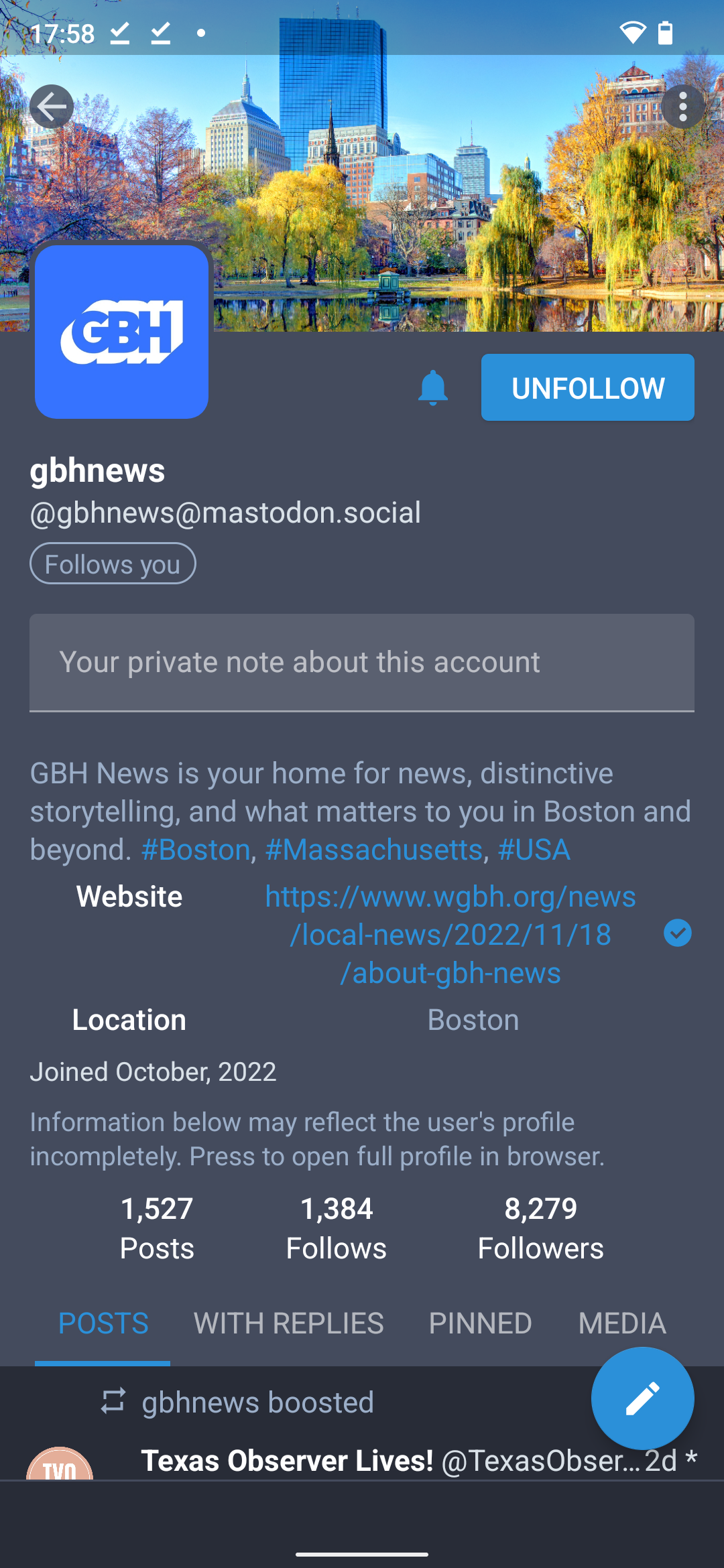
What are notes on Mastodon? What does “Click to add note” mean on Mastodon profiles?

If you’re browsing a profile on Mastodon’s website or web app or some app store apps, you might see an option that says “Click to add note” or something similar. This is a potentially very useful feature, but it isn’t very well known so most people don’t use it.

What does Notes do?

The Notes feature lets you add private notes to anyone’s profile. Just click on it and type, it will save your notes automatically.

Who can see these notes?

Only you can see these notes. They are stored on your server and aren’t sent elsewhere.

How do I save a note? There’s no save button!

Just click somewhere outside the note, it should automatically save it.

Why is it showing me the old version of a note?

There’s a bug in the current Mastodon software which means you may see an old version of a note displayed even after you’ve edited and saved it. Just refresh the page to see the latest version of the note. This bug will be fixed in the next update of Mastodon.

Why would I want to use notes?

Mastodon’s Notes feature can be useful when dealing with large numbers of people on the Fediverse, where you want to instantly see info about how they relate to you or how you relate to them.

For example if you’re working with a group of people on a collaborative project and you want to keep track of who is doing what, you can add their role to your notes on their profile.

Many people use it to keep track of why they might have muted or blocked someone.

Another example: I use notes a lot on FediFollows ⧉, FediVideo ⧉ and FediGarden ⧉ to keep track of which accounts or servers I’ve featured and when. This helps me avoid featuring the same accounts too often.

What happens to notes if the person transfers their account to another server?

If the person you wrote notes about migrates their account to another server, your notes will automatically appear on the profile of their new account (along with a message saying that they were transferred from the old account).

What if I transfer my account to another server? Do my notes about other people come over to my new server?

No, unfortunately not. There’s currently no way to export and import notes you’ve made about other people, so you would have to manually copy notes over to your account on your new server.

↩ Back to the front page

  •  

I can see a reply in my timeline on Mastodon but I don’t know the context. How do I see the discussion it belongs to?

Just click on any post or reply to be taken to the original discussion thread it belongs to. This will show you the original post and its replies.

Is there any way to see the most complete version of the thread?

Because of the way servers federate together, your server may not always show all the replies in a conversation thread. You can see the most complete version of a thread by using original pages:

  1. Click on the first post of the thread, at the very top
  2. Click on ⋯ for the first post of the thread
  3. Select the option Open original page, which will open the thread on the website of the poster’s server

↩ Back to the front page

  •  

What are Hashtags? How do I use them on Mastodon and the Fediverse?

Hashtags are words or phrases with the # symbol at the start. They are used in social media posts to indicate the topic of the post, and they make it easier for people interested in that topic to discover relevant posts.

To use a hashtag, just include a word or phrase with # at the start in your post. For example, if you were writing about gardening you might include the hashtag #Gardening in your post.

Hashtags are also sometimes just called “tags”. Hashtags and tags are the same thing.

How do I use more than one word in a single hashtag?

If you want to include more than one word in a hashtag, write all the words together without spaces, but with capital letters at the start of each word. For example if you were posting about dogs at polling stations the hashtag would be #DogsAtPollingStations

It is REALLY important to make sure the first letters of each word in a hashtag are capitalised, because they make your hashtag accessible to blind people. Blind people use the internet through special apps called screen readers which read out loud whatever is on the screen. By capitalising the first letter of each word, it makes it possible for the screen reader app to know how to pronounce the hashtag. (If you don’t capitalise words, phrases can sound like meaningless gibberish read out loud.)

Capitalising the first letter of each word also makes your hashtag much easier to read for sighted people!

Capitalising the first letter of each word in a phrase without spaces is commonly known as CamelCase because it resembles the humps of a camel. 🐫

How do I search for posts with particular hashtags?

Just type the hashtag you want into the search box on Mastodon etc. This will bring up a list of suggested tags that match your search, along with little charts to show you which ones are trending right now. Click on the exact tag you want, and it will show you the latest posts using that tag.

Can I follow hashtags like I follow accounts?

Yes! On Mastodon and many other Fediverse server types you can follow hashtags so that posts with that tag automatically appear in your Home timeline, even if you’re not following the author. Click here for a guide to following hashtags.

How do I see a list of trending hashtags?

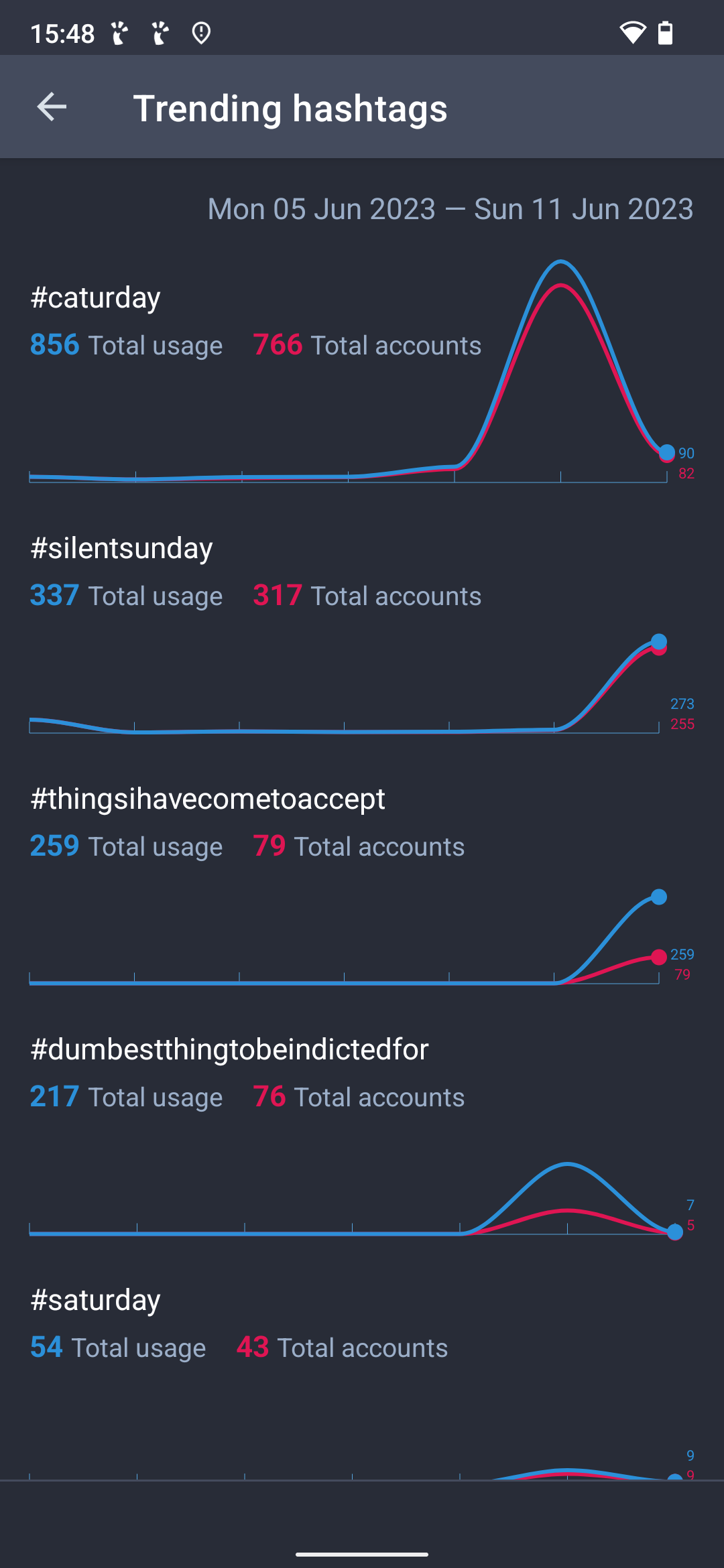
On Mastodon you can see trending hashtags through your server’s Explore feature, which is often just labelled “Trending” on many apps. This will show you trending tags on the Fediverse as seen from your server.

If you want to see trending hashtags across a much wider range of servers, there are sites like Fedi.Buzz ⧉ which show them.

I couldn’t find any results for a hashtag, what do I do?

It might be that you picked a less common version of that hashtag. Try browsing all the tag suggestions that appear when you search for the hashtag. There should be some kind of chart next to each suggestion to let you know which version of the tag is currently trending.

If you still can’t get any results, you might want to follow a group instead. For various technical reasons, groups cause posts to spread (or “federate”) more widely on the Fediverse than hashtags. Click here for a complete guide to using Fediverse groups.

Why do my hashtags disappear if I write them at the end of a post? How do I make my hashtags appear as small print below my post?

If you write hashtags below a blank line at the end of a post, they will automatically be shown below your post in a separate section with a different and smaller font. This is purely for aesthetic reasons to make the post easier to read, it doesn’t affect how the hashtags work. (This happens in Mastodon and some other Fediverse platforms.)

Note that for the hashtags to be displayed separately from the main body of the post, you do need to include the blank line break before the list of hashtags. Also note that some third party apps may not support displaying tags as small print, but in that case they will simply show them as normal tags at the end of the post.

Alternatively, If you prefer you can include hashtags within the body of the post itself. It won’t affect how they function.

Should I write hashtags within the post or at the end?

There are differing opinions on where hashtags belong:

  • At an aesthetic level it is up to individuals what they prefer.
  • At a technical level it makes no difference whether you include a hashtag in the middle of your post or at the end of it, the tag itself behaves exactly the same way wherever you include it in the post.
  • At an accessibility level there have been contradictory reports about which option is easier. (For whatever it is worth, here is an online survey of screen reader users to ask which they prefer ⧉.)

So… it’s your call where you want to place tags in your post!

How do I know which versions of hashtags I should use? How do I find out which tag is most commonly used on a topic?

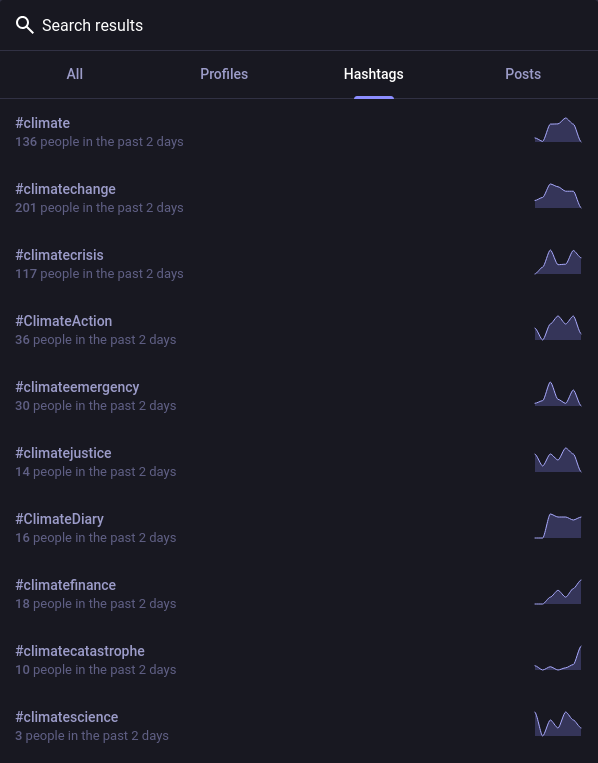
Screenshot of the search results on Mastodon for the hashtag #Climate, showing variations of it such as #ClimateCrisis, #ClimateChange etc along with information on how often these tags have been used recently.

You can use multiple hashtags if you want, but if you’re short on space and want to choose just the most common one, try doing a search for the hashtag. Mastodon will show you the most popular variations on that hashtag.

In the example above, searching for #Climate on Mastodon shows the most popular similar hashtags.

How do I write hashtags for years? Why can’t I write hashtags that are all numbers?

For hashtags about particular years write the word “year” before the number, for example #year1996

Hashtags that are entirely digits with no letters will not work on Mastodon. This is because there was a request from the community to prevent this ⧉, as some people wanted to use the symbol # to indicate numbers rather than hashtags.

However, more recently there has been a counter-suggestion to allow all-digit hashtags ⧉. The developers have not so far done this, but if you’re comfortable using Github you can give this suggestion a thumbs up if you want it to happen.

I’ve published a PeerTube video, how do I add multiple hashtags to it?

The tags section on PeerTube’s publishing system can be slightly confusing as it needs you to press the enter key after each separate hashtag.

To add a tag on PeerTube, type a word or phrase into the “Tags” section of your video’s publishing form, and make sure you press enter after each separate tag. If you just use spaces or commas, it won’t separate the tags out.

I am a computer programmer and I have to say this article misuses words! It is not CamelCase, you are talking about PascalCase! And you should be writing camelCase with a small c at the start!

The terms “PascalCase” and “camelCase” (with a small c at the start) are used in computer programming, and this has caused some confusion when the term “CamelCase” (starting with a large C) is used to describe hashtags.

Programmers are rightly very precise about language as even one misspelling will break software. However, this website is not about writing software, and the use of the expression CamelCase when discussing accessibility is intended for a general non-technical audience.

For ordinary everyday language, the expression CamelCase (with a capital C at the start) works much better because:

  • “CamelCase” makes it obvious that the starting letter of each word is capitalised
  • “CamelCase” is much easier to remember than “PascalCase”
  • Camels have humps and everyone knows what a camel looks like 🐫
  • The word Pascal is relatively obscure in the non-programming, non-mathematical world
  • The spelling “camelCase” (starting with a small c) doesn’t make it clear that every word starts with a capital letter

Programming is important, but technical terms have a particular context that doesn’t always overlap exactly with the needs of everyday language.

↩ Back to the front page

  •  

Does Mastodon and the Fediverse use algorithms? Does it push stuff at me based on my interactions?

No. There is no algorithm on Mastodon or other Fediverse server types. You can like and follow and share stuff freely without having to worry about it affecting what appears in your timeline.

Your Home timeline simply shows all the posts and all the shares from all the accounts, groups and hashtags you follow, in chronological order. The timeline doesn’t hide stuff or suggest stuff or move stuff about.

My timeline is way too full now! How can I trim it down without an algorithm?

You can split your Home timeline into themed mini-timelines using Mastodon’s Lists feature, which lets you add accounts to separate timelines and then optionally hide those accounts from your Home timeline.

There are some accounts that I MUST see the posts from. How do I make sure I don’t miss what they post?

Click the bell icon 🔔 on an account’s profile, and you will get an extra notification every time they post (and of course their posts will be in your Home timeline as usual).

There are some accounts and topics I MUST NOT see. How do I stop them appearing in my timeline?

You can block and mute accounts so that you don’t see them in your timeline. You can hide posts that use particular words or phrases by using the filter system.

I follow an account that boosts way too much! How do I stop seeing their boosts without hiding their own posts?

If there are accounts you follow that boost too much, you can hide an account’s boosts without hiding their own posts.

But there’s a column of suggested accounts to follow labelled “For You”! Isn’t this an algorithm?

No, it’s just a list of accounts that are most followed and boosted by people on your server. The same accounts are suggested to everyone on your server, but it automatically hides accounts you are already following (which is where the “for you” name comes from).

Actually, at a technical level, “algorithm” can mean any set of computing instructions. So of course Mastodon uses an algorithm, so do all computers and websites!

That’s not what most people mean by the word “algorithm”. To most people, especially non-technical people, algorithm means a weird hidden thing that messes up their timeline based on what they have previously interacted with.

If algorithm meant any kind of computing instruction, then it would be a useless word when trying to discuss the problems of manipulative black box code.

The “quiet public” post visibility setting on Mastodon’s website talks about “Fewer algorithmic features”. Doesn’t that mean Mastodon uses algorithms?

No, it’s just a badly written description that is trying to fit a long series of sentences into three words. The only actual effect of using quiet public visibility (aka unlisted visibility) is that it doesn’t show up in searches or trends or Federated or Local timelines.

Aren’t the trending posts sections a form of algorithm?

The trending posts sections of Mastodon just show new posts that have received a lot of boosts. There’s no weirdness or black box code or promotion going on, their mechanism is extremely simple and visible in Mastodon’s source code.

↩ Back to the front page

  •  

Is Mastodon compatible with rich text formatting such as Markdown?

This is slightly complicated to answer!

Standard Mastodon doesn’t let users create rich text posts, but it does display rich text posts if they are created on other Fediverse platforms.

There are also non-standard versions of Mastodon which do let you create rich text posts, such as the fork Glitch Mastodon ⧉ (however, not every Glitch server has rich text posting active, you would need to ask a particular Glitch server’s admin if they have it switched on).

There are also standard Mastodon servers that have been manually customised by their admins to allow rich text or other unusual formats such as LaTeX ⧉ (an example of a server with LaTeX is mathstodon.xyz ⧉).

What kind of rich text can standard Mastodon display?

Standard Mastodon will display the following kinds of post formatting: bold, italics, strikethrough, ordered and unordered lists, blockquotes, inline code, fenced code blocks, headers. Headers are displayed as bold text in a separate paragraph.

What kinds of rich text can standard Mastodon create?

None. As mentioned above there is currently no support for posting with rich text on standard Mastodon.

What kinds of rich text can Glitch Mastodon create?

The unofficial fork Glitch Mastodon ⧉ can display and create headers, bold, italics, strikethrough, blockquotes, inline code, code blocks, subscript, superscript and lists. These can be written in Markdown or HTML, and there are more details of how it works here ⧉.

Where can I find a Glitch Mastodon server to join?

There’s a short list of well-run Glitch servers in the Glitch section of fedi.garden ⧉. However, bear in mind they may not all have rich text activated. Ask their admins if you’re unsure.

Standard Mastodon supports showing rich text, so why doesn’t it support creating rich text?

It’s surprisingly difficult to locate the answer, as the topic has been discussed in various different threads on the official Mastodon Github, framed in slightly different ways so that the discussions aren’t always comparable. It seems to have just never been a priority for the developers, it wasn’t seen as crucial.

How do I ask the Mastodon developers to add rich text creation as a standard feature?

If you want standard Mastodon to support creating posts with text formatting, and if you’re comfortable using Github, the best way to let the developers know is probably to give a thumbs up in in this open issue ⧉.

What is rich text? What is Markdown?

Rich text means stuff like underlining, bold text, italics, strikethroughs etc, where ordinary text has additional formatting added to it. There is a popular open standard for creating and editing rich text called Markdown ⧉, but other standards exist too.

↩ Back to front page

  •  

Don’t use flashing images or emoji!

⚠ Please don’t use flashing images or animations in posts or profiles! This includes attachments and emoji, anything which produces a rapid series of flashes. Flashing images can be dangerous to people with certain neurological conditions ⧉, and it makes your post or profile inaccessible to them.

If you absolutely have to post something containing flashes, hide it behind a content warning which says that it contains flashes.

Is there any way I can prevent animated GIFs from playing automatically?

If you’re using the Mastodon web interface, you can optionally prevent animated GIFs from automatically playing:

  1. Log in through your server’s website or the web app
  2. Click on ⚙ Preferences
  3. Scroll down the page and UN-tick the box Auto-play animated GIFs
  4. Click the Save Changes button

Some apps may also have options for this, check their settings menus.

But if people can switch off autoplaying of GIFs, why does it matter if I use flashing images?

It matters because a lot of people may not be able to prevent autoplay:

  • Some people may be viewing your public posts or profile through your server’s website, they may not even be members of the Fediverse. A lot of content on Mastodon and the Fediverse is shared elsewhere through web links.
  • Some people use non-Mastodon platforms which lack options about autoplay.
  • Some people are on Mastodon apps which lack options about autoplay.

↩ Back to the front page

  •  

Blocking and Muting Servers on Mastodon

(If you want to block or mute individual accounts, please see the Blocking and Muting Accounts on Mastodon guide.)

Ordinary individual users do not have any means to block entire servers on Mastodon. The only people who can block servers are the server admins, through a process called defederation.

But what about the “block domain” option? Doesn’t that block servers?

If a user goes to a profile or post and clicks on the ⋯ button, this does bring up an option called “Block domain” which sounds like it would block a server. However, this option just mutes the server, it hides the server’s posts from you but does not hide your posts from the server.

So, if I’m concerned about a particular server, how do I block it?

If you’re an ordinary user, you have two options if you want to cut off communications with a specific server:

  • Talk to your server’s admin and convince them to defederate the server you are concerned about.

OR

If I move to another server, how do I find out if it blocks the server I’m worried about?

To see a server’s defederation list:

  1. Go to its website and click Learn More or ⋯, which takes you to its info page.
  2. Scroll down the info page until you get to the section marked Moderated Servers, and click this to open it.
  3. Scroll down the list until you get to the server you’re worried about. If it says “suspended” next to its name, that means the server has been defederated.

Note that for safety reasons some servers hide their defederation list, or obfuscate the names. If you are unable to see the defederation list, try messaging the server’s admin to ask if they have defederated the server you’re worried about.

↩ Back to the front page

  •  

How to manually add a book on BookWyrm

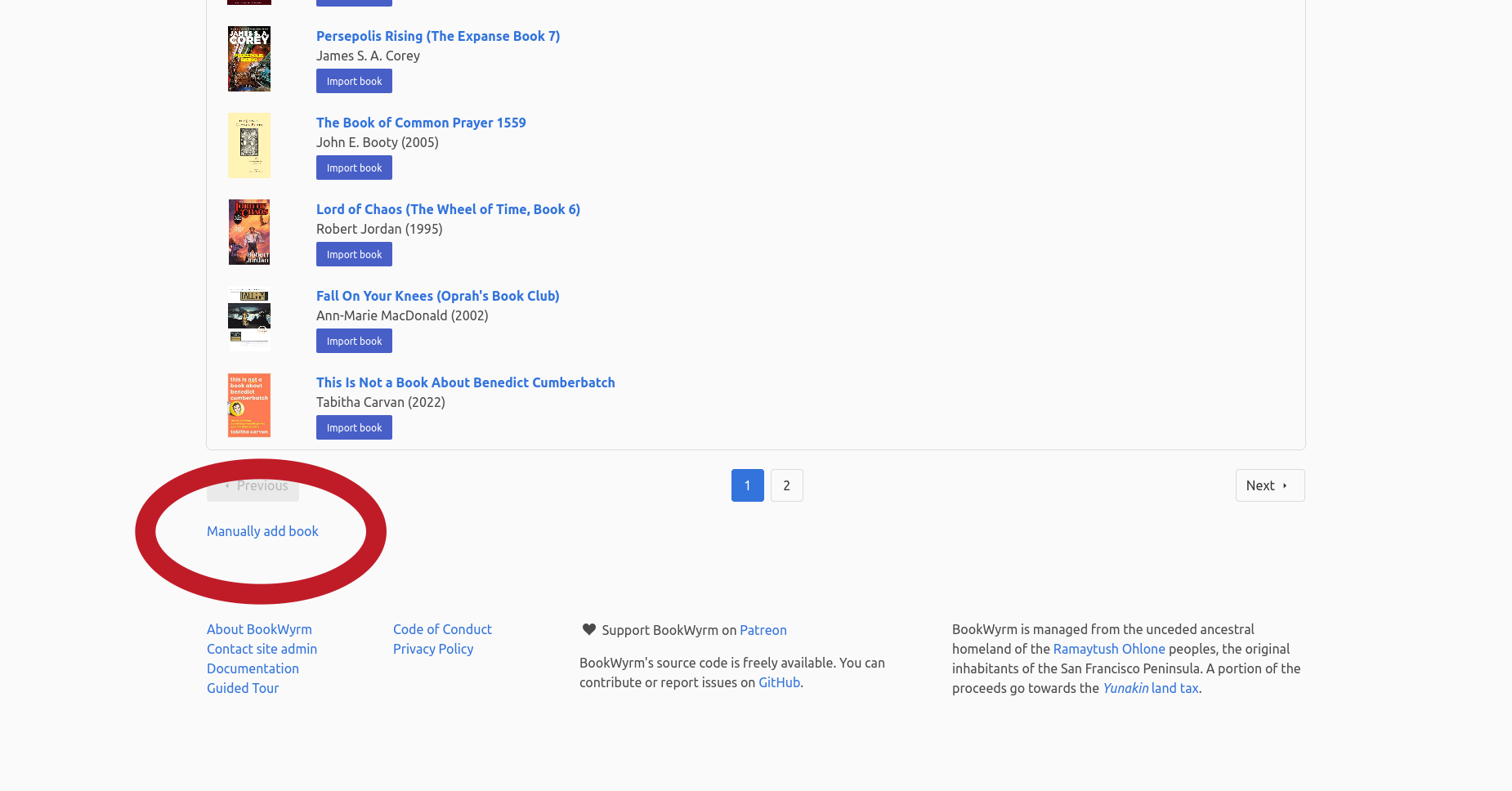
Screenshot of search results on BookWyrm, with the "manually add book" link highlighted.
Screenshot of search results on a BookWyrm server, with the “Manually add book” link highlighted

BookWyrm has a built-in catalogue of books, which is based on open data from WikiData ⧉ in collaboration with Inventaire ⧉. This data is collaboratively written by volunteers, just like Wikipedia, so it is huge but does also have gaps.

If you can’t find the book you want, you can manually add it to BookWyrm by doing the following:

  1. Log in on your BookWyrm server and search for the book you want in the search box at the top of the screen.
  2. If you can’t find your book in the results, click the link at the bottom of the screen to include results from catalogues on other BookWyrm servers. This will give you even more search results.
  3. If you still can’t find your book, click on the Manually add book link at the bottom of the screen below the second set of search results.

Why is it so awkward? Why do I have to search first?

The idea of this setup is to discourage people from manually entering the details of books that are already in the catalogue. Duplicates cause headaches for other people trying to choose particular books, because they don’t know which one of the duplicates to select. By reducing the number of duplicates, the catalogue is kept easier to use.

Can I import book lists into BookWyrm from other sources?

Yes, if you have an existing account on Goodreads, LibraryThing, StoryGraph, OpenLibrary or Calibre you can import your book lists into BookWyrm.

↩ Back to the front page

  •  

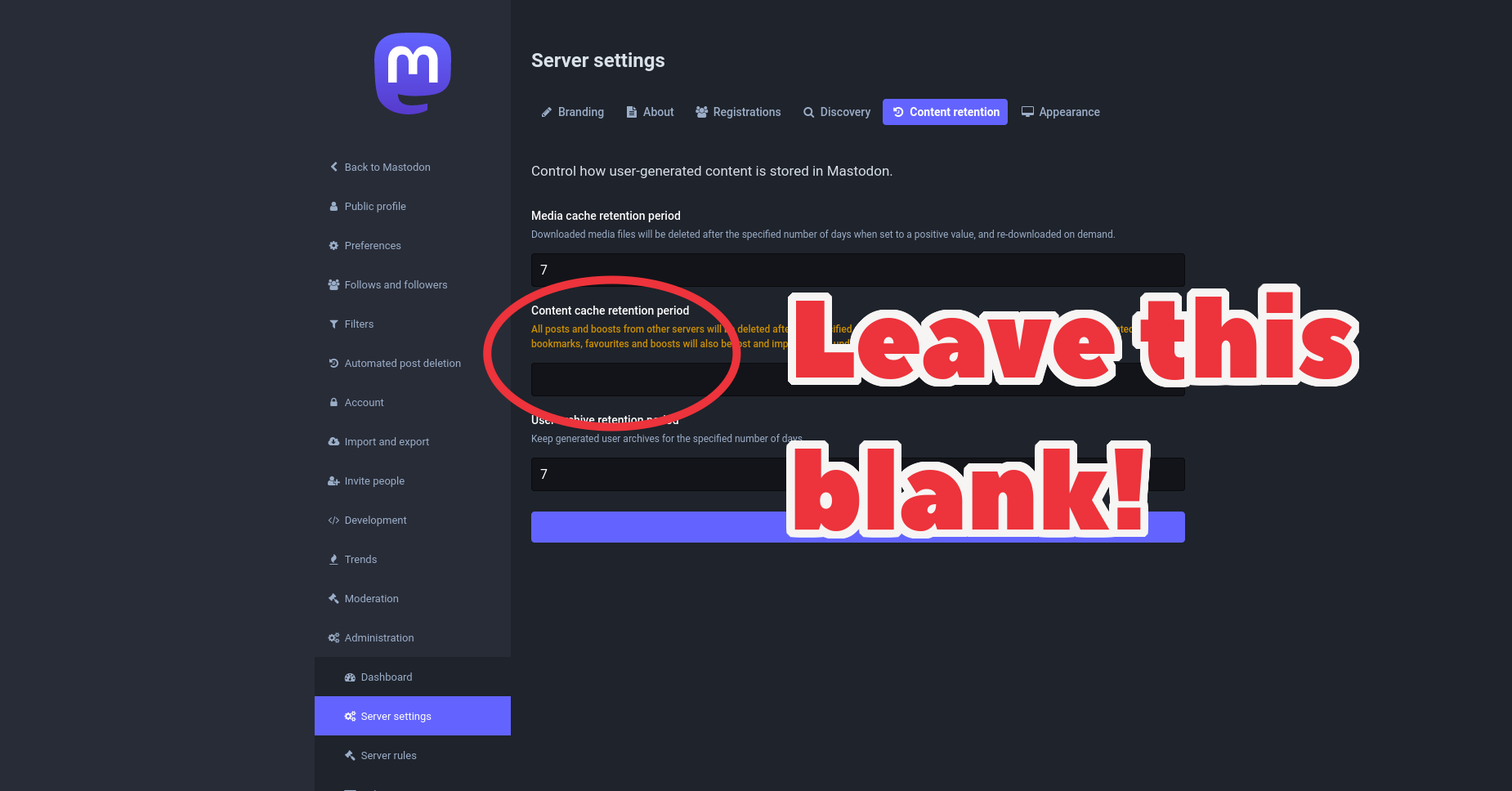
Mastodon admins: Leave the “content cache retention period” blank!

Screenshot of Mastodon admin settings page, with the content cache retention period setting highlighted and a bold caption saying Leave This Blank!

⚠ If you’re the admin of a Mastodon server, you might have noticed a server setting called “content cache retention period”. Do NOT put any numbers in this, just leave it blank!

What happens if I put numbers in there?

It will start permanently breaking threads on your server that are older than that number of days, without any possibility of restoring them. This setting is not really a cache, because there’s no way of getting the content back later.

Whaaat? Why does this setting even exist?

Apparently it was only intended for announcement servers which wanted to avoid data retention for legal reasons. It isn’t intended by the developers for use on ordinary servers.

So why is such a dangerous and niche setting included on normal servers if it’s not intended for normal servers?

Really good question, it probably shouldn’t be there as most admins will never need it and won’t realise the damage it causes. There is a pull request on Github to move it into a separate “danger zone” section ⧉, which includes technical discussion of the situation.

What about the other settings on the same page, can I use them?

Yes, the other settings are okay to use. It’s just the “content cache retention period” one that needs to stay blank.

Can I set the “Media cache retention period”? Can I set the “User archive retention period”?

Yes, it’s fine to set time limits on the media cache and user archives, because they can be reloaded if needed. It’s only the “content cache” that you need to avoid, because the content it deletes cannot be reloaded.

↩ Back to the front page

  •  

How do I check which version of Mastodon is running on a server? What are Mastodon forks?

Each server is totally independent, and does updates on its own schedule. You may want to check which version of Mastodon a server is running, as this can let you know whether a new feature is available on that server. To check a server’s version:

  1. Go to that server’s website (you don’t need to log in)
  2. If you’re on the desktop website, the server’s Mastodon version will be written at the bottom left corner of the screen. If you’re on the mobile website, click the ⋯ icon and scroll to the bottom of the page.
  3. The version number will look something like “v2.2.4” or similar. It may have some extra letters if it’s a customised or experimental version of Mastodon, but the numbers should indicate which version it is based on.

How do I find out the latest version number for Mastodon?

The Mastodon developers’ Github page has the latest version number written at the top of its releases page ⧉.

(If you’re technical that page also lets you browse through the details of the latest version, but you don’t need to do this.)

The server has “glitch” or “hometown” written on its version number. What does this mean?

Mastodon is free open source software, which means anyone with the necessary programming knowledge can create their own customised version, known as a “fork”. Two of the most popular and well-established forks are Glitch Mastodon ⧉ and Hometown Mastodon ⧉. If you see these names in the version number, it means your server is running one of these forks.

There’s nothing wrong with a server running on a fork of Mastodon, in fact it often brings more features. Forks and originals aren’t rivals or competitors, they can contribute to each other in both directions. Many features of standard Mastodon originally appeared on the Glitch fork. Whichever fork your server is running, it’s still compatible with standard Mastodon and you’ll be able to follow and interact with people from standard Mastodon servers.

Standard Mastodon is often called “Vanilla Mastodon” to distinguish it from Glitch Mastodon, Hometown Mastodon and other forks.

The server’s version number has lots of letters and numbers and the word “alpha” or “beta”. What does this mean?

There are always two latest versions of Mastodon: the stable release version and the experimental version.

The vast majority of servers run the stable release version, as it has been extensively tested and is known to work well. However, some servers prefer to have the very latest cutting edge experimental features, and they will run the experimental version which is usually labelled differently. In software development, the words “alpha”, “beta” and “nightly” usually indicate an experimental version that isn’t yet ready for release. Experimental version numbers may look even more complicated such as “alpha.0+pr-28693-384ec56”.

If your server is running a test version of Mastodon, you will probably see new features ahead of servers running the release version. However, features on the experimental version may disappear without warning, or not work properly, or break other features, and that’s why most servers use the release version instead.

↩ Back to the front page

  •  

How do I get a link preview to appear in my post on Mastodon?

Screenshot of a post from Mastodon with a link in the body of the post and a link preview below the post. The preview has a short text description of the site being linked to, and there's an image in the preview taken from the header of the site being linked to.

Link previews are little boxes of information about a website link, often including an image and short text description, which appear below a post that includes that link.

To make a preview appear in your post, just include the link in the post. You don’t need to do anything else, because the link’s preview will be automatically generated.

Why doesn’t the preview appear when I include a link?

It may take some time for the preview to appear as it’s your server which does the generation, and it may have a queue of other tasks to deal with first. If you go back to the post later, the preview should be visible.

Why do previews sometimes look different on different servers?

At a technical level, previews are generated by the server of the person viewing a post, so people from different servers may see slightly different previews, depending on which version of Mastodon (or other Fediverse software) their server is running.

Why do some previews have pictures while others are just text?

Previews are generated based on the settings of the website being linked to. If the website doesn’t have any settings for preview images, the previews in links to that site will just be text.

I run a website, how do I add settings for preview images and descriptions?

Mastodon uses Open Graph information to generate previews. Website owners can include Open Graph code to provide information about their site.

Here are some examples taken from the Wikipedia article on the Open Graph Protocol, you can put them in the header of your site:

<meta property="og:title" content="Example title of article">
<meta property="og:site_name" content="example.com website">
<meta property="og:type" content="article">
<meta property="og:url" content="http://example.com/example-title-of-article">;
<meta property="og:image" content="http://example.com/article_thumbnail.jpg">;
<meta property="og:image" content="http://example.com/website_logo.png">;
<meta property="og:description" content="This example article is an example of OpenGraph protocol.">

You don’t need to include all these tags, just the ones you want to include info about. For example if you want images in your preview, you should include the image tag with a link to the image you want to appear on a preview.

↩ Back to the front page

  •  

How do I stop receiving email notifications from Mastodon?

Mastodon sometimes may send you emails when certain things happen on your account. You can switch off these emails by doing the following:

  1. Log in through your server’s website or through the web app
  2. Click on ⚙ Preferences
  3. Click Notifications on the left of the screen (or on the mobile site click ☰ and then Notifications in the menu)
  4. UN-tick all the boxes in the section marked Events for e-mail notifications
  5. Click the Save Changes button at the top of the screen

This won’t affect notifications you get within Mastodon itself, it just switches off the emails.

↩ Back to the front page

  •  

Using Mastodon on retro computers

There are many retro computing apps / clients available which let you use Mastodon through classic hardware from the 1980s and 1990s:

APPLE IIMastodon for Apple II ⧉
APPLE MACINTOSH (Pre-OS X)Macstodon ⧉
COMMODORE 64MOStodon ⧉
COMMODORE AMIGAamidon ⧉
MS-DOSDOStodon ⧉
MVSBREXXTODON ⧉
PALM OSHeffalump ⧉
WINDOWS 95Mastodon for Workgroups ⧉

↩ Back to the front page

  •  

How to install Web Apps for Mastodon and the Fediverse

Most people think about websites and apps as being two separate things. However, some websites are specially written to function pretty much like apps, and you can even install these sites as apps with their own icon. You don’t need to go through any app stores, you can install them directly from your web browser.

These kinds of special installable websites are called “web apps”. Web apps are so sophisticated nowadays, many of the apps you install from app stores are actually web apps.

The websites of Mastodon servers and other Fediverse server types such as Pixelfed, PeerTube, BookWyrm etc can be installed as web apps on your phone or tablet. Scroll down this page to see a list of the Fediverse server types that support web app installation.

Should I use app store apps or web apps?

In most cases it’s just a matter of taste!

For example, Mastodon has lots of official and third party app store apps, but many people prefer the Mastodon web app as it tends to get features before the app store apps. The web app has also been in development for longer than any other Mastodon app, so its features tend to be well-developed and mature.

However, some Fediverse server types (such as BookWyrm for example) don’t have app store apps at all yet, so the web apps are their only app.

How to install web apps on Android phones and tablets:

  1. Open your Android phone or tablet’s web browser and go to your server’s website
  2. Open the browser’s options menu (usually ︙ in top right corner of screen)
  3. Click on Install app
  4. It will ask for confirmation of the installation, click Install
  5. An icon will appear on your home screen, click on this and log into your account

How to install web apps on iPhone and iPad:

  1. Open the Safari web browser and go to your server’s website
  2. Click the Share icon at the bottom of the screen (it looks like a box with an arrow pointing upwards)
  3. Scroll down through the options and click on Add to Home Screen
  4. Give the name you want for the icon and confirm the installation by clicking on Add
  5. An icon will appear on your home screen, click on this and log into your account

Do I get notifications for web apps? How do I control the notifications?

Yes, web apps nowadays support notifications.

Once you’ve installed the web app and you’ve logged in, your phone or tablet may ask if it’s okay to show notifications for the web app, if you want notifications you should say yes to this. You can also set notifications for the web app in your phone or tablet’s notifications settings section.

Which Fediverse server types can be installed as web apps?

You can install web apps for most Fediverse server types including:

BookWyrm
Friendica
Funkwhale
Mastodon
Mobilizon
OwnCast
PeerTube
Pixelfed
WriteFreely

Isn’t this just a bookmark? What’s the point of this?

Web apps are slightly different to bookmarks.

Installation won’t work for all websites, it will only work for those specifically desgined to be web apps. If you try to install non-app websites on your home screen, either the installation option will just not be there, or they will produce an icon but that icon will just open the site in a web browser exactly like a bookmark.

Web apps work a bit differently when they are added to your home screen, they hide the browser’s interface and let you just use the web app’s own interface. At a technical level they are still working through the browser, but in practice using a web app is pretty much like using an app. As noted above, many of the apps in app stores are actually web apps.

By adding web apps to your home screen, it means you can install Fediverse platforms that aren’t on app stores yet (such as Pixelfed or BookWyrm). Even on platforms that do have separate apps, such as Mastodon, many people prefer the web interface so they use the web app.

My iPhone/iPad calls these bookmarks?

Parts of the iPhone/iPad interface do refer to web apps as bookmarks, but web apps behave differently to bookmarks. Normal websites open in the browser just like bookmarks with the browser controls visible, but installed web apps hide the browser controls and the entire screen is devoted to the web app.

What are Progressive Web Apps / PWAs? What are Web Clients?

You might hear web apps referred to as Progressive Web Apps or PWAs or Web Clients. These are all pretty much just different names for the same thing.

↩ Back to the front page

  •  

How can organisations or groups run a Mastodon server?

Running any kind of social media server is a big topic, especially if it’s a jointly-owned server run by a group, collective, business etc.

The legal side of things depends on where your organisation is based and what your organisation’s existing structure is. Your local laws will provide various options for joint ownership structures, for example co-operatives are popular in many countries. Usually a Mastodon server can be jointly owned and managed just like anything else that belongs to your organisation.

How does joint management of a Mastodon server work in practice?

Many people can jointly run a single Mastodon server by using the “roles” system, where accounts are assigned special privileges by the owners of the server. These privileges allow staff to do things that ordinary members can’t do, for example delete posts or block users. Different roles have different amounts and types of privilege.

There are a number of pre-made roles (Owner, Admin, Moderator) but completely new roles can also be created with highly customised sets of abilities. The “Owner” account is the highest-ranked role and has the final word on everything, so this is normally given to people most trusted by your organisation. You can assign several accounts as owners if you want.

If your organisation needs a hierarchy, there is an optional priority system for roles so that if two staff members disagree on certain actions, the higher priority role gets the final decision.

The profiles of staff carry a special badge with their role name, so everyone on your server can see that they are staff.

How to give a server member a special role

  1. Log in through an account that has the power to assign roles. Owners can assign any role, other staff members may also be able to (depending on what privileges they have been given).
  2. Go to Preferences > Moderation > Accounts
  3. Click on the member you want to assign a role to
  4. Scroll down to the Roles section of the page and click on Change role
  5. Select the correct role and click Save changes

How to adjust existing roles or create new roles

  1. Log in through an account with power to create roles (usually Owners)
  2. Go to Preferences > Administration > Roles
  3. To edit an existing role click the Edit button next to it, to create a new role click the Add role button at the top of the screen

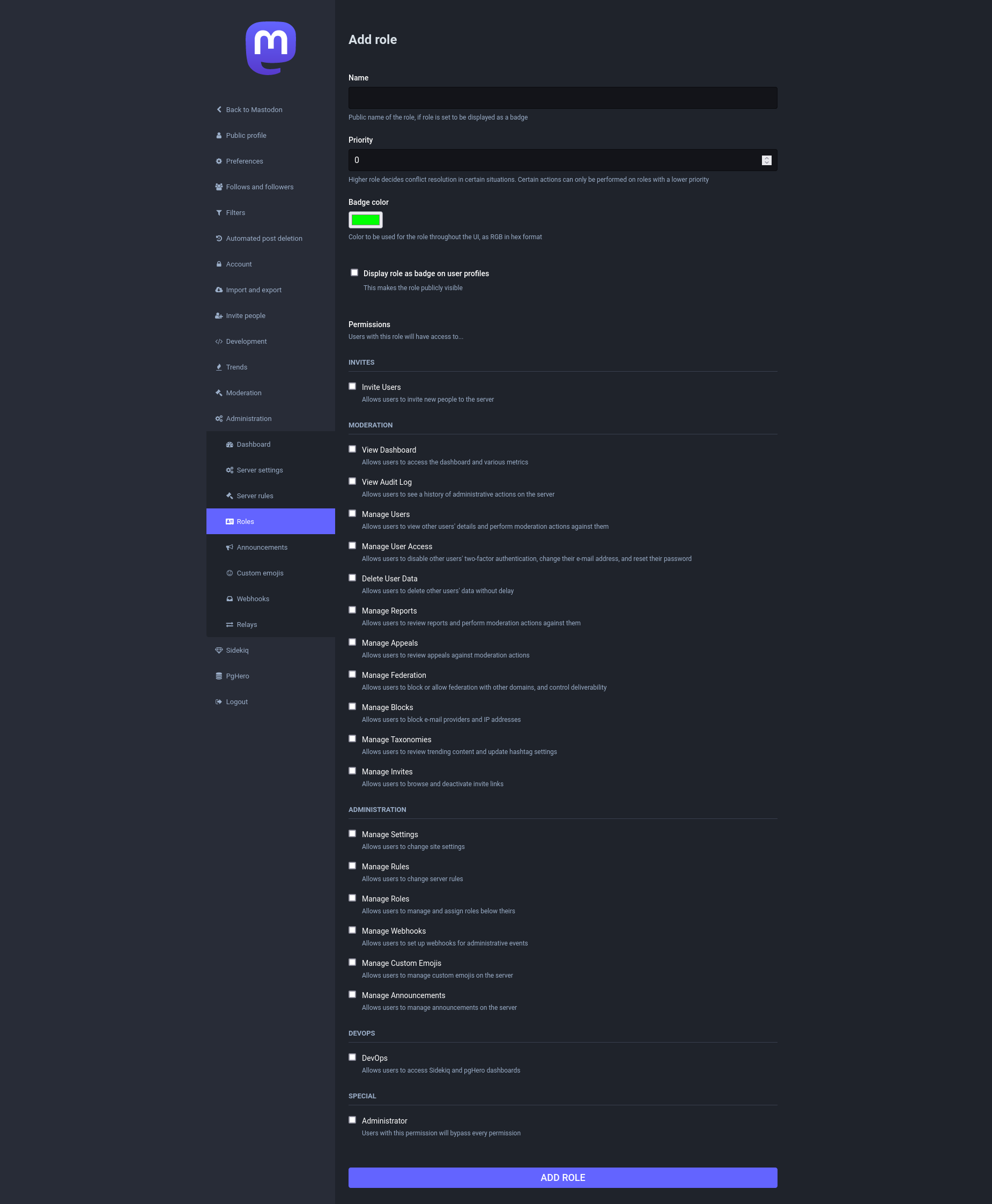
Note that there are a lot of differnet abilities that can be assigned to roles (see below). You may want to err on the side of caution and only assign abilities that you’re totally sure you want them to have.

Screenshot of Mastodon's role creation feature, showing a very long list of various abilities that can be assigned to the role such as managing reports, blocking users, creating emoji etc.
Screenshot of the role creation screen showing all the abilities that can be assigned to the role

↩ Back to the front page

  •  

How to subscribe to PeerTube channels through podcast apps

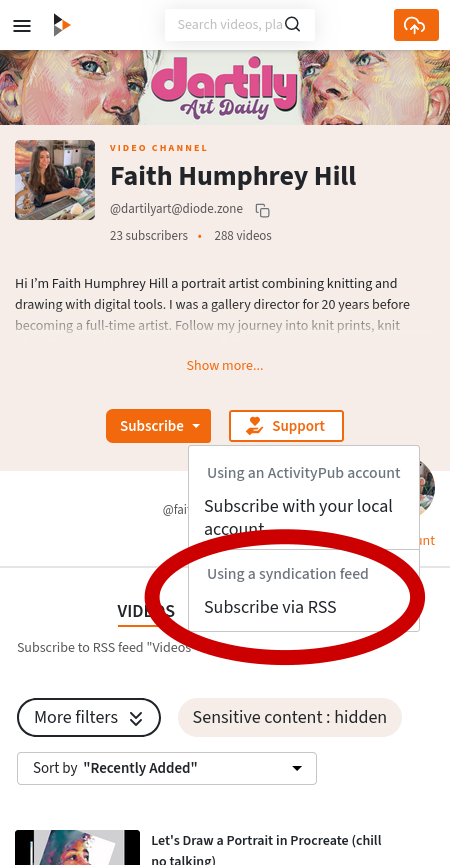
Screenshots of a PeerTube channel’s feed link option and the same channel displayed in Apple Podcasts

Every PeerTube channel has a feed link that can be subscribed to through most podcast apps such as AntennaPod, Apple Podcasts etc.

To subscribe via podcast apps, first you need to get the channel’s feed link:

  1. Go to a PeerTube channel’s profile page
  2. Click on the arrow on right side of its Subscribe button
  3. Copy the link from Subscribe via RSS option. If you’re using a phone or tablet, long-press and select Copy link. If you’re on a computer, click on the option to open the link and then copy the feed’s address from the bar at the top of the browser.

Once you’ve got the link, you can use it in your podcast app. Different apps will have different interfaces, but they should be broadly similar in how they work. Usually there will be a box for you to paste the feed link into.

As an example, here’s how to subscribe to a feed link in Apple Podcasts:

  1. Click on the Library tab at the bottom of the screen
  2. Click the ⋯ icon in the top right
  3. Select Follow show by URL
  4. Paste the link into the box, then click Follow

Does this work for video or audio podcasts?

Both! This works for both video and audio, as PeerTube lets people upload both video and audio files.

Can I listen to video episodes as just audio?

Usually yes, but it depends on the podcast app you’re using.

For example, in Apple Podcasts when you press play on a video podcast, the audio plays but the video is shown as a tiny preview (which you can expand to full screen if you want). You can even lock the screen which blanks it, but the audio will carry on playing.

Which podcast apps does this work on?

It should work on any podcast app that allows you to follow a podcast’s feed link. Different apps might call these links “URL” or “RSS” or “Feed” or “Syndication” or other terms, but they all involve the same process of pasting the link into the app.

Most podcast apps allow following podcasts by pasting links. On some podcast apps this may be the only method!

Is this for channels or accounts?

The channel page has a feed for just that channel, the account page has a feed that combines all of the account’s channels into one feed.

Can I download episodes to the podcast app to listen/watch offline?

Yes, if the uploader has enabled downloads. Just use your podcast app’s ordinary download function.

How do I promote my PeerTube channel to podcast app users?

Tell them what the feed link is for your channel, to save them having to do the steps above.

I’m viewing a PeerTube account or channel from Mastodon, how do I find its feed link?

Go to the account or channel’s original page, which will take you to its profile page on PeerTube. Then follow the steps above.

Will this feed work on RSS news feed readers too?

Yes, the same feed works on both RSS news apps and podcast apps.

Will podcast subscribers show on my channel’s subscriber numbers?

No. The subscriber number only shows people following you from the Fediverse (including other PeerTube accounts, Mastodon, Friendica etc). Podcast following works through passive feed subscription, it doesn’t send any kind of following data back to your server.

↩ Back to the front page

  •  

What does the eye icon 👁️ mean on Mastodon?

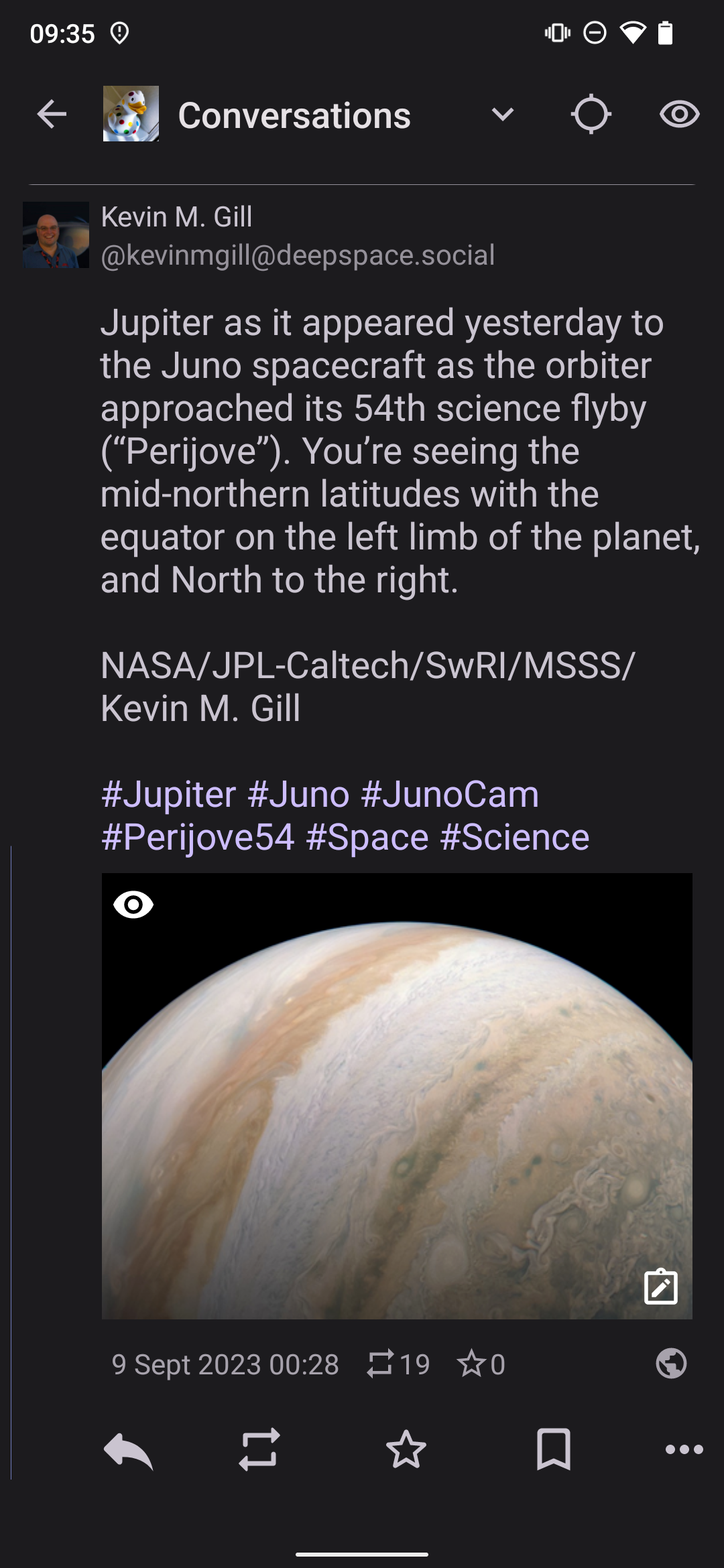
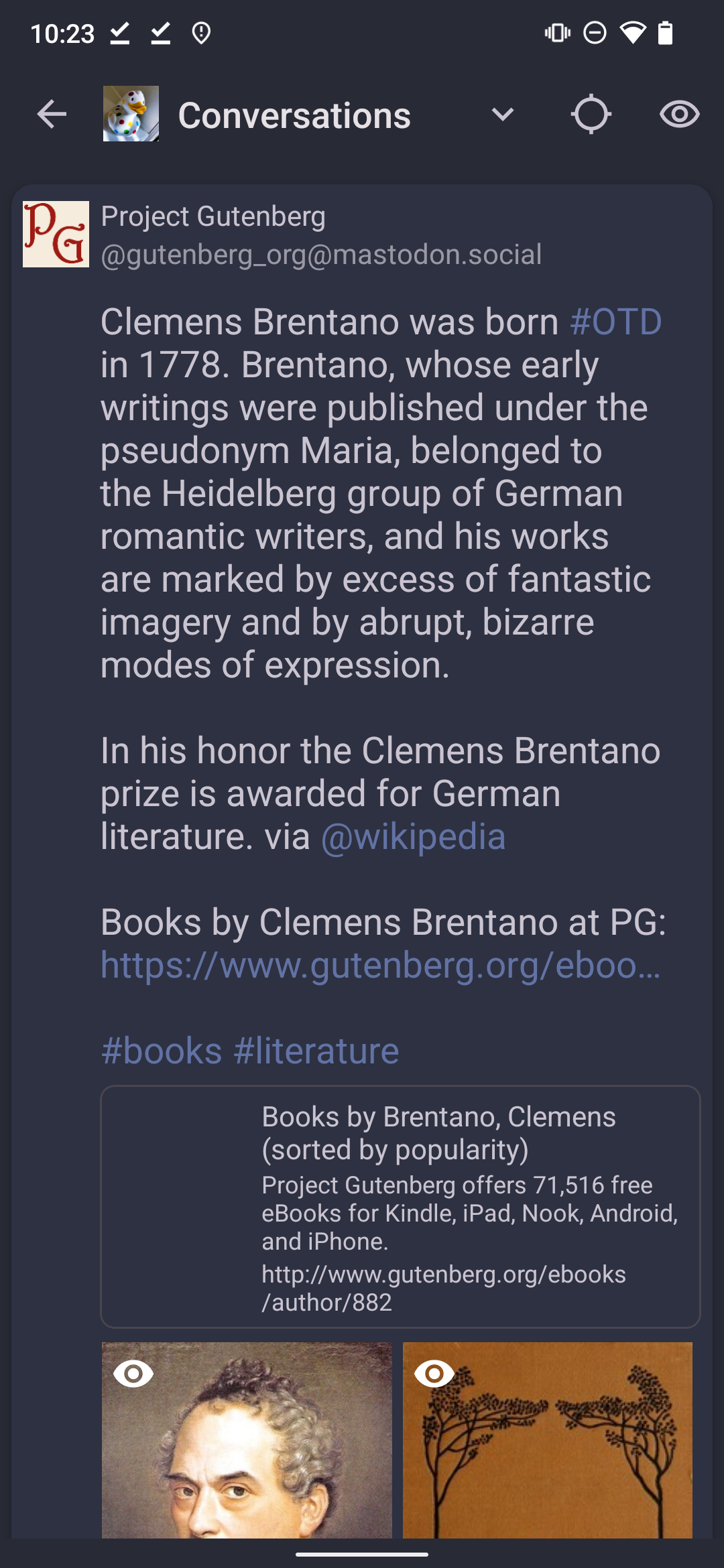
If you’re browsing a thread on Mastodon through your server’s website or on the web app, you may have noticed an icon in the top right corner that looks like an eye 👁

Clicking this icon reveals or hides all posts in the thread that are hidden by Content Warnings (CW). If the posts with CWs are hidden, click on the eye to open them all at once, or click again to close them all.

This feature is really useful on threads with a lot of posts hidden by CWs, as it means you don’t have to open each CW one by one.

I can’t see the eye, where is it?

The eye icon is only visible when you’re viewing a thread. You can view a thread by clicking on a post, which will show you the thread the post comes from.

I clicked the eye and it doesn’t seem to do anything?

Try clicking it again. If you have one post revealed and you click the eye, it just hides that post and leaves the rest hidden, so it appears to do nothing. When you click again, it opens all the posts at once.

There’s an eye in the official app but it doesn’t reveal the whole thread?

The official Mastodon app also has an eye symbol but it’s displayed in posts rather than at the top of threads, and it just reveals the contents of that specific post.

↩ Back to the front page

  •  

How do I post a thread on Mastodon?

Mastodon threads are built with the traditional method used on many other social networks.

Here’s how to do this manually in any app:

  1. Post the first part of your thread, and mention that it is the start of the thread
  2. Reply to the post with the second part of the thread
  3. Reply to this reply with the third part etc
  4. Just keep replying to your last previous reply to add the next part, and go through all your posts in order
  5. When you get to the final reply, mention that it’s the end of the thread

Should I number the thread?

A lot of people also number their threads at the bottom of each part to indicate it is in a thread, and which part it is (such as 1/9 on first post in a nine post thread, 2/9 on second part, 3/9 on part 3 etc). Some also optionally add a cotton reel emoji 🧵 next to the first post’s numbering as a visual pun to indicate a thread.

If you’re not sure how many parts a thread will have, you can just number them as 1/X, 2/X, 3/X and then END on the final post. As Mastodon has an edit function, you can add the numbering to a thread afterwards too.

What visibility setting should I use for threads?

If you are posting a public thread, it’s considered polite to use a public visibility setting for the first post but an unlisted visibility setting for the replies in the thread. This means that only the start of the thread shows up on public timelines, and makes them easier to browse. However, if you’re unsure about how to do this don’t worry.

Is there an easier way to create threads? Can I create them in advance in one go instead of manually bit-by-bit?

Some apps and scheduled posting services may include thread-creation systems which let you write the thread in full and then post the thread in one go, but at a technical level they are just doing the above process of replies-to-replies automatically.

If you’re on a computer, you can use a notepad application to type the whole thread in one go, then split it into bits by copying and pasting sections of your text over to Mastodon.

↩ Back to the front page

  •  

How do I use PeerTube? How do I follow PeerTube accounts from Mastodon?

This is a guide for watching and interacting with PeerTube videos, and following PeerTube accounts. If you want to publish videos on PeerTube, please click here.

What is PeerTube anyway?

It’s a video platform for the Fediverse, kind of like YouTube but spread out on lots of servers that talk to each other instead of being on one site. Have a look at fedi.video ⧉ if you want to see an example server.

Also here’s the really cool bit: because PeerTube and Mastodon are both part of the Fediverse, you can follow PeerTube accounts from Mastodon. You can also watch, comment on and like PeerTube videos entirely within Mastodon, using your Mastodon account.

How do I watch PeerTube videos?

If you just want to browse and search for PeerTube videos and don’t want to follow or interact, then the easiest method is probably to watch them directly on a PeerTube server website. You don’t need to register, there are no ads, no cookies etc, you can just watch videos in peace without having to do anything else. For an easy way to get started exploring PeerTube, I run a site at fedi.video ⧉ which highlights interesting videos from across the whole PeerTube network.

Different servers will have different videos visible, depending on which other parts of PeerTube they federate with. If you can’t find the videos you want on the server you’re browsing, try using one of the discovery methods mentioned below.

How do I upload videos to PeerTube?

Please see the guide to publishing on PeerTube.

How do I follow PeerTube accounts from Mastodon?

There are many ways to follow PeerTube accounts, but the most popular by far is following them from Mastodon. This allows you to watch, follow and interact with PeerTube using your existing Mastodon account, and without leaving your Mastodon app or website. It’s so simple and seamless that many people who use it don’t even realise they are following PeerTube accounts!

To follow a PeerTube account on Mastodon:

  1. Find the PeerTube account’s fediverse address on its profile page
  2. Copy the account’s address and paste it into the search box in Mastodon, this will bring up the PeerTube account’s profile within Mastodon
  3. Go to the PeerTube profile
  4. Click Follow

…and that’s it! Videos from followed accounts will start appearing in your timeline. You can watch them within Mastodon by clicking the play button, or click on the link to watch the same video on its PeerTube server.

If you want to try this out, copy and paste the account address @theatticdwellers@tilvids.com into the search box on Mastodon. This will bring up a PeerTube account which you can follow, and its videos will be visible on its profile page.

Can I comment and like PeerTube videos from Mastodon?

Yes! You can interact with PeerTube videos entirely within Mastodon.

If you are following a PeerTube account its videos will appear in your home timeline. The videos will look just like posts from Mastodon accounts, and you interact with them in exactly the same way. If you favourite a PeerTube video in Mastodon, it will appear as a thumbs up for that video in PeerTube. If you reply to a PeerTube video in Mastodon, it will appear as a comment below that video in PeerTube.

If you’re wondering how this is possible, it’s because PeerTube and Mastodon are both part of the Fediverse and use the same open technical standard (called ActivityPub) to communicate between servers. That means Mastodon servers can talk to PeerTube servers and vice versa.

How to discover PeerTube accounts to follow

There are lots of ways of discovering PeerTube accounts and videos:

  • Visit the website fedi.video ⧉, which highlights nice videos from across PeerTube which you can browse or search. It does this using an allowlist system which screens out bad content before it can appear.
  • Follow the account @FediVideo@social.growyourown.services ⧉ in Mastodon, it boosts interesting PeerTube videos every day. If you like a particular video and want to see more, click on the video’s profile link and click Follow. There is also a PeerTube playlist ⧉ you can watch which includes every video boosted by the account.
  • Browse the PeerTube section on Fedi.Directory ⧉, and click on an account to find out more. If you like it, copy and paste the account’s address into the search box on Mastodon and click Follow.
  • Some people on Mastodon may also mention their PeerTube account addressrs in their profiles. You can follow these addresses in Mastodon.
  • There is an official PeerTube search engine called SepiaSearch ⧉, which aims to search as many PeerTube servers and videos as possible to give the largest number of relevant current results. However, the downside of this is it may also contain nasty content. (The admins of SepiaSearch screen out bad content when it is reported, but because it uses a blocklist system instead of allowlist, bad stuff may sneak through if no one reports it.)

Following PeerTube accounts from PeerTube

Of course, you can just follow PeerTube accounts from PeerTube itself!

Using a PeerTube account allows you to comment, like, follow etc but also allows some things not possible through Mastodon, such as being creating playlists, saving videos to watch later and various other options such as donating to the creator. Some video accounts also offer file downloads if you want to watch the videos offline. The experience of using a PeerTube account is very similar to YouTube.

You can get a PeerTube account on any PeerTube server that is open for signups, for example tilvids.com ⧉ is a good one. If the video you want to interact with isn’t visible on the server you signed up on, you can make it appear by copying and pasting the video’s link into the search box on your PeerTube server. The video will appear, and you’ll then be able to interact with it and follow its creator’s account.

Can I use PeerTube accounts through an app instead of the website?

Yes, the Fedilab app can be used for PeerTube accounts as well as Mastodon ones, and there’s also a free open source app called NewPipe ⧉ which is PeerTube-compatible too. The PeerTube part of Fedilab is separate from the Mastodon section, and has an interface dedicated to PeerTube.

Also, if you just want to subscribe and watch/listen, but don’t want to comment or like, you might want to try following PeerTube through your favourite podcast app.

A video starts playing but it’s really jerky. How do I fix this?

If you pause a video, this will give the video a chance to load up a bit more so that it doesn’t have to keep stopping.

Also, some videos include a download link so you can watch it on your own device’s video player (this is optional though, it’s is up to the person who uploads the videos to decide if it will include a download link).

A video won’t load, or it says it’s not available. What do I do?

If a video says it cannot be accessed, try reloading the page and pressing play again.

The reason this happens is usually because the video is on a different server to the one you’re watching from, and occasionally the connection can get a bit flaky. Reloading the page usually fixes this problem.

If it still doesn’t load, it’s possible that the server actually hosting the video is down.

Following PeerTube channels and accounts on Podcast apps

If you just want to subscribe to a channel and don’t care about commenting or liking, you can follow any PeerTube channel or account through most podcast apps.

Following PeerTube accounts through RSS

If you’re a fan of using RSS news feeds, you can follow PeerTube accounts through RSS. To get an account’s RSS feed address, go to the account’s profile on PeerTube and click the options arrow next to the Subscribe button, one of the options wthatill be RSS.

As it’s RSS, interactions are impossible because RSS feeds are one directional.

Following PeerTube accounts from other Fediverse server types

There are also other Fediverse platforms which let you follow PeerTube accounts, such as Friendica. You can use exactly the same methods for following as detailed in the above section about Mastodon, it all works in the same way.

Why can’t I find what I want on PeerTube?

PeerTube is very new and most people publishing videos on it have only just got started. It has grown significantly since its early days, and hopefully the explosion of new users on Mastodon will make PeerTube grow even faster. If you want to see more content on PeerTube, it helps if you follow, comment and like the videos that are there already.

Another thing to bear in mind is that PeerTube is mainly built and run by volunteers. Each server has to cover its own operating costs, and the PeerTube platform’s software is developed by a non-profit organisation together with volunteer programmers. There are no VC investors or corporations funding PeerTube, the whole thing is a grassroots effort paid for by donations.

There’s a “friendly reminder” warning at the bottom of the page. What does it mean?

The warning is there for an abundance of transparency, rather than because of significant risk.

PeerTube reduces the stress on servers by sharing the bandwidth of people who are watching the same video at the same time. This allows small independent servers to exist more easily because it keeps costs down on popular videos.

In theory, because the bandwidth is being shared, someone watching the same video as you at exactly the same time as you might be able to see your IP address. However, this is not a built-in feature of PeerTube, it would require significant modifications by whoever did it, and all it would tell them is that someone with that IP address is watching that video. It wouldn’t by itself tell them who you are or any personal info.

Also, even seeing the IP address would be difficult for various technical reasons ⧉.

IP addresses are a short series of numbers that your internet provider assigns to your computer or phone whenever it connects to the internet. Everything on the internet has an IP address so that information can flow correctly from one place to another. IP addresses for ordinary internet users aren’t permanent, and may change every time you connect to the internet.

If you’re concerned about the risk of IP addresses being visible to others, bear in mind your IP address is already visible to any internet site you look at, or online app you interact with, because that’s how the internet knows where to send stuff. The only way to avoid IP addresses being exposed to others is to use a VPN ⧉.

↩ Back to the front page

  •  

How to publish videos (and audio) on PeerTube

This is a guide to publishing on PeerTube, the Fediverse’s video platform. If you want help with just watching PeerTube videos and following PeerTube accounts, click here.

Why publish on PeerTube?

There are many reasons why people choose to publish on PeerTube:

  • PeerTube videos are shown without adverts or interruptions
  • PeerTube servers don’t insert trackers or try to invade people’s privacy
  • Video makers are not at the mercy of an opaque, ever-changing algorithm that manipulates search results
  • PeerTube is part of the Fediverse, which means PeerTube accounts can be followed and interacted with from any of the millions of accounts on Mastodon etc
  • PeerTube servers are totally independent and generally fairly small, so it’s easy to communicate directly with the owner if there’s a problem
  • You can create your own PeerTube server if you want complete control, ownership and flexibility over your video platform

1. Sign up on an existing server, or start your own server?

There are two main ways to publish on PeerTube: sign up on an existing server that belongs to someone else, or start your own server.

The existing server option is much easier, and is the most popular option for individual accounts. Bear in mind some servers allow you to sign up but don’t allow uploads, so you’ll have to find a server that allows uploads for its members. Some well-run servers where you can currently sign up and upload are listed below. By default they are general servers, but ones with a specific theme have been marked:

There are also some servers where uploads are possible but you need to contact the server admin directly in order to activate the upload function for your account:

You can also look at the account addresses of existing PeerTube accounts to see where they are hosted. Their server will be mentioned in the last part of their Fediverse address. To browse existing PeerTube accounts, have a look at fedi.video ⧉.

Alternatively, you can start your own server! Starting your own server is a bit more complicated, but it gives you full control over the server and is favoured by large organisations such as the European Union ⧉ or the Blender Foundation ⧉. You may also want to start your own server for other people to sign up on.

Non-technical people can create their own server through a managed hosting service ⧉ which handles all the techy stuff behind the scenes for a monthly fee. Semi-technical people can use software like Yunohost ⧉ to set up a server on a VPS. Highly technical people can use PeerTube’s full manual instructions ⧉ to set up a server.

2. Accounts vs Channels

Whatever method you use to get onto PeerTube, you will need to create an account and channels for your videos to be uploaded to. Accounts are what you use to log into PeerTube, and channels are like categories for your videos to go into.

However, there is a complication here: the channel system doesn’t work properly on Mastodon. When people view PeerTube videos on Mastodon, they will see the video as being posted by your account and not your channel. Because of this situation, it’s recommended that you use separate PeerTube accounts if you’re wanting to have channels with separate identities, with just have one channel per account and the same name for both.

Channels do work well when viewed through PeerTube, but unfortunately most of the potential audience is on Mastodon where only accounts are visible.

3. Choose your account and channel address carefully

Every account and channel has a display name in big letters, and a Fediverse address in smaller letters below that.

You can change your account or channel display names any time you want, but the account and channel addresses have to stay the same. Fediverse addresses cannot be changed for the same reason that website addresses or email addresses cannot be changed, because any change to an address would break existing connections from other sites.

So, be really sure about your addresses when you are setting up an account and an channel, as you will need to stick with those addresses. If you need to change your identity or branding, changing the display name is a much safer option than fiddling with the addresses.

4. Upload your videos gradually, one at a time or in small batches. Do NOT upload them all at once.

You can upload videos through your server’s website, or though PeerTube-compatible apps like Fedilab.

Because of the way content federates across most of the Fediverse, it is highly recommended that you upload videos gradually, perhaps once a day at most, rather than uploading a huge load of videos all at once.

If you upload all your videos at once before you have any followers, Mastodon users will see your profile as totally blank and may not know you have uploaded any videos at all. Gradual uploads allows you to build up a following, which in turn allows your videos to federate to a much wider audience, gaining you even more followers.

If you’ve already uploaded all your videos in one batch, you can either take some down and reupload them gradually as your follower numbers grow, or you can boost some from your Mastodon account (if you have one). To boost videos on Mastodon, paste the video’s web address into the Mastodon search box, and then clicking the video’s boost button in Mastodon. This will cause the PeerTube video to federate to your Mastodon server and all the servers of people who follow your Mastodon account.

If you have an account on an existing video service, you can import videos directly to your PeerTube account using the Import with URL feature ⧉, but only do this for videos you have legal permission to share. Also bear in mind the automatic import feature reduces the picture quality of the video, and it’s better to upload the original file if you can ⧉.

5. Think about what time of day you upload

Most people on the Fediverse use chronological timelines, so they see posts appearing at the time they were written. On the Fediverse there isn’t an algorithm punishing or rewarding accounts, people simply follow and see all posts from everyone they follow.

This means it’s a good idea to publish videos at a time when your potential audience is awake and looking at their timelines. If you publish when your audience is sleeping, they are much less likely to see your video. (They might still see it from searches and shares, though.)

6. Tag your videos

Lots of people on Mastodon follow hashtags and search for hashtags, so it’s important to tag your PeerTube videos so that they will be noticed by Mastodon users.

To tag a video, to go the video’s Tags section and enter a word or phrase for a tag and then press enter. After you press enter, the tag will be created, and you can add another tag (you can have up to five on a video).

7. Let people know about your PeerTube account

If you have a Mastodon account, tell people about your PeerTube account’s address so they can follow it directly from Mastodon. For example you could post about it, put it in a pinned post, and list the account address on your profile.

If you want your videos to be as visible as possible to a wider audience, it is important to get Mastodon followers for your PeerTube account, because Mastodon has a much larger userbase than PeerTube. Mastodon followers mean each follower’s server will notice whatever videos you upload, and your videos will become visible and searchable to everyone on those Mastodon servers. However, this visibility will only apply to videos uploaded after you were followed, so that’s why it’s important to upload new content gradually as your follower numbers grow.

Alternatively, you can tell my accounts at FediFollows ⧉ and FediVideo ⧉ about your PeerTube account, and I might give it a shoutout!

8. Tell podcast app users how to subscribe to your PeerTube channel feeds

PeerTube channels can be subscribed to via most podcast apps. You might want to let people know this is an option for your PeerTube channel, there’s a guide to how to subscribe to PeerTube on podcast apps here.

Bear in mind though, like all podcasts this is one-directional so people won’t be able to like or comment from their podcast app. Also, podcast subscribers will not show up on your subscriber numbers, though it may show on your view numbers.

By the way, the same podcast link can also be used to subscribe through RSS news feed readers.

What kind of files can I upload to PeerTube? Can I upload audio-only files too?

PeerTube accepts uploads in lots of different video and audio formats. Here’s a complete list:

.webm, .ogv, .ogg, .mp4, .mkv, .mov, .qt, .mqv, .m4v, .flv, .wmv, .avi, .3gp, .3gpp, 3g2, 3gpp2, .nut, .mts, .m2ts, .mpv, .m2v, .m1v, .mpg, .mpe, .mpeg, .vob, .mxf, .mp3, .wma, .wav, .flac, .aac, .m4a, .ac3

If you upload an audio file, you can optionally add a still image as artwork. if you don’t add artwork, the audio file will play over a blank background.

Is there a PeerTube app which includes support for uploading videos?

Yes, the Fedilab app can be used to manage your PeerTube account including uploading videos. It’s mainly known as a Mastodon app, but it also includes full support for PeerTube accounts.

If PeerTube is ad-free, what does that mean for sponsorships and donations? Am I allowed to ask for donations? Am I allowed to upload sponsored videos?

Sponsorships and calls for donations are generally fine.

There are popular PeerTube accounts with sponsorships mentioned in their videos (for example The Linux Experiment ⧉), and many PeerTubers have donation links for viewers that want to support their content. This is all okay.

The “ad-free” description of PeerTube just means that there is no ad system, and there are no adverts or trackers inserted into videos or websites by PeerTube itself.

If you’re in any doubt about whether something is okay to upload to your server, check with your server admin about what is acceptable there. The server owners are the ones paying the bills for the video hosting, so it’s ultimately their call on what is allowed on their server.

↩ Back to the front page

  •  

DMs aren’t getting through to me on Pixelfed! What do I do?

For safety reasons, the default settings on Pixelfed automatically block DMs from people you don’t follow.

If you want to receive DMs from people you don’t follow, you will need to change the settings:

  1. Log into your account on your Pixelfed server
  2. Go to Account Settings
  3. Go to Privacy
  4. Tick the box marked Receive Direct Messages from anyone
  5. Click the Submit button at the bottom of the screen

If you change your mind, repeat this process but untick the box and click Submit.

↩ Back to the front page

  •  

Language codes used by Mastodon

Here’s a complete list of all the language codes used by Mastodon. These can be useful when doing searches by language.

For example if you search mastodon including the phrase language:fr you will only see results in French. You can combine this with keywords or hashtags, or just have the operator on its own if you want to see all recent posts in that language.

(NOTE: If you want your timelines permanently filtering languages, use the dedicated language filters instead.)

LanguageCode
Afaan Oromoo (Oromo)om
Afaraf (Afar)aa
Afrikaans (Afrikaans)af
Akan (Akan)ak
Aragonés (Aragonese)an
Asturianu (Asturian)ast
Asụsụ Igbo (Igbo)ig
Avesta (Avestan)ae
Aymar aru (Aymara)ay
Azərbaycan dili (Azerbaijani)az
Bahasa Indonesia (Indonesian)id
Bahasa Melayu (Malay)ms
Bamanankan (Bambara)bm
Basa Jawa (Javanese)jv
Basa Sunda (Sundanese)su
Bislama (Bislama)bi
Bosanski jezik (Bosnian)bs
Brezhoneg (Breton)br
Català (Catalan)ca
čeština (Czech)cs
Chamoru (Chamorro)ch
ChiCheŵa (Chichewa)ny
ChiShona (Shona)sn
Corsu (Corsican)co
Crnogorski (Montenegrin)cnr
Cymraeg (Welsh)cy
Dansk (Danish)da
Davvisámegiella (Northern Sami)se
Deutsch (German)de
Dhivehi (Divehi)dv
Diné bizaad (Navajo)nv
Eesti (Estonian)et
Ekakairũ Naoero (Nauru)na
Englishen
Esperanto (Esperanto)eo
Español (Spanish)es
Euskara (Basque)eu
Eʋegbe (Ewe)ee
Faka Tonga (Tonga)to
Fiteny malagasy (Malagasy)mg
Français (French)fr
Frysk (Western Frisian)fy
Fulfulde (Fula)ff
Føroyskt (Faroese)fo
Gaeilge (Irish)ga
Gaelg (Manx)gv
Gàidhlig (Scottish Gaelic)gd
Galego (Galician)gl
Gĩkũyũ (Kikuyu)ki
Hiri Motu (Hiri Motu)ho
Hrvatski (Croatian)hr
Ido (Ido)io
Ikinyarwanda (Kinyarwanda)rw
Ikirundi (Kirundi)rn
Interlingua (Interlingua)ia
Interlingue (Interlingue)ie
Iñupiaq (Inupiaq)ik
IsiNdebele (Northern Ndebele)nd
IsiNdebele (Southern Ndebele)nr
IsiXhosa (Xhosa)xh
IsiZulu (Zulu)zu
Íslenska (Icelandic)is
Italiano (Italian)it
Julevsámegiella (Lule Sami)smj
Kajin M̧ajeļ (Marshallese)mh
Kalaallisut (Kalaallisut)kl
Kanuri (Kanuri)kr
Kernewek (Cornish)kw
Kikongo (Kongo)kg
Kiswahili (Swahili)sw
Kreyòl ayisyen (Haitian)ht
Kuanyama (Kwanyama)kj
Kurmancî (Kurmanji (Kurdish))ku
La .lojban. (Lojban)jbo
Láadan (Láadan)ldn
Latine (Latin)la
Latviešu valoda (Latvian)lv
Lëtzebuergesch (Luxembourgish)lb
Lietuvių kalba (Lithuanian)lt
Limburgs (Limburgish)li
Lingála (Lingala)ln
Lingua franca nova (Lingua Franca Nova)lfn
Luganda (Ganda)lg
Magyar (Hungarian)hu
Malti (Maltese)mt
Nederlands (Dutch)nl
Norsk (Norwegian)no
Norsk bokmål (Norwegian Bokmål)nb
Norsk Nynorsk (Norwegian Nynorsk)nn
ꆈꌠ꒿ Nuosuhxop (Nuosu)ii
Occitan (Occitan)oc
Otjiherero (Herero)hz
Owambo (Ndonga)ng
Polski (Polish)pl
Português (Portuguese)pt
Reo Tahiti (Tahitian)ty
Română (Romanian)ro
Rumantsch grischun (Romansh)rm
Runa Simi (Quechua)qu
Sardu (Sardinian)sc
Saɯ cueŋƅ (Zhuang)za
Scots (Scots)sco
Sesotho (Southern Sotho)st
Setswana (Tswana)tn
Shqip (Albanian)sq
SiSwati (Swati)ss
Slovenčina (Slovak)sk
Slovenščina (Slovenian)sl
ślůnsko godka (Silesian)szl
Soomaaliga (Somali)so
Suomi (Finnish)fi
Svenska (Swedish)sv
Taqbaylit (Kabyle)kab
Te reo Māori (Māori) mi
Tiếng Việt (Vietnamese)vi
Toki pona (Toki Pona)tok
Tshiluba (Luba-Katanga)lu
Tshivenḓa (Venda)ve
Türkçe (Turkish)tr
Türkmen (Turkmen)tk
Twi (Twi)tw
Vakaviti (Fijian)fj
Volapük (Volapük)vo
Walon (Walloon)wa
Wikang Tagalog (Tagalog)tl
Wollof (Wolof)wo
Xitsonga (Tsonga)ts
Yângâ tî sängö (Sango)sg
Yorùbá (Yoruba)yo
Åarjelsaemien Gïele (Southern Sami)sma
Ελληνικά (Greek)el
аҧсуа бызшәа (Abkhaz)ab
авар мацӀ (Avaric)av
башҡорт теле (Bashkir)ba
беларуская мова (Belarusian)be
български език (Bulgarian)bg
нохчийн мотт (Chechen)ce
чӑваш чӗлхи (Chuvash)cv
Хальмг келн (Kalmyk)xal
қазақ тілі (Kazakh)kk
коми кыв (Komi)kv
Кыргызча (Kyrgyz)ky
македонски јазик (Macedonian)mk
Монгол хэл (Mongolian)mn
ирон æвзаг (Ossetian)os
Русский (Russian)ru
српски језик (Serbian)sr
ѩзыкъ словѣньскъ (Old Church Slavonic)cu
тоҷикӣ (Tajik)tg
татар теле (Tatar)tt
Українська (Ukrainian)uk
Ўзбек (Uzbek)uz
አማርኛ (Amharic)am
Հայերեն (Armenian)hy
অসমীয়া (Assamese)as
বাংলা (Bengali)bn
भोजपुरी (Bihari)bh
ဗမာစာ (Burmese)my
廣東話 (Cantonese)zh-YUE
ᏣᎳᎩ ᎦᏬᏂᎯᏍᏗ (Cherokee)chr
中文 (Chinese)zh
简体中文 (Chinese (China))zh-CN
繁體中文(香港)(Chinese (Hong Kong))zh-HK
繁體中文(臺灣)(Chinese (Taiwan))zh-TW
ᓀᐦᐃᔭᐍᐏᐣ (Cree)cr
རྫོང་ཁ (Dzongkha)dz
ქართული (Georgian)ka
ગુજરાતી (Gujarati)gu
हिन्दी (Hindi)hi
ⵜⴰⵎⴰⵣⵉⵖⵜ (Standard Moroccan Tamazight)zgh
ᐃᓄᒃᑎᑐᑦ (Inuktitut)iu
日本語 (Japanese)ja
ಕನ್ನಡ (Kannada)kn
ខេមរភាសា (Khmer)km
कश्मीरी (Kashmiri)ks
한국어 (Korean)ko
ລາວ (Lao)lo
മലയാളം (Malayalam)ml
मराठी (Marathi)mr
नेपाली (Nepali)ne
ᐊᓂᔑᓈᐯᒧᐎᓐ (Ojibwe)oj
ଓଡ଼ିଆ (Oriya)or
ਪੰਜਾਬੀ (Panjabi)pa
पाऴि (Pāli)pi
संस्कृतम् (Sanskrit)sa
सिन्धी (Sindhi)sd
සිංහල (Sinhala)si
தமிழ் (Tamil)ta
తెలుగు (Telugu)te
ไทย (Thai)th
བོད་ཡིག (Tibetan)bo
ትግርኛ (Tigrinya)ti
اللغة العربية (Arabic) ar
باليبلن (Balaibalan)zba
هَوُسَ (Hausa)ha
עברית (Hebrew)he
پښتو (Pashto)ps
فارسی (Persian)fa
سۆرانی (Sorani (Kurdish))ckb
اردو (Urdu)ur
ئۇيغۇرچە ‎ (Uyghur)ug
ייִדיש (Yiddish)yi

↩ Back to the front page

  •  

How do I opt into full text search on Mastodon?

Since version 4.2.0, Mastodon allows full text search where the entire contents of posts is included when people do searches.

For privacy and safety reasons, the full text search feature is entirely on an opt-in basis. By default your posts are NOT available to search by that method, and you have to actively opt into full text search to make your public posts searchable without hashtags.

To opt into full text search:

  1. Log in through your server’s website
  2. Click on your profile icon, this will take you to your profile page
  3. Click on Edit Profile button
  4. Click on the tab labelled Privacy & Reach
  5. Tick the box marked Include public posts in search results
  6. Click the Save Changes button at the bottom of the screen

If you change your mind, do the same steps again but untick the box and then save changes.

What if I don’t want to be searchable?

By default, your posts are NOT part of the full text search system. You have to actively opt in using the steps above if you want people to be able to search your entire posts.

When opted out of full text search, your posts are only searchable by hashtag.

↩ Back to the front page

  •  

Fedilab for Android

Third party Mastodon, PeerTube & Fediverse app, free open source software, available from Google Play (paid) ⧉ & F-Droid (free) ⧉

Screenshot of a Mastodon post viewed in Fedilab, it looks pretty standard.
Screenshot of a translated post in a thread in Fedilab. The post is in German and there's a translation of it immediately below in a separate box.
Screenshot of the LibreOffice profile page viewed through Fedilab. The metadata section looks slightly messy.
Account switcher and options menu on Fedilab, there are lots of options in the menu to select from.
The settings sub-menu in Fedilab, an even wider range of categories to choose from such as interface, theming, timelines, account, compose etc.
The Extra Features settings page on Fedilab which allows additional features on Mastodon forks and non-Mastodon servers to be accessed through Fedilab's interface.
The filter editing page on Fedilab, the options are similar to those on the web interface of Mastodon.
Screenshot of a PeerTube video viewed through Fedilab, it includes the standard PeerTube options including thumbs up and thumbs down etc.
Privacy options page on Fedilab offering to open YouTube, Twitter, Instagram etc links within privacy-friendly alternative front ends.
Screenshot of a post on Mastodon with a slightly different visual theme with a greyer colour.
The theme options page on Fedilab.
Searching PeerTube through Fedilab, it brings up results for a search for Nintendo.
Browsing videos on PeerTube through Fedilab, there is a dedicated Fedilab set of buttons at the bottom of the screen which mirror the options on the Fedilab web interface.
The manage timelines page on Fedilab, allows reordering of timelines in the graphical interface.
Interactions menu on Fedilab, with various categories including bookmarks, muted users, home muted users, blocked users, favourites etc.
Recently added PeerTube videos viewed through Fedilab, with colourful thumbnails in contrast with the dark app theme.
Screenshots from Fedilab v3.24.1

General impressions

At first glance appears to be pretty standard, but once you start going through the options and settings there is so much more under the surface. Many, many useful features and good support for non-Mastodon Fediverse servers. It’s not the best-looking app, but that doesn’t matter because it does lots of things other apps cannot do.

Nice stuff

  • All the standard extras available the web interface such as post editing, pinned posts, hashtag follows, lists, filters, trending tags, trending posts etc.
  • All the timelines (Home, Local, Federated, Explore) are there, as are all the visibilities (Public, Unlisted, Followers-Only, Mentions-Only and Local-Only (for servers that support local-only posts))
  • Free open source software
  • Allows users to be muted just on home timeline while still appearing on lists, which is great for creating multiple separate timelines from the same account. (Also, you can set lists to automatically include home muted users.)
  • Scheduled posts and scheduled boosts, including boosts of own or others’ posts
  • Post drafts, automatically asks you if you close a message without posting it
  • Built-in translation, built-in dictionary and spell checker
  • Good support for non-Mastodon Fediverse server types including Pixelfed, PeerTube, Friendica etc. Also includes support for extra features on Mastodon forks such as Glitch and Hometown.
  • PeerTube interface is particularly good, allows all the options from the web interface including uploads, and Fedilab can easily be used as a dedicated PeerTube app
  • Customisable timeline and interface options, colour themes, adjustable text and icon sizes.
  • Conversation thread maps
  • Lets you fetch data from remote servers which allows conversations and profiles to be updated with information that hasn’t federated to your server yet.
  • Optional privacy features for links such as UTM stripping, and using alternative frontends for links to popular services (for example Nitter to view Twitter links, Invidious to view YouTube links etc).
  • Lots more options such as automatic cache clearance.

Not sure one way or other

  • Fedilab is a paid app on Google Play but free-of-charge on F-Droid. This is as the developer wishes to encourage people onto alternatives to Google Play.

Potential drawbacks

  • Some of the formatting could be slicker and neater, for example metadata tables on profiles look a bit messy
  • Some English translations slightly odd, such as “trending messages” when it means trending posts
  • Occasional weird bugs, for example the Manage Timelines page brings up a “No timelines was found on this instance” error message

Hints & Tips

  • Polls can be added to posts by clicking the attachment button (the paperclip) and selecting the poll icon
  • You can jump to the top of a timeline by double-tapping the timeline’s icon

↩ Back to the front page

  •  

How do I stop seeing the same boosted post again and again in Mastodon?

If a post is boosted by a lot of people, you may see it repeatedly in your timeline. This can be annoying if you’re tired of seeing it.

There is already a feature in Mastodon to prevent this happening, called Group Boosts, and it is on by default, you don’t need to do anything to switch it on. Unfortunately, it is hardcoded to allow boosts to repeat after 40 other posts have been in your timeline. This limit worked okay in the early days of the Fediverse when things were quieter, but nowadays with millions of people online you are a lot more likely to see repeated boosts.

This 40 posts limit cannot currently be adjusted by users or admins, but hopefully the developers could allow this to happen. If you are comfortable using github, you can vote for this limit to be adjustable by giving a thumbs up to the first post in this thread ⧉.

↩ Back to the front page

  •  

Scheduling posts on Mastodon

Post scheduling means you write posts now, and they are automatically posted later at times and dates of your choosing.

This is very useful for accounts that need posts to go out at particular times of day, for example to reach people reading their feeds in particular time zones, or to accompany scheduled live events such as streams or radio shows.

Scheduling through third party apps

If you are using certain third party apps such as Tusky and Fedilab you will find scheduling options built into their posting interfaces. Fedilab also runs a website interface at FediPlan ⧉ which lets you access the scheduling feature even without the app.

Professional post scheduling services

There are now commercial companies offering advanced post scheduling services that include compatibility with Mastodon and other social networks. The two most prominent at the moment are Publer ⧉ and Buffer ⧉.

Why doesn’t Mastodon have a built-in scheduler?

This is the weird part… Mastodon does actually have a fully functional built-in scheduler buried deep in its code! However, for some unexplained reason, the official web interface and official apps don’t yet give you any way to access it. This means you can only use Mastodon’s post scheduling system through third party apps and services via the Mastodon API.

If you’re comfortable using Github, you can vote for an official Mastodon scheduling interface to be added by giving a thumbs up at this issue ⧉.

↩ Back to the front page

  •  

Is there a reminder bot for Mastodon and the Fediverse?

Yes, there’s an unofficial “remind me” bot you can use at @remindme@mstdn.social ⧉

It can remind you minutes, hours, days, weeks, months or years later. To use it, just mention the bot in a post or reply and include the period you want to be reminded after, for example:

@remindme@mstdn.social 1 week

Reminders can be sent privately if you prefer. To be reminded privately include the word DM, for example:

@remindme@mstdn.social dm 1 week

It should work with any Fediverse platform that supports microblogging, such as Mastodon, Friendica, GoToSocial etc.

↩ Back to the front page

  •  

Using Mastodon through a CLI or TUI

If you want to use Mastodon through a command line interface (CLI) or text-based user interface (TUI), there’s a free open source tool you can install called “toot” ⧉.

It can be installed on a variety of Linux distributions and Mac too.

(By the way, despite the similar name, it has no connection to the mobile apps Toot! or Tooot.)

↩ Back to the front page

  •  

How to block (defederate) a server on Mastodon

Each server on the Fediverse is independent, and can choose to cut off connections to any other server if it wants to do so. This process of blocking other servers on the Fediverse is known as “defederation” or “fediblocking”.

Usually this is done for the sake of user safety, for example if another server is failing to moderate abusive behaviour, but it can be for any reason that the server admin considers important.

If you’re an admin on a Mastodon server, here is how to defederate other servers on the Fediverse:

  1. Log into your admin account on your server’s website
  2. Go to Preferences > Moderation > Federation
  3. Click Add New Domain Block
  4. Enter the domain name of the server you want to block (for example “threads.net”)
  5. From the Severity dropdown menu select Suspend
  6. Optionally add comments if you want to remind yourself why you blocked them, or if you have a public list that explains your server’s blocks
  7. Click Create Block

Once you’ve done this, your server will refuse connections from the blocked server and any follows from those servers will be removed.

These blocks work for any Fediverse server type, so you can block non-Mastodon servers as well.

Do I have to do this for every single server I want to block?

By default, blocks are done one at a time. However, you can also import ready-made blocklists which let you block lots of servers at once.

Is there a less drastic alternative to blocking?

Yes, you can choose Limit from the Severity menu instead of Suspend. Limiting (also known as Silencing) does not cut off connections, and allows follows to carry on, but it hides all posts from that server unless people are following the account that makes them.

What if I change my mind? How do I unblock servers?

To remove a domain block:

  1. Log into your admin account on your server’s website
  2. Go to Preferences > Moderation > Federation
  3. Click on the domain you want to unblock
  4. Click Undo Domain Block

If I unblock a server, will people’s follows be restored?

When an admin defederates a server, that cuts off all the follows between that server and the admin’s server.

Unblocking a server allows people to follow each other again, but it does not automatically restore follows that existed before the defederation happened. This is an important reason to consider carefully before defederating a server.

If you want to distance yourself from a server but don’t want to cut off follows, use the Limit/Silence option instead of Suspend.

↩ Back to the front page

  •  

Ice Cubes for iPhone/iPad

Third party Mastodon app, free open source software, available from Apple App Store (free) ⧉

Screenshot of a profile page within the Ice Cubes app with a violet/purple colour scheme.
Screenshot of the post creation screen in Ice Cubes, with the custom emoji menu open showing lots of emoji in a grid.
The post creation screen with the visibility menu open, showing options Everyone, Unlisted, Followers and Private.
Post creation screen showing options for correcting text, shortening text, emphasising text, adding hashtags in place or adding hashtags after text.
Screenshot of post creation page, the original post "This is a test message" has been automatically expanded to emphasise its contents and is ridiculously enthusiastic. "Ready set funtastic! Testing one two three! Get ready to be amazed by this mind-blowing message, filled with awesomeness and pure excitement! Brace yourself for the most captivating and electrifying test message you've ever encountered! Get your party hats on because we're about to have a blast! Lets rock the test message like never before!". The post also has lots of party emoji sprinkled within it.
Screenshot of the display settings colour palette selector screen including all colours, shades, sliders, spectrum and transparencies.
Screenshot of the display settings page showing lots of options for the differenet graphical elements.
Screenshot of the top of the general settings page with options like display, haptic, remote timelines, content etc.
Screenshot of the Explore page showing trending tags, suggested users etc.
Screenshot of home timeline showing the followed hashtag menu open.
Screenshot of the Local timeline showing the Local timelines menu open, including a selection of other servers whose local timelines can be followed from within the app.
Screenshot of the swipe interface customisation settings screen.
Screenshot of what a quote post actually looks like in practice, it is just a normal post with a mention of the author and a URL link to their original post thread.
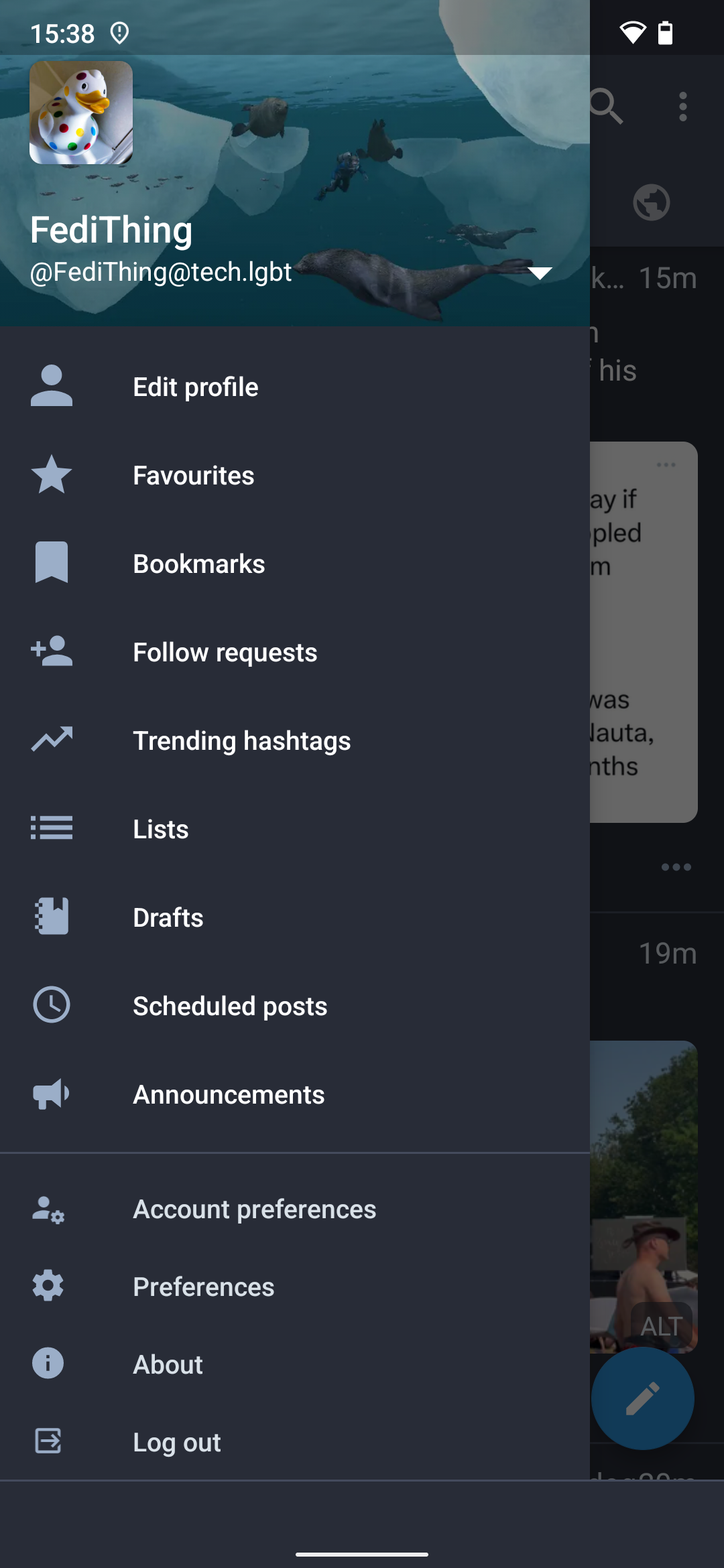
Screenshot of someone else's post with the options menu open. All the usual options from standard Mastodon are there, plus translation options and quote in post option.
Screenshot of a post thread with a light colour scheme. The post is Riker Googling "are holodecks sound proof".
Screenshots from Ice Cubes v1.6.16

General impressions

Slick, fast, very well thought out. Full of options and settings if you want them, but the default settings work fine too and the options don’t feel overwhelming. Feels very modern and pushing beyond what the official app offers.

Nice stuff

  • Very easy to use and intuitive by default, so it’s suitable for beginners but advanced users can dig through settings if they want a more tweaked experience.
  • Free open source software
  • Extra features not on official app such as post drafts, hiding repeated boosts, following other servers, unlisted visibility, more granular notification settings, filter editing etc
  • Includes all the timelines (Home, Local, Federated, Explore) plus option to follow timelines on other servers.
  • Includes trending posts, trending tags, hashtag following etc.
  • Lovely haptics and subtle unobtrusive sound effects, letting you know something has happened without making a song and dance about it
  • Fully customisable appearance including full range of colours for each element, transparency settings, pre-built themes, font sizes and line spacing, preview on example post etc
  • Customisable swipe settings on interface
  • Can automatically suggest hashtags based on your post, and add them either within or after the text. Same feature can also correct text.

Not sure one way or other

  • LLM-powered feature where you can ask it to rewrite your post more concisely or more enthusiastically. Some will really appreciate this, while others will be concerned about its effect on discourse.
  • Quoting posts is something many have demanded but others have been worried about. In this particular case, the quoting is actually just linking to the post and mentioning the author (the core Mastodon software does not currently include quoting as a feature, so this is possibly the nearest the app can get to it).

Potential drawbacks

  • No image focus selection
  • No separate volume control for effects, have to use system volume

Hints & Tips

  • Ice Cubes is free open source software created by volunteers. Please consider supporting its development by using the optional in-app purchases which allow you to give a one-off tip or a regular subscription. The donation buttons are in the app itself at Settings > Support The App.
  • You can add and edit filters by holding down your profile icon in the top left corner, then select your profile name to bring up settings specific to that profile. One of these will be Edit filters.
  • You can see your own server’s info and its list of rules by going to Settings > Instance Information
  • Development was paused due to lead dev’s parental leave, but there should be updates on the way again now

↩ Back to the front page

  •  

Tusky for Android

Third party Mastodon app, free open source software, available from Google Play (free) ⧉ and F-Droid (free) ⧉

Screenshot of Tusky app for Android showing the main settings screen
Screenshot of Tusky app for Android, showing the Home timeline with a couple of art posts
Screenshot of Tusky for Android, showing a post about a heron with a pretty photo of it
Screenshot of a profile page on Tusky, for the GBH News account, showing a  metadata section with a small verified tick symbol
Screenshot of the Aviation Librarian's account's media section showing lots of aeroplane pictures.
Screenshot of a post being edited in Tusky, showing an attached image and the emoji menu open.
Screenshot of an image caption being edited in Tusky
Screenshot of editing the focus on an image in Tusky
Screenshot of a message being edited in Tusky with a dialogue box asking if the user wants to save it as a draft.
Screenshot of the post scheduling screen in Tusky showing a calendar.
Screenshot of the account preferences menu in Tusky showing many options including Notifications, Tabs, Followed Hashtags, Muted and Blocked Users, Hidden Domains and Filters. More options are below this out of view of the screenshot.
Screenshot of the custom tab settings page on Tusky where the main interface's tabs are chosen.
Screenshot of the Filter editing page on Tusky.
Screenshot of the trending hashtags page on Tusky showing many tags with graphs next to them showing their popularity over time.
Screenshot of the general app preferences page on Tusky.
Screenshots from Tusky v22.0

General impressions

Solid, reliable and mature with continual development and updates. Works the way you would expect it to, and matches up nicely with the website interface. This is what the official Android app should have been.

Nice stuff

  • One of the longest-supported Mastodon apps, been around longer than the official app
  • Feels very intuitive, arranged logically
  • Free open source software
  • Lots of features that are missing from the official app and/or website, such as scheduled posts, drafts, reversal of reading order, image cropping etc.
  • Other features include post editing, image focus editing, bookmarks, lists, polls, hashtag following, filters, private profile notes, all post visibilities including Unlisted, all timelines
  • Custom tabs, you can pick up to five from Home, Local, Federated, Notifications, DMs, Trending Hashtags, Lists, Hashtag Columns
  • Hashtag tabs can include multiple hashtags in one tab, and you can have multiple separate hashtag tabs, which is really useful for creating your own custom themed timelines
  • Switch between tabs very easily by swiping (swiping can be deactivated too)
  • Support for multiple accounts at once, with separate settings pages for each account
  • People sick of clout-chasing can switch off all the boost/favourite/follower numbers, which can be good for mental health
  • Warning icon to remind you to add text descriptions

Potential drawbacks

  • No option to view trending posts
  • Custom tabs are fantastic, but the five tab limit can be frustrating
  • Verification of links on profiles not very clear, the icon could be confused with fake verification icons made with custom emoji
  • Profile descriptions formatted slightly messily, especially metadata elements
  • Some people overlook the Add Poll button as it’s sort of hidden in the attachment menu

Hints & Tips

  • Tusky is a volunteer-run project providing free software, you can donate to keep it going at the Tusky Open Collective page ⧉
  • To see your own profile page, tap your profile icon twice (once to open the settings page, then again to show your profile page)
  • To make a draft, start writing a post and close it without actually posting it . You can find a complete list of drafts from the settings page.
  • To add a poll, click the attachment button 📎 and then select Add Poll

↩ Back to the front page

  •  

Kbin: Link aggregation and discussion communities on the Fediverse

Kbin is a Reddit-style link aggregator and discussion platform for the Fediverse. As it communicates using the ActivityPub protocol, Kbin servers can communicate with other Fediverse server types such as Mastodon etc.

It’s still in early beta testing, but already has servers up and running you can try out. Find out more from the official Kbin site ⧉ or try out its flagship server at kbin.social ⧉.

↩ Back to the front page

  •  

Toot! for iPhone & iPad

Third party Mastodon app, closed source, available from Apple’s App Store (paid) ⧉

Screenshots from v21.1 of Toot! for iPhone

General impressions

Lots of personality, presented in a whimsical and fun style, not corporate at all.

Nice stuff

  • Mature and stable, one of the longest-maintained apps, been around longer than the official apps
  • Supports all timelines (home, federated, local), explore/trending tab, lists, hashtag following
  • Supports post editing
  • London Underground-style colourful discussion maps make threads much easier to navigate
  • Laid out clearly with text explaining things instead of blank icons, support for variable font size too
  • Allows multiple accounts at once and easy-to-use switcher in corner of screen
  • Unique and fun easter eggs including “user scanning”, a pool simulator with a mysterious scoring system and more
  • Timeline syncing between devices through iCloud
  • The “in-app purchases” are actually just parodies which you don’t need to buy, they don’t add any features

Potential drawbacks

  • Search box is awkwardly hidden in a menu
  • The message bubbles can feel a bit overwhelming when there are lots of them, but they can be switched off

Hints & Tips

  • You can find the search box by going to the Home or Notifications tab, then clicking ⋯ and then Search
  • To find the Explore, Local and Federated feeds, click your server’s icon in the bottom right corner and then select the feed you want from the menu at the top of the screen

↩ Back to the front page

  •  

Importing ready-made server blocklists on your own Mastodon server

Mastodon servers can choose to block other servers, and by default this is done manually one at a time. However, this can get cumbersome if there are lots of servers you need to block quickly, especially if you’re running a new server with no blocks at all yet.

To make the process easier, servers admins can import pre-written server-level blocklists from sites such as oliphant.social ⧉. Once you have a blocklist downloaded, here’s how to add it to your own server:

  1. Log in on your server’s website using your admin account.
  2. Go to Preferences > Moderation > Federation
  3. Click the Import button at the top
  4. Browse for the blocklist’s .csv file, then click Upload
  5. You will be presented with a list of servers to block. If there are servers with existing connections to your server, they will be automatically unticked. If you want to include these in the block, tick them.
  6. When you want to implement the blocklist, click Import in the top right corner of the list and click OK to confirm.

Once the list is successfully imported, the blocks will appear alongside your existing blocks. If necessary, you can remove blocks from the list just like any manually added block.

Will it block people that have already followed me, or that I already follow?

Before any blocks happen, the blocklist import process will highlight servers on the list that your server already has connections to. You will be given the option of either going ahead with blocking those servers, or leaving them off the blocklist. By default it will leave them off the blocklist, unless you choose to add them back in.

If you block a particular server, then all the follows and followers from that particular server will lose their connections to your server.

↩ Back to the front page

  •  

Deleting posts automatically in Mastodon after a certain time period

Posts in Mastodon can be set to automatically self-destruct after a certain time period, with exceptions made for posts you want to keep. Here’s how to do it:

  1. Log in through your server’s website
  2. Go to Preferences > Automated post deletion (on mobile you may need to click ☰ first)
  3. Choose the Age threshold to set how long posts are around before they’re deleted
  4. Set the exceptions for posts you want to keep
  5. Tick the box at the top marked Automatically delete old posts
  6. Click the Save changes button

If you want to stop deleting posts automatically, UN-tick the box and click the Save changes button.

I activated this but it hasn’t deleted posts that are way past the threshold. What’s going on?

If servers are busy, they create queues of tasks to work through. Automated deletion tends to go at the back of the queue, so it may take longer to happen than other tasks. If the settings are correct and it’s way past the deadline for the deletions to happen, ask your server’s admin for advice.

How does this affect server running costs?

When this feature is discussed, the issue of server running costs is often raised.

On the one hand, automated stuff always adds extra tasks for the server to carry out. On the other hand though, it would mean the server doesn’t have to store as much data so it would save money on storage costs, especially if the deleted posts have media attachments. It would also reduce storage for any servers that have federated the posts being deleted.

You would have to speak to your server’s admin to find out exactly how it affects their setup, as different servers may have different resources available.

I asked a couple of very large server admins for their thoughts on how this balances out. Both of them said the added tasks were insignificant compared to everything else the servers have to do. Both of them also said deleting posts (especially posts with media attachments) saves storage, but one of them added that there may be fees to be paid if the deletions happen for very recent posts. On their server, it would be cheaper to only delete posts more than 90 days old, and leave any newer posts intact.

↩ Back to the front page

  •  

How to use groups on Mastodon and the Fediverse

At the moment, most Fediverse groups work like this:

  1. Join a group by following its account address
  2. Posts from that group will start appearing in your Home timeline
  3. If you want to post something to the group, just include its account address in a public post
  4. If you want to leave a group, unfollow it

It’s somewhat similar to following hashtags, and people who have used email discussion lists will also find this structure very familiar.

The two main Fediverse group providers at the moment are Chirp ⧉ and Guppe ⧉. They are platform-neutral, and their groups can be followed from all kinds of Fediverse servers including Mastodon, GoToSocial, Friendica etc.

Where can I discover existing groups?

I’ve compiled a curated list of interesting Fediverse groups on fedi.directory ⧉. I’ve tried to only list active groups with a respectful atmosphere.

Chirp has its own directory at chirp.social ⧉, and Guppe has a list of their top 50 active groups at the bottom of their website at a.gup.pe ⧉.

How can I create a group? Are the groups moderated? What if I see something unsuitable?

Whatever kind of group you are on, you can mute, block and report just like you would with non-group posts. If you see something bad, report it!

Guppe groups don’t require any kind of registration, you can create a group simply by mentioning the group name in the form “@YourGroupNameHere@a.gup.pe”. However, because there’s no registration there is no way to moderate the group directly, and they rely on members reporting bad posts to their server admin.

Chirp groups require you to create an admin account on the chirp.social ⧉ website. Because groups have a registered admin, it means the admin can moderate the group themselves instead of relying on server admins.

Groups federate content more effectively than hashtags

Hashtag follows and groups have some overlap, and appear to work in a similar way on the surface, but there are significant differences behind the scenes.

The biggest advantage of groups is you automatically see all of the group’s posts, even if they’re from accounts that haven’t federated to your server before. Because all the group’s posts are shared to all the members’ servers, you never miss a thing.

With hashtag follows, this mass federation doesn’t happen. Hashtag following means you will only see posts from accounts that already federate with your server. Hashtags are essentially passive filters for your server’s Federated timeline and do not actively draw in any new content.

What about Mastodon’s own built-in groups feature?

Mastodon has been developing a built-in groups feature for some time now, but it hasn’t been released yet. From the screenshots posted so far, it seems it will be more of a Facebook Groups type forum rather than a public discussion list. (You can see highly technical details and screenshots of this upcoming Groups feature on their github page ⧉).

However, it is unclear if Mastodon groups will work across the Fediverse or only on Mastodon. Chirp and Guppe are platform-neutral, and will work on any kind of Fediverse server that supports microblogging including Mastodon, Friendica and others.

Groups on Friendica

The Fediverse server type Friendica includes built-in group support, which works in a similar way to Chirp and Guppe. Creating a Friendica group requires a Friendica account, but anyone can join the group from other Fediverse server types including Mastodon servers.

A Friendica group can be moderated by the person who created it, and they can also add additional moderators to the same group.

Is there anything like Reddit on the Fediverse?

Yes! There’s a Reddit-style link aggregation and discussion platform called Kbin.

↩ Back to the front page

  •  

You don’t need link shorteners on Mastodon

All links on Mastodon count as 23 characters towards your post’s character limit, no matter how long they really are. Because of this, there is no need to use link shortener services on Mastodon.

Mastodon does this because it’s much better for privacy that links remain in their original form, as link shortener services tend to track the people that click on them. It also means the links will continue to work in the future and aren’t dependent on the existence of the link shortener service.

The official iPhone/iPad app counts it as more than 23 characters?

There’s a known bug on the official iPhone/iPad app ⧉ which causes links to count for more than 23 characters. A fix has been proposed but it hasn’t been released yet. In the meantime, you can avoid this bug completely by using third party apps such as Toot!, Ice Cubes and Ivory, or by logging in through your server’s website.

But I want to track people who click on my links!

You can use link shorteners to track people, but you probably shouldn’t. Also, some people may wonder why you are using link shorteners when all links count for 23 characters anyway.

Why is it 23 characters?

Apparently Twitter’s original built-in link shortener used 23 characters. So when Mastodon removed the need for shorteners, they emphasised this by only counting 23 characters for all links.

↩ Back to the front page

  •  

Using relays and scripts to quickly expand a server’s view of the Fediverse

By default, brand new Mastodon and Fediverse servers will be totally blank, with no users or posts visible at all. Searches will produce no results.

As people start signing up and posting and following accounts from other servers, the timelines and search results will start to fill up as the server starts noticing more of the Fediverse. However, this discovery process can be very slow to begin with, and those on new servers may sometimes be frustrated by the slowness.

Server admins can speed up this process by subscribing to relays which push new content to their server from other servers, or using scripts that fetch missing posts from threads and profiles.

How to subscribe to a relay server on Mastodon

  1. Log into your server’s website using your server’s admin account
  2. Go to ⚙ Preferences > Administration > Relays
  3. Click Setup A Relay Connection
  4. Paste the URL of the relay into the box and click Save And Enable

⚠ WARNING: Some relays are better moderated than others. Some relays may contain content that breaks your own server’s rules, or may even be illegal in your country. It’s really important to check what kind of content a relay contains before you connect your own server to it. Relays are usually based on specific servers, so you can see such a relay’s content by browsing its server’s Federated feed and reading that server’s rules.

Also, bear in mind large and general relays may fill your server with content that you mostly aren’t interested in, and use up lots of resources at the same time. Smaller, more specific relays may be much better suited to your server’s resources.

Finding general relays

There’s a list of Fediverse relays at RelayList.com ⧉. Please bear in mind the warnings above before using this list, and check that the content on the relays is suitable for your server.

FediBuzz Relay: Custom relays on specific topics

This is a new service that lets you subscribe to custom relays based on specific hashtags or specific other servers. This can greatly reduce the amount of resources required by relays, as it only sends posts that are relevant to the topics you have selected for your server. You can find out more on its website at relay.fedi.buzz ⧉.

Using scripts to fill in missing posts from profiles and threads

There’s a new tool called FediFetcher ⧉ which can be used to automatically backfill missing posts from profiles and conversation threads. It runs independently of the Fediverse server, but it needs access tokens for every user that it backfills for, so it is generally aimed at single-user servers or servers where the admin knows all the users. It also requires good technical skills for running the tool.

↩ Back to the front page

  •  
❌