❌

Reading view

Using Mastodon through a CLI or TUI

If you want to use Mastodon through a command line interface (CLI) or text-based user interface (TUI), there’s a free open source tool you can install called “toot” ⧉.

It can be installed on a variety of Linux distributions and Mac too.

(By the way, despite the similar name, it has no connection to the mobile apps Toot! or Tooot.)

↩ Back to the front page

  •  

How to block (defederate) a server on Mastodon

Each server on the Fediverse is independent, and can choose to cut off connections to any other server if it wants to do so. This process of blocking other servers on the Fediverse is known as “defederation” or “fediblocking”.

Usually this is done for the sake of user safety, for example if another server is failing to moderate abusive behaviour, but it can be for any reason that the server admin considers important.

If you’re an admin on a Mastodon server, here is how to defederate other servers on the Fediverse:

  1. Log into your admin account on your server’s website
  2. Go to Preferences > Moderation > Federation
  3. Click Add New Domain Block
  4. Enter the domain name of the server you want to block (for example “threads.net”)
  5. From the Severity dropdown menu select Suspend
  6. Optionally add comments if you want to remind yourself why you blocked them, or if you have a public list that explains your server’s blocks
  7. Click Create Block

Once you’ve done this, your server will refuse connections from the blocked server and any follows from those servers will be removed.

These blocks work for any Fediverse server type, so you can block non-Mastodon servers as well.

Do I have to do this for every single server I want to block?

By default, blocks are done one at a time. However, you can also import ready-made blocklists which let you block lots of servers at once.

Is there a less drastic alternative to blocking?

Yes, you can choose Limit from the Severity menu instead of Suspend. Limiting (also known as Silencing) does not cut off connections, and allows follows to carry on, but it hides all posts from that server unless people are following the account that makes them.

What if I change my mind? How do I unblock servers?

To remove a domain block:

  1. Log into your admin account on your server’s website
  2. Go to Preferences > Moderation > Federation
  3. Click on the domain you want to unblock
  4. Click Undo Domain Block

If I unblock a server, will people’s follows be restored?

When an admin defederates a server, that cuts off all the follows between that server and the admin’s server.

Unblocking a server allows people to follow each other again, but it does not automatically restore follows that existed before the defederation happened. This is an important reason to consider carefully before defederating a server.

If you want to distance yourself from a server but don’t want to cut off follows, use the Limit/Silence option instead of Suspend.

↩ Back to the front page

  •  

Ice Cubes for iPhone/iPad

Third party Mastodon app, free open source software, available from Apple App Store (free) ⧉

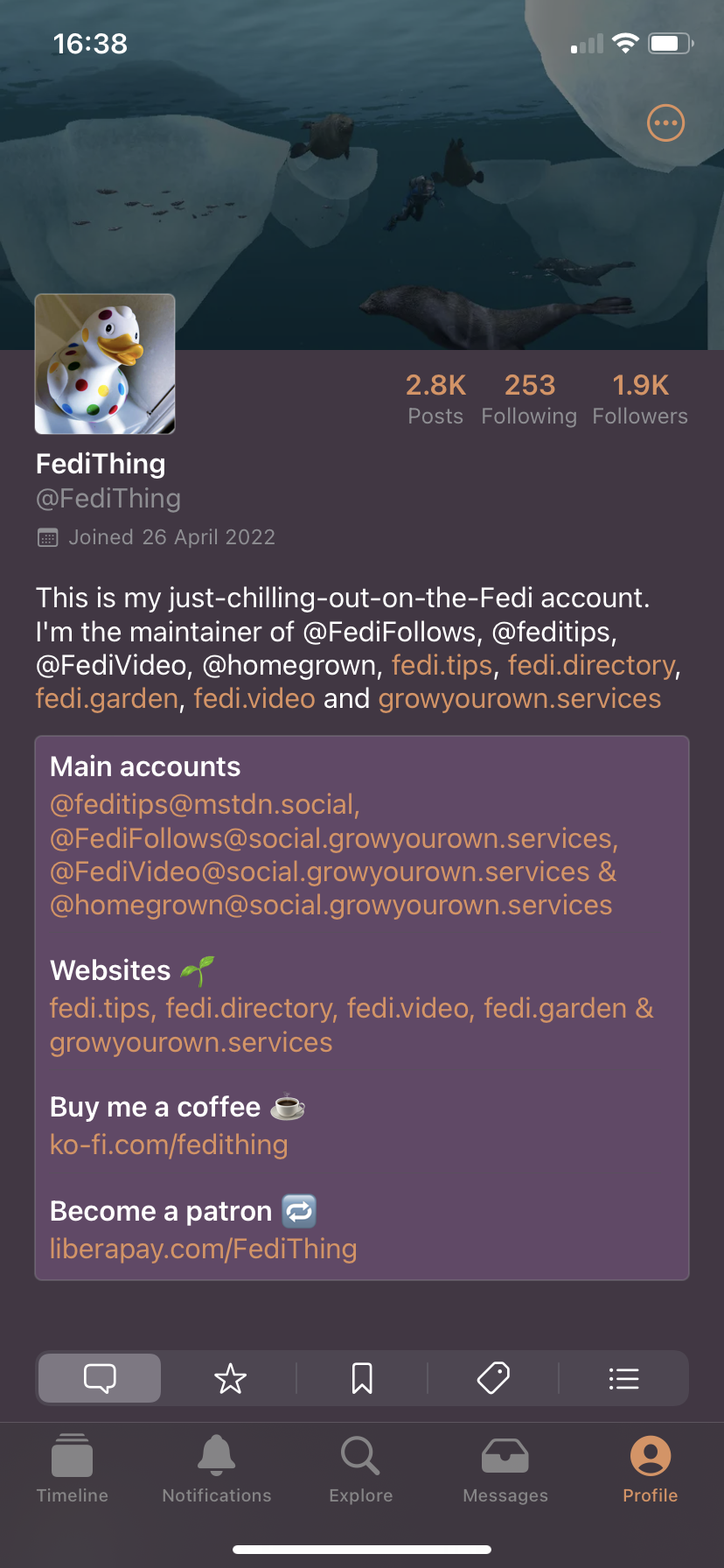
Screenshot of a profile page within the Ice Cubes app with a violet/purple colour scheme.
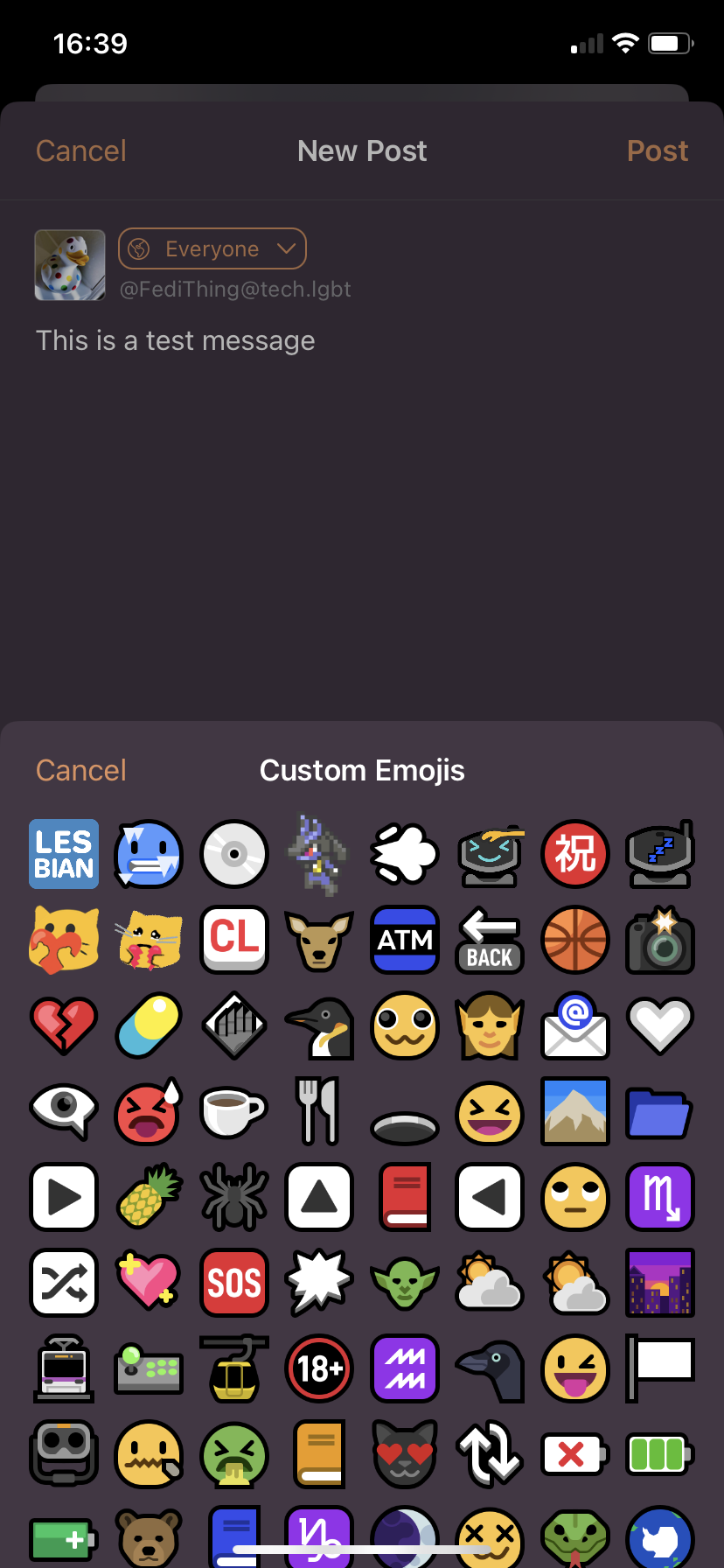
Screenshot of the post creation screen in Ice Cubes, with the custom emoji menu open showing lots of emoji in a grid.
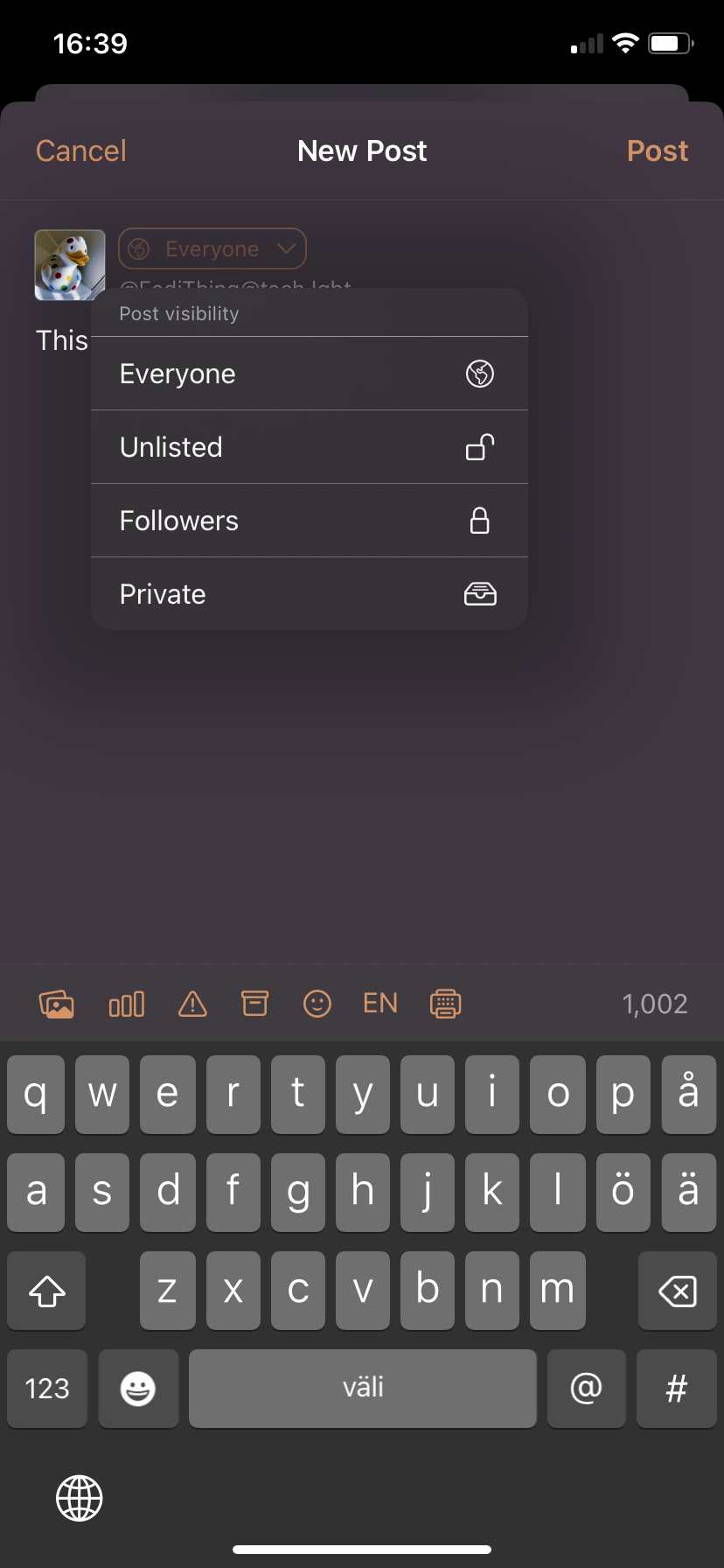
The post creation screen with the visibility menu open, showing options Everyone, Unlisted, Followers and Private.
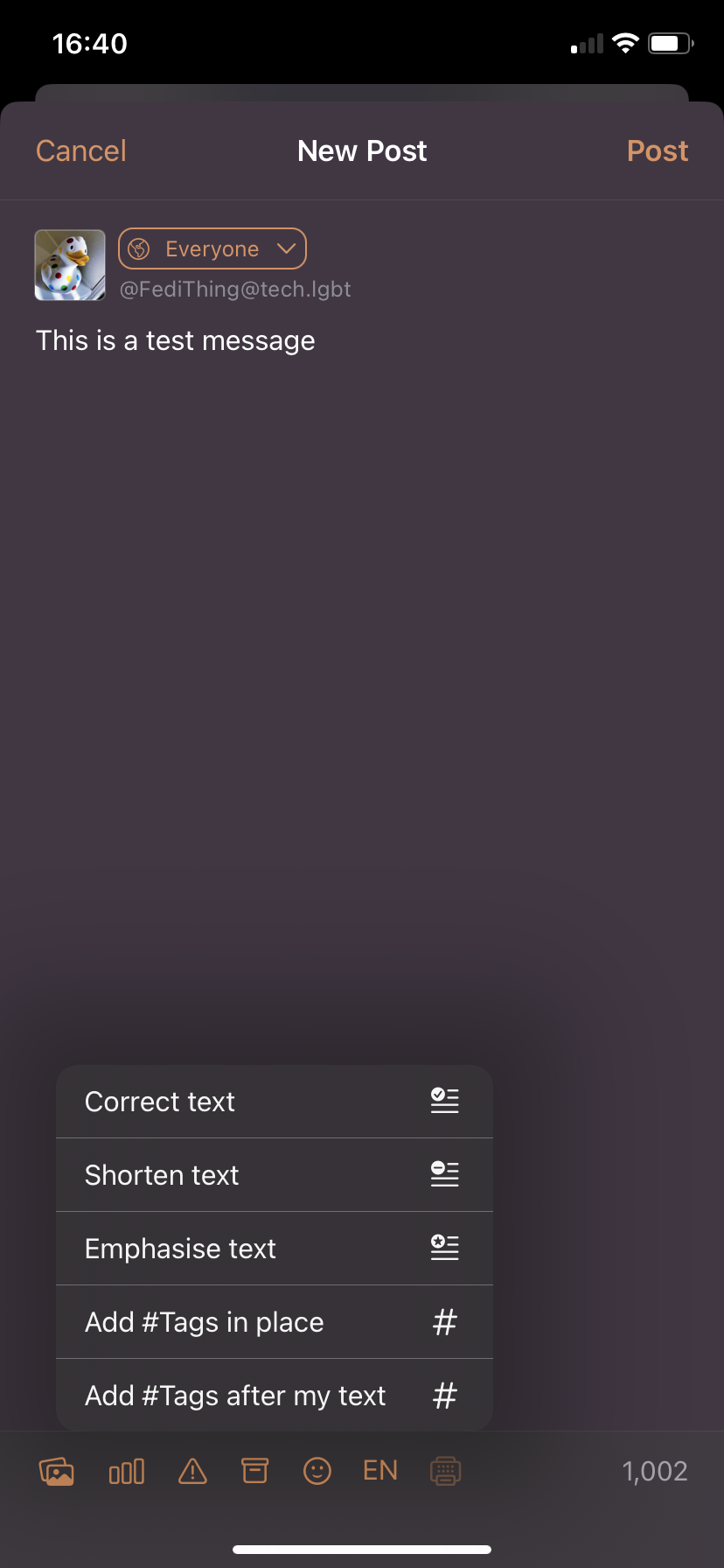
Post creation screen showing options for correcting text, shortening text, emphasising text, adding hashtags in place or adding hashtags after text.
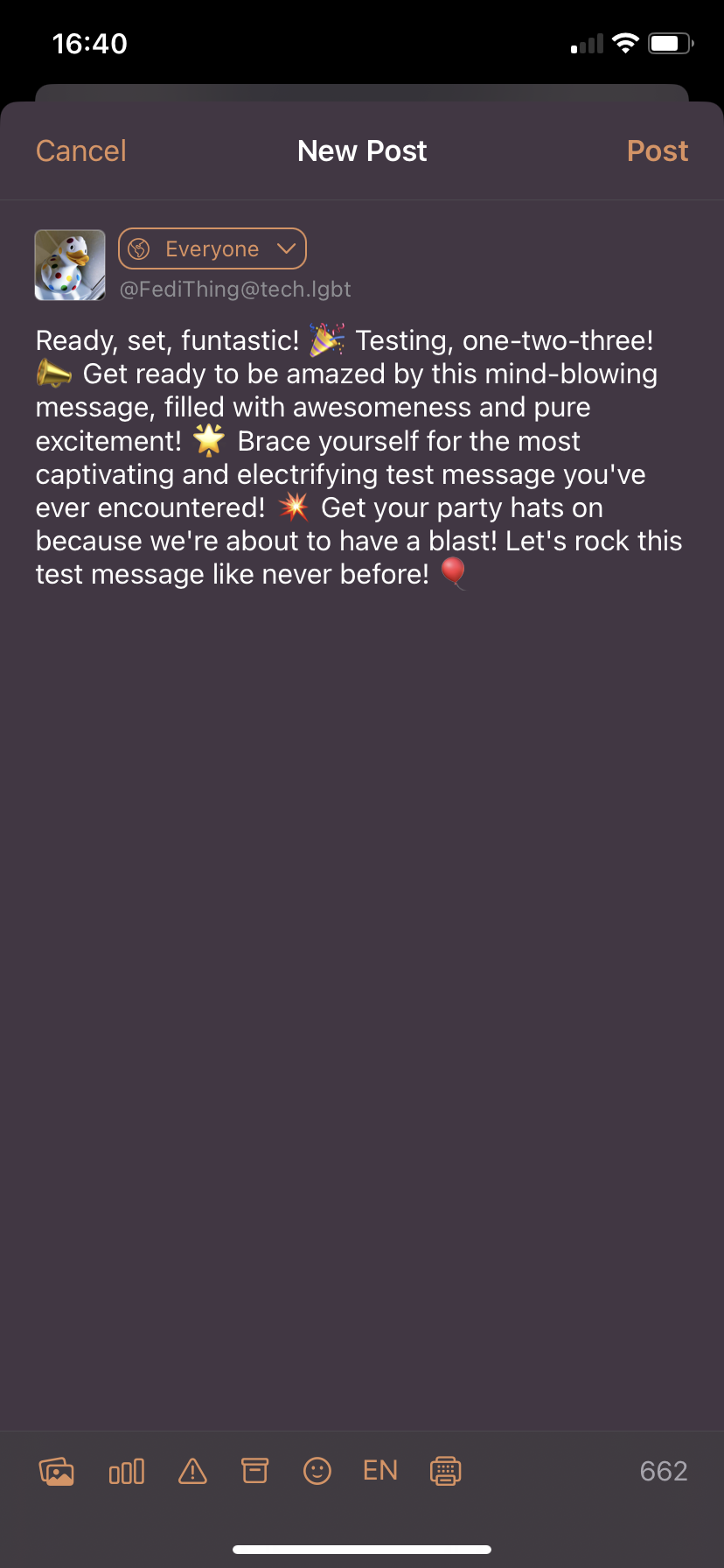
Screenshot of post creation page, the original post "This is a test message" has been automatically expanded to emphasise its contents and is ridiculously enthusiastic. "Ready set funtastic! Testing one two three! Get ready to be amazed by this mind-blowing message, filled with awesomeness and pure excitement! Brace yourself for the most captivating and electrifying test message you've ever encountered! Get your party hats on because we're about to have a blast! Lets rock the test message like never before!". The post also has lots of party emoji sprinkled within it.
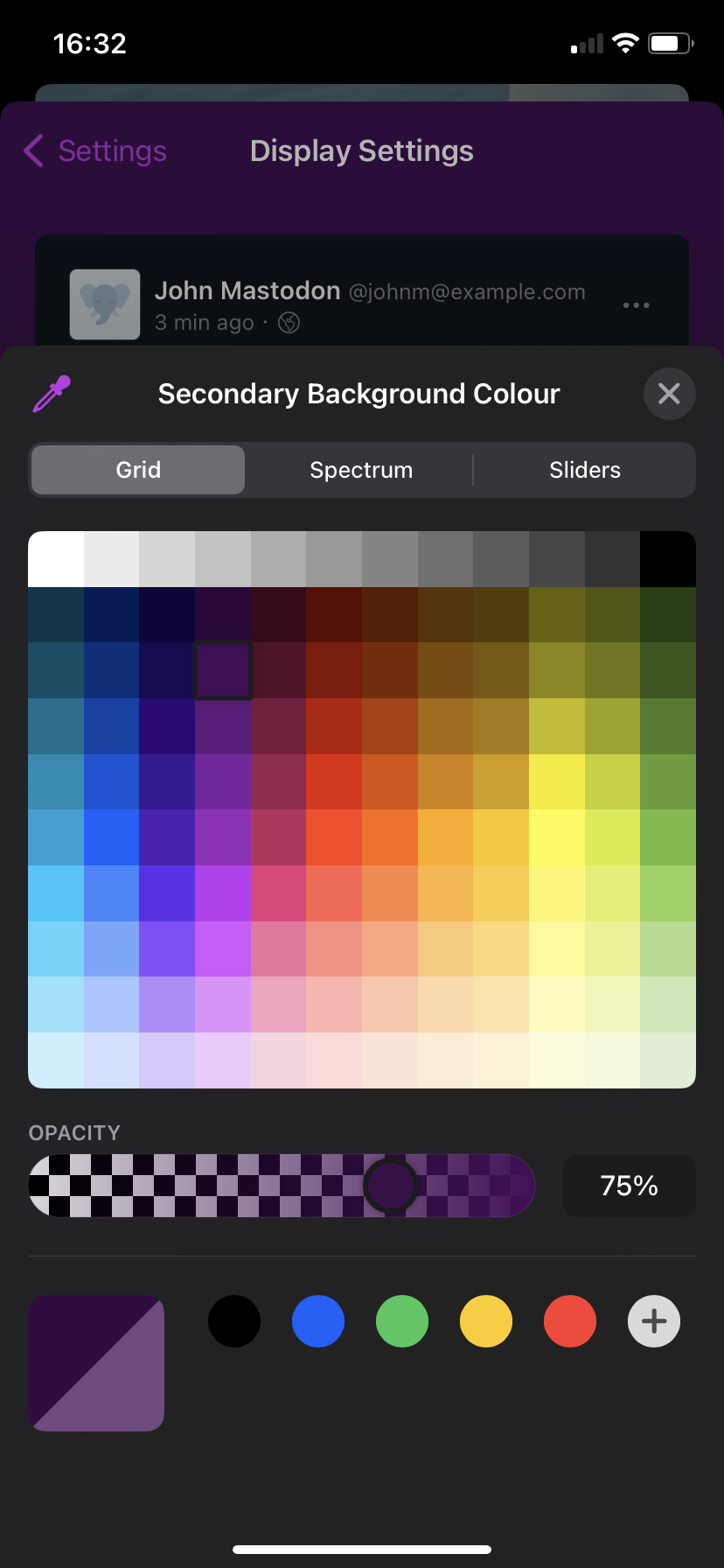
Screenshot of the display settings colour palette selector screen including all colours, shades, sliders, spectrum and transparencies.
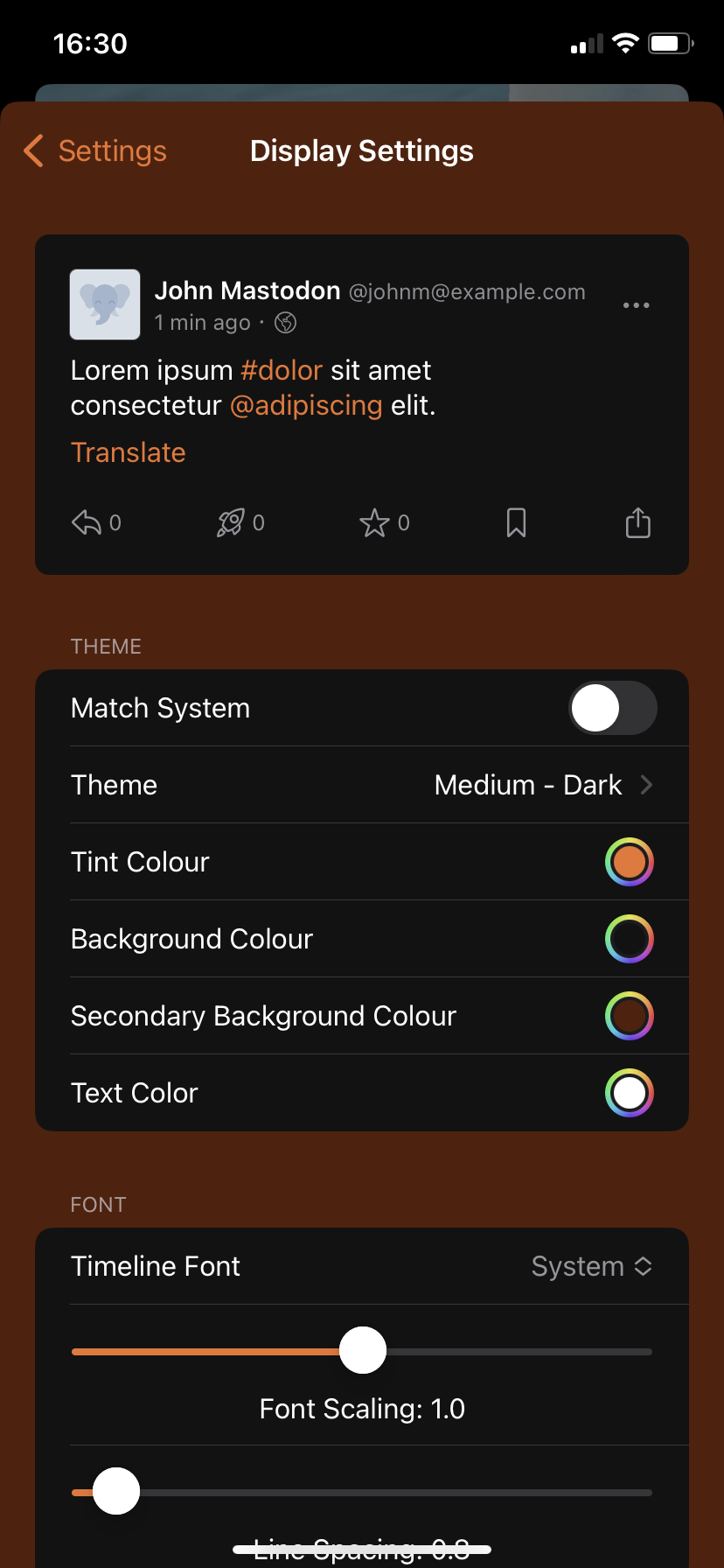
Screenshot of the display settings page showing lots of options for the differenet graphical elements.
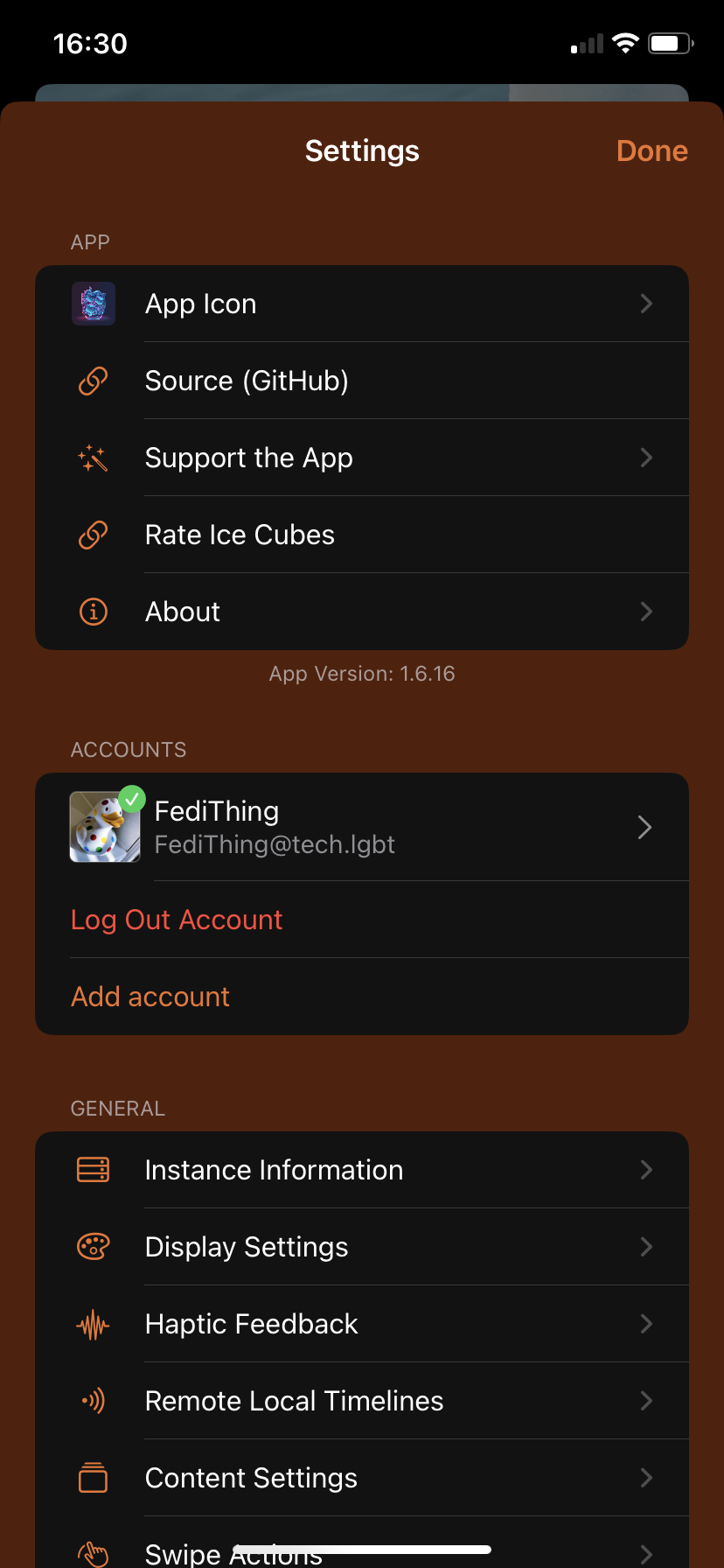
Screenshot of the top of the general settings page with options like display, haptic, remote timelines, content etc.
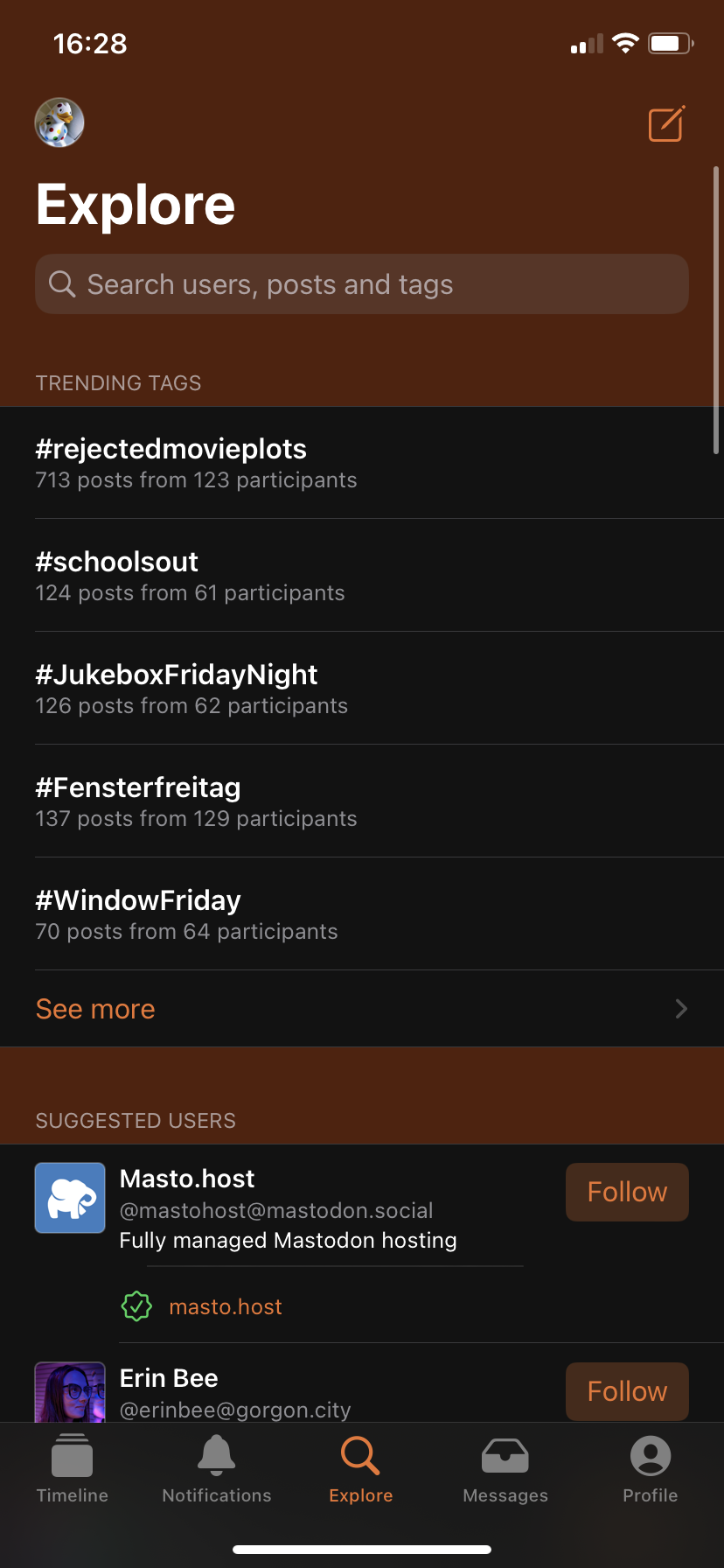
Screenshot of the Explore page showing trending tags, suggested users etc.
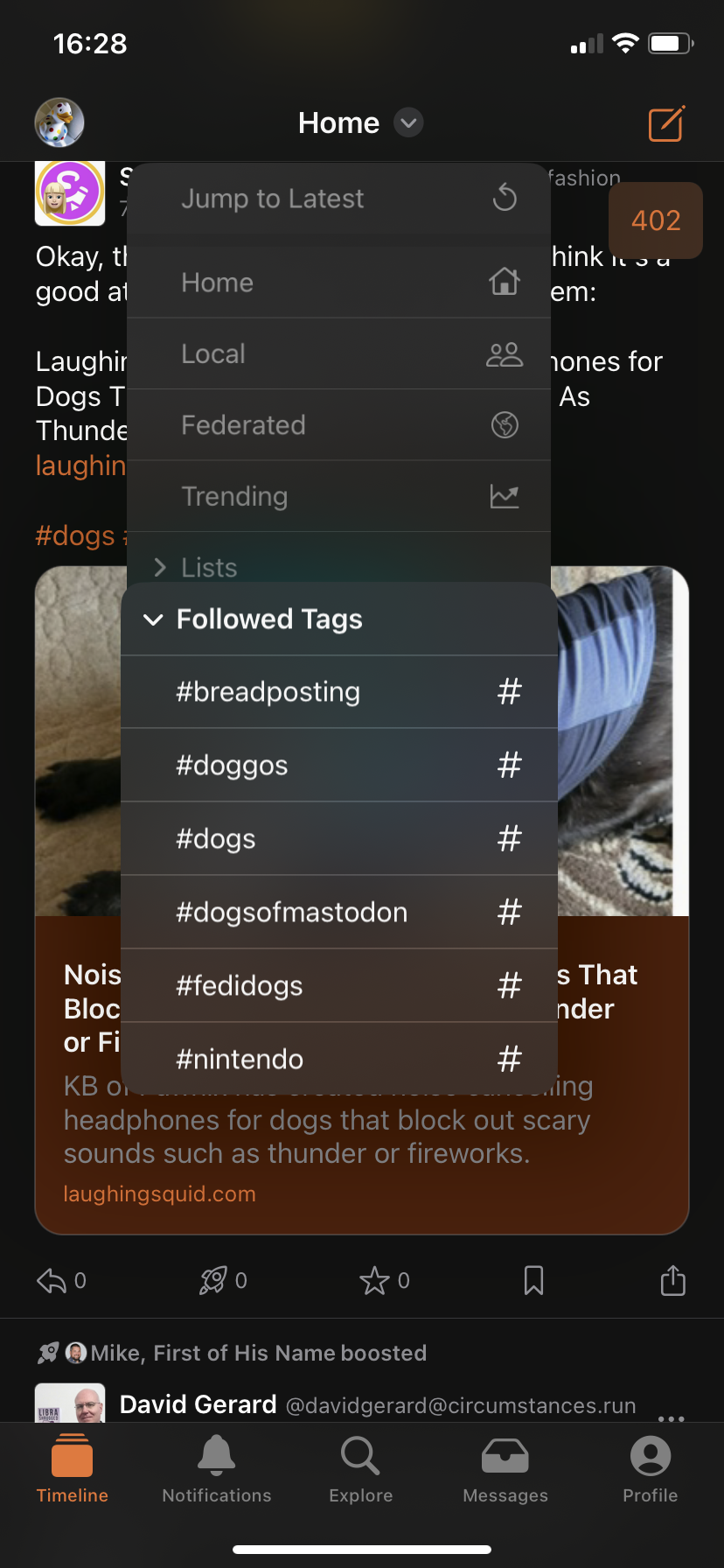
Screenshot of home timeline showing the followed hashtag menu open.
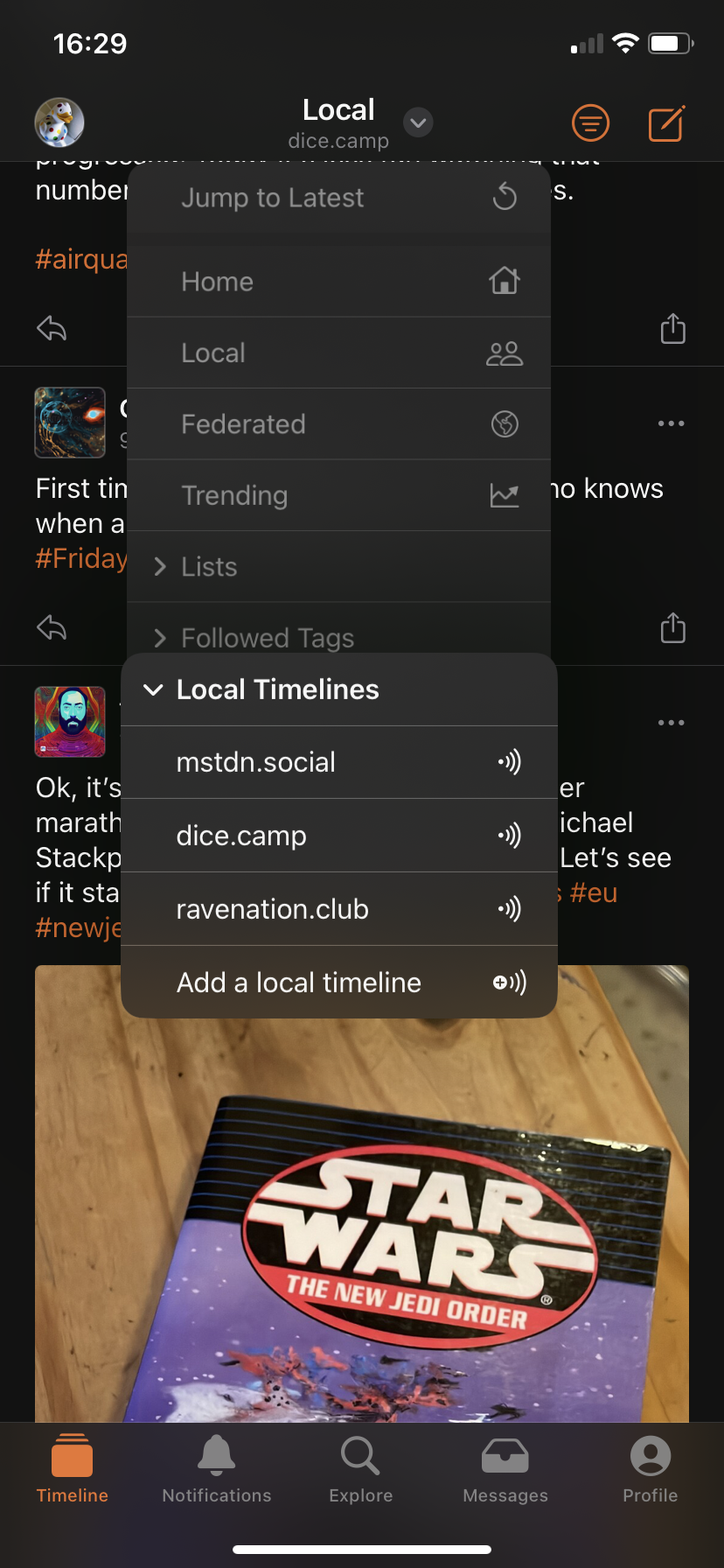
Screenshot of the Local timeline showing the Local timelines menu open, including a selection of other servers whose local timelines can be followed from within the app.
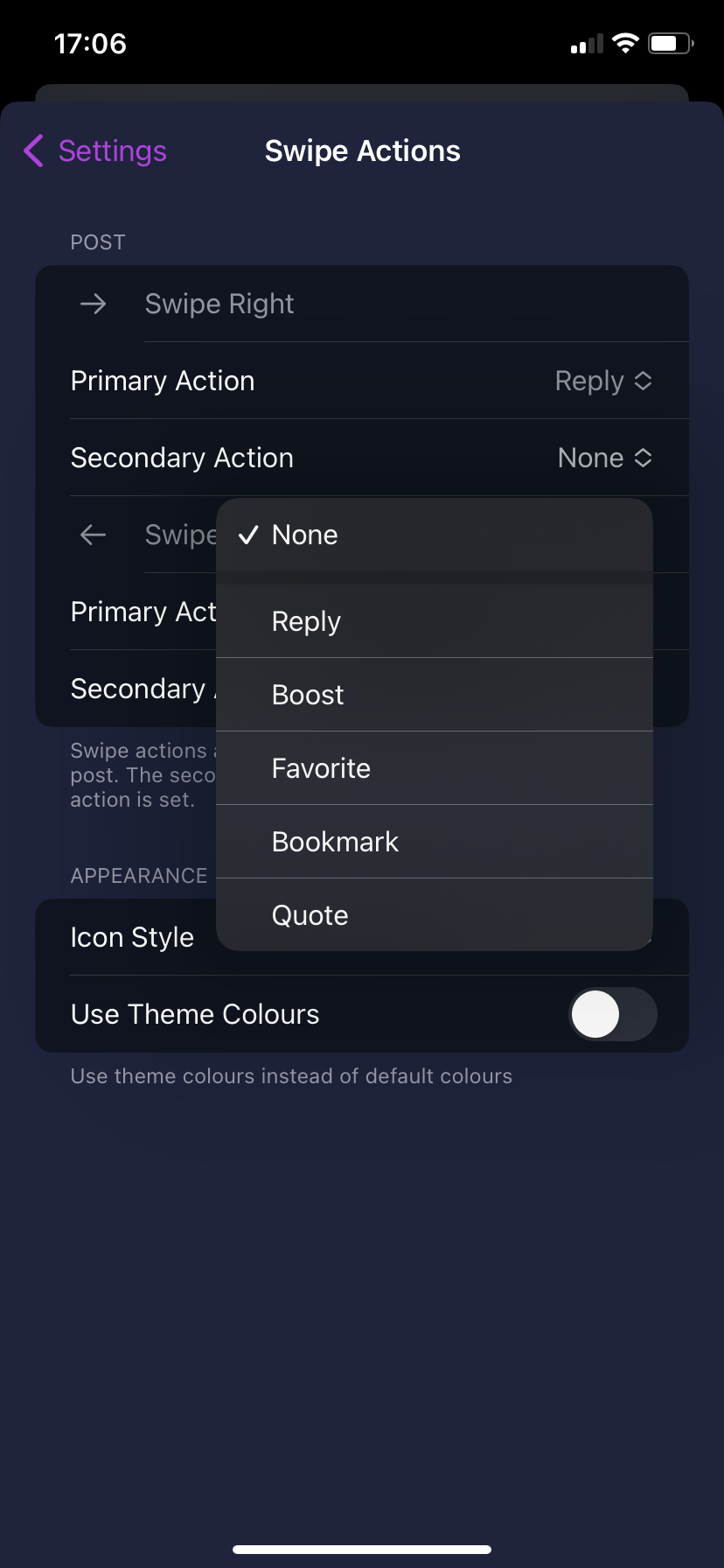
Screenshot of the swipe interface customisation settings screen.
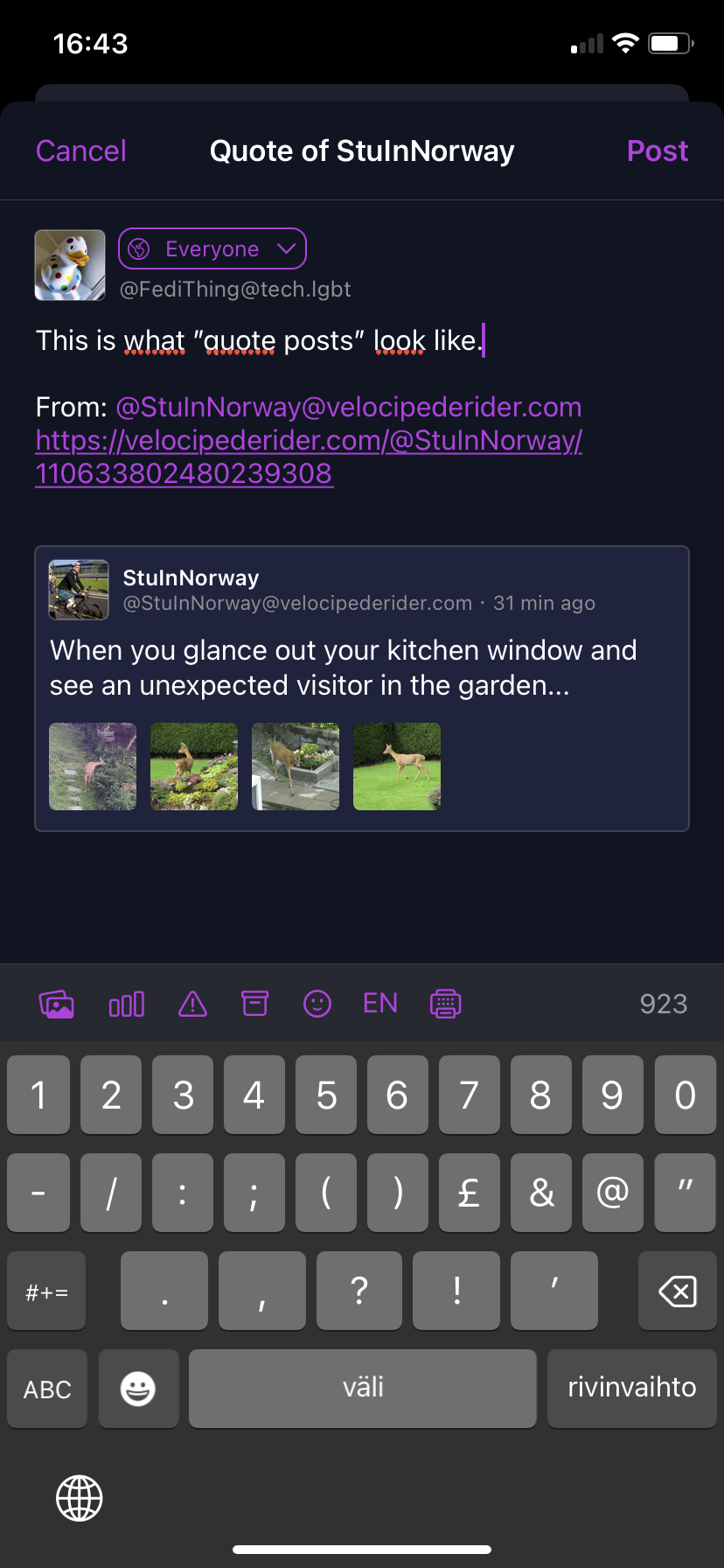
Screenshot of what a quote post actually looks like in practice, it is just a normal post with a mention of the author and a URL link to their original post thread.
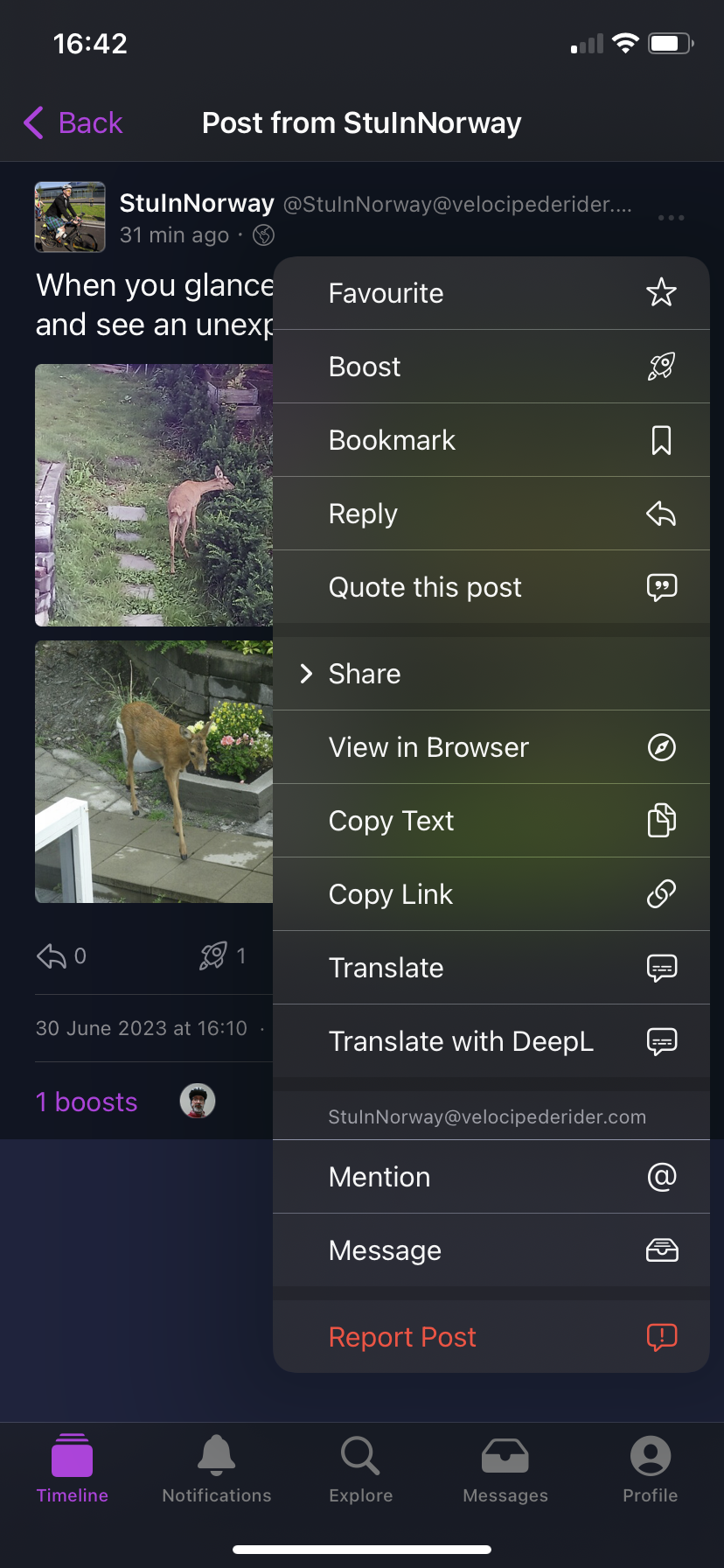
Screenshot of someone else's post with the options menu open. All the usual options from standard Mastodon are there, plus translation options and quote in post option.
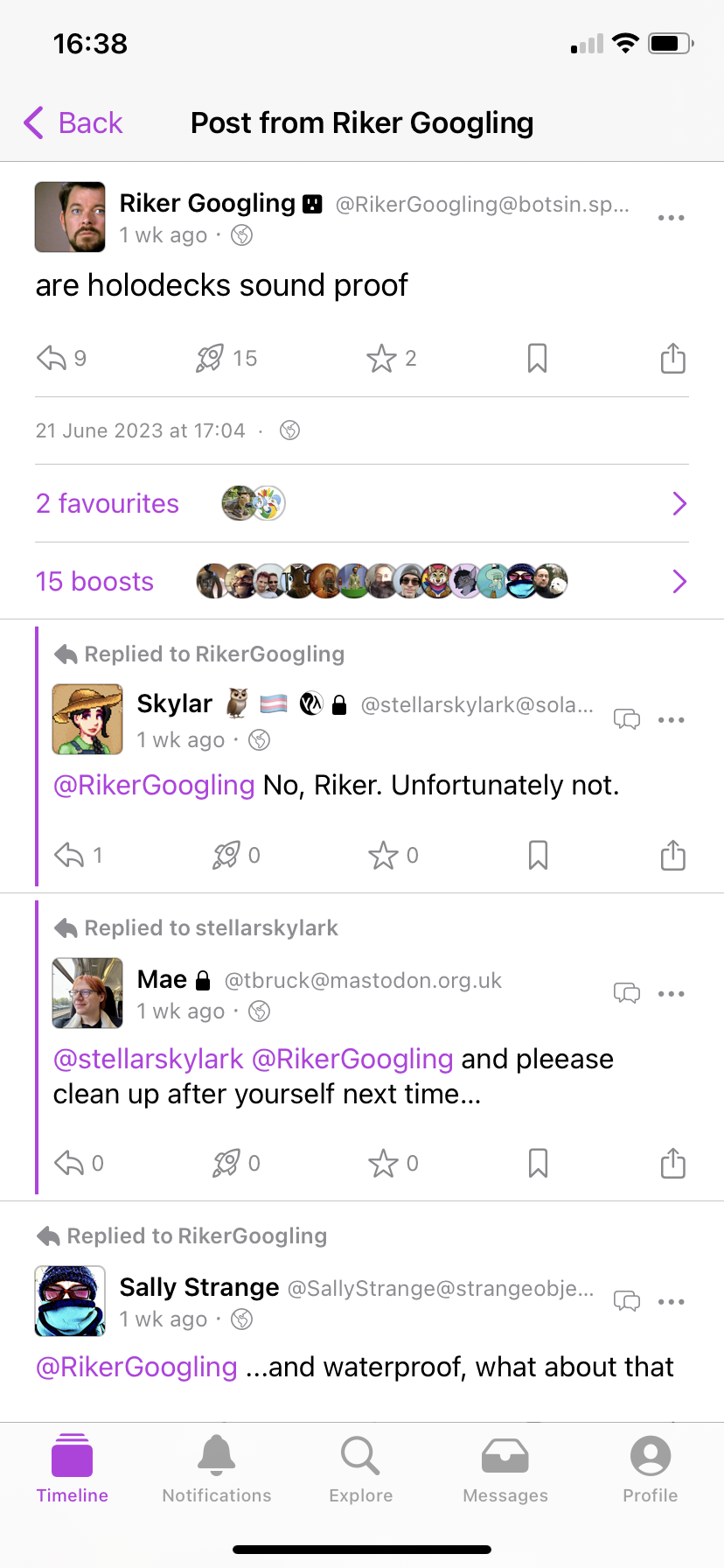
Screenshot of a post thread with a light colour scheme. The post is Riker Googling "are holodecks sound proof".
Screenshots from Ice Cubes v1.6.16

General impressions

Slick, fast, very well thought out. Full of options and settings if you want them, but the default settings work fine too and the options don’t feel overwhelming. Feels very modern and pushing beyond what the official app offers.

Nice stuff

  • Very easy to use and intuitive by default, so it’s suitable for beginners but advanced users can dig through settings if they want a more tweaked experience.
  • Free open source software
  • Extra features not on official app such as post drafts, hiding repeated boosts, following other servers, unlisted visibility, more granular notification settings, filter editing etc
  • Includes all the timelines (Home, Local, Federated, Explore) plus option to follow timelines on other servers.
  • Includes trending posts, trending tags, hashtag following etc.
  • Lovely haptics and subtle unobtrusive sound effects, letting you know something has happened without making a song and dance about it
  • Fully customisable appearance including full range of colours for each element, transparency settings, pre-built themes, font sizes and line spacing, preview on example post etc
  • Customisable swipe settings on interface
  • Can automatically suggest hashtags based on your post, and add them either within or after the text. Same feature can also correct text.

Not sure one way or other

  • LLM-powered feature where you can ask it to rewrite your post more concisely or more enthusiastically. Some will really appreciate this, while others will be concerned about its effect on discourse.
  • Quoting posts is something many have demanded but others have been worried about. In this particular case, the quoting is actually just linking to the post and mentioning the author (the core Mastodon software does not currently include quoting as a feature, so this is possibly the nearest the app can get to it).

Potential drawbacks

  • No image focus selection
  • No separate volume control for effects, have to use system volume

Hints & Tips

  • Ice Cubes is free open source software created by volunteers. Please consider supporting its development by using the optional in-app purchases which allow you to give a one-off tip or a regular subscription. The donation buttons are in the app itself at Settings > Support The App.
  • You can add and edit filters by holding down your profile icon in the top left corner, then select your profile name to bring up settings specific to that profile. One of these will be Edit filters.
  • You can see your own server’s info and its list of rules by going to Settings > Instance Information
  • Development was paused due to lead dev’s parental leave, but there should be updates on the way again now

↩ Back to the front page

  •  

Tusky for Android

Third party Mastodon app, free open source software, available from Google Play (free) ⧉ and F-Droid (free) ⧉

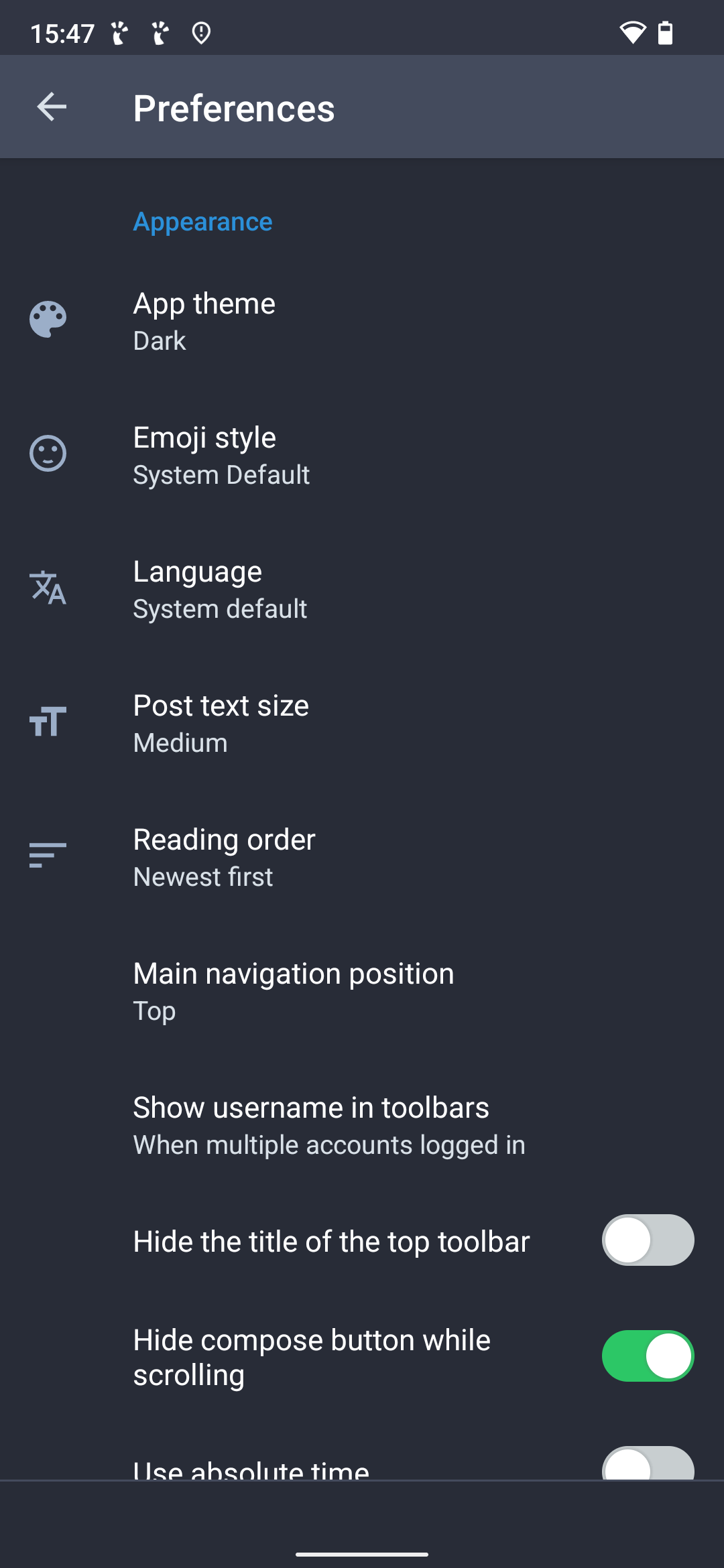
Screenshot of Tusky app for Android showing the main settings screen
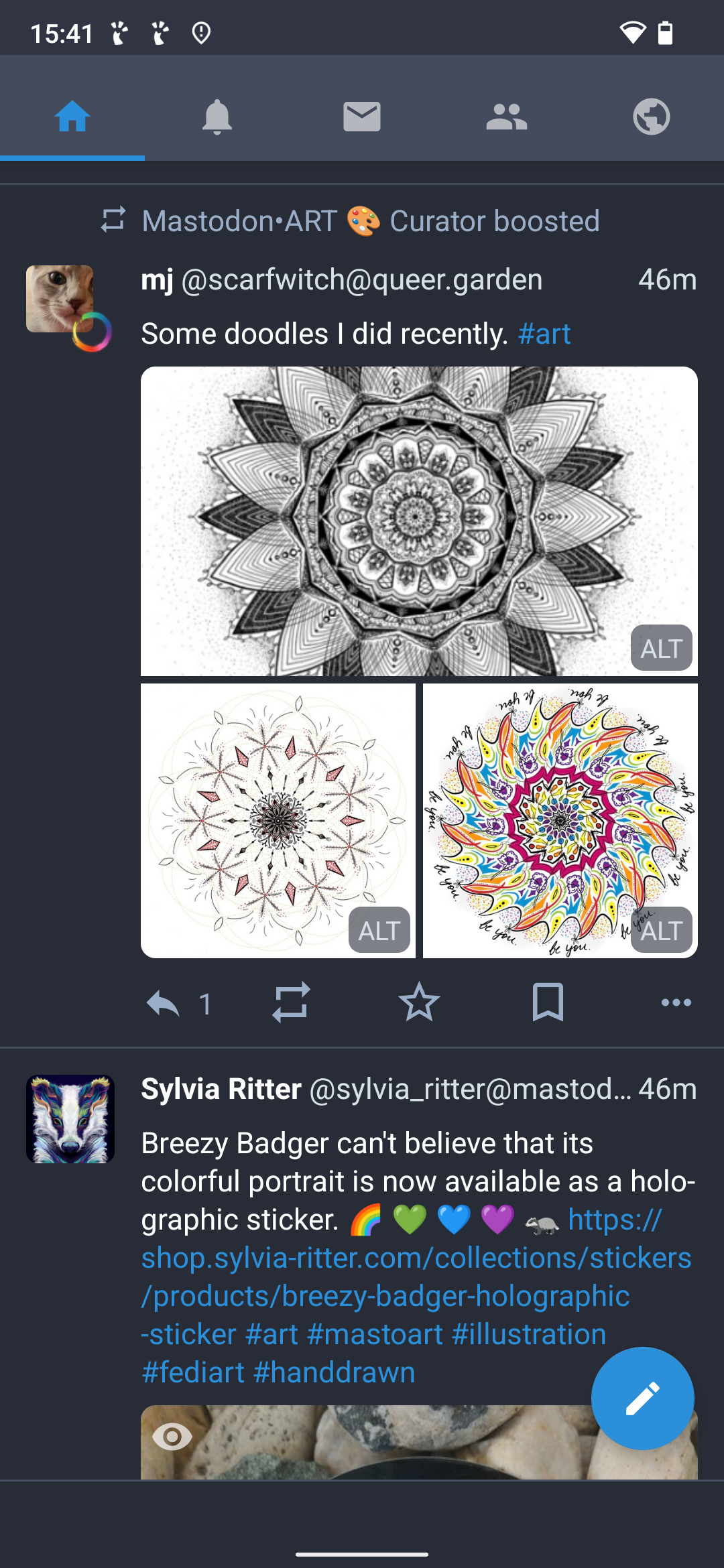
Screenshot of Tusky app for Android, showing the Home timeline with a couple of art posts
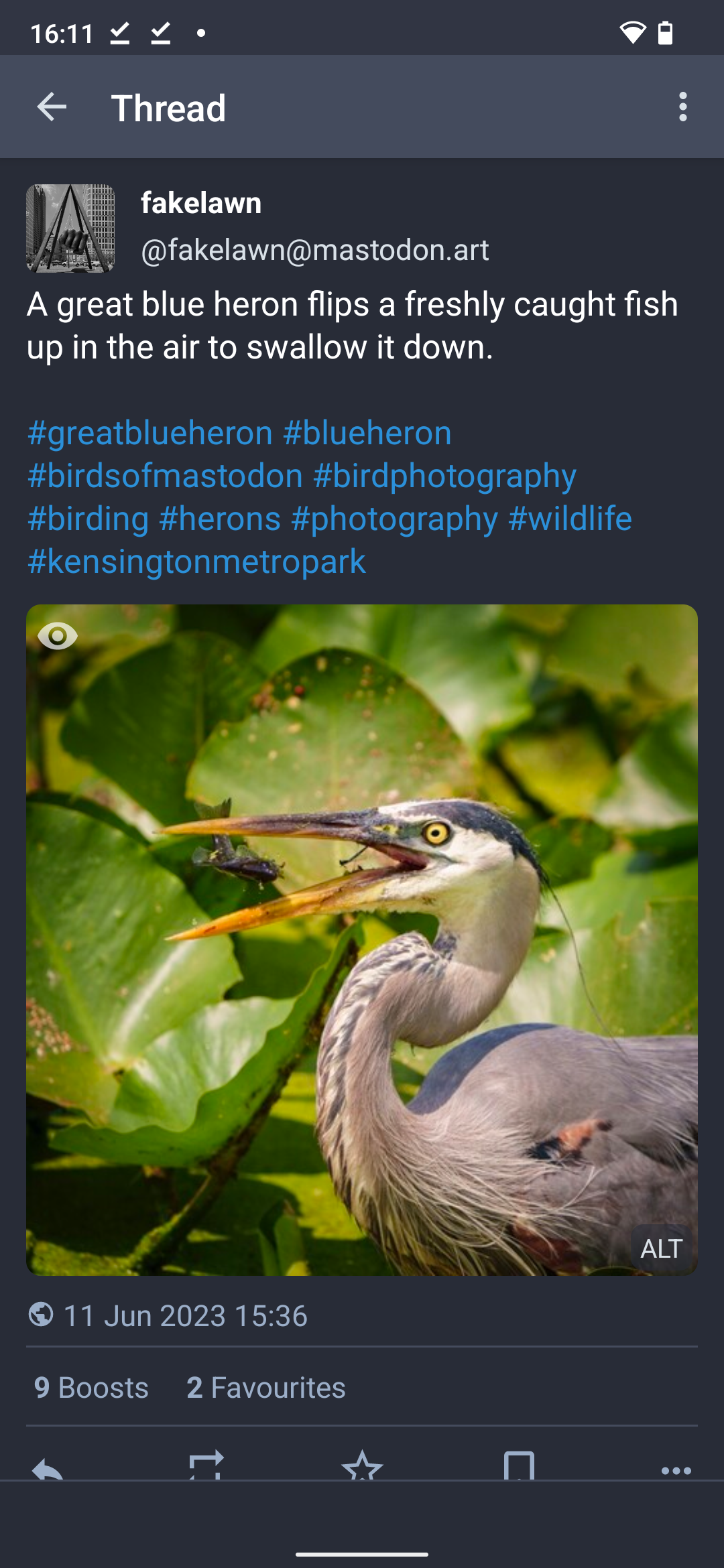
Screenshot of Tusky for Android, showing a post about a heron with a pretty photo of it
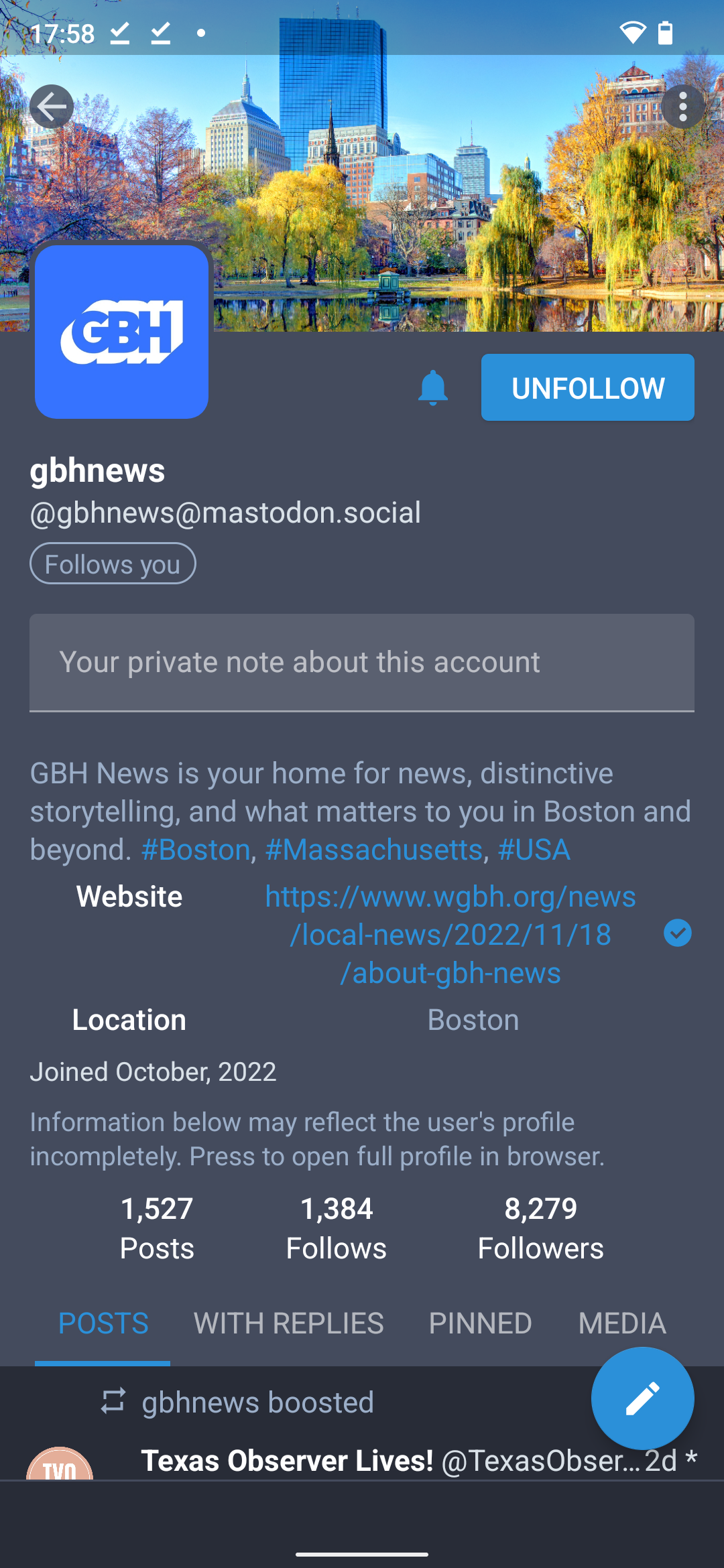
Screenshot of a profile page on Tusky, for the GBH News account, showing a  metadata section with a small verified tick symbol
Screenshot of the Aviation Librarian's account's media section showing lots of aeroplane pictures.
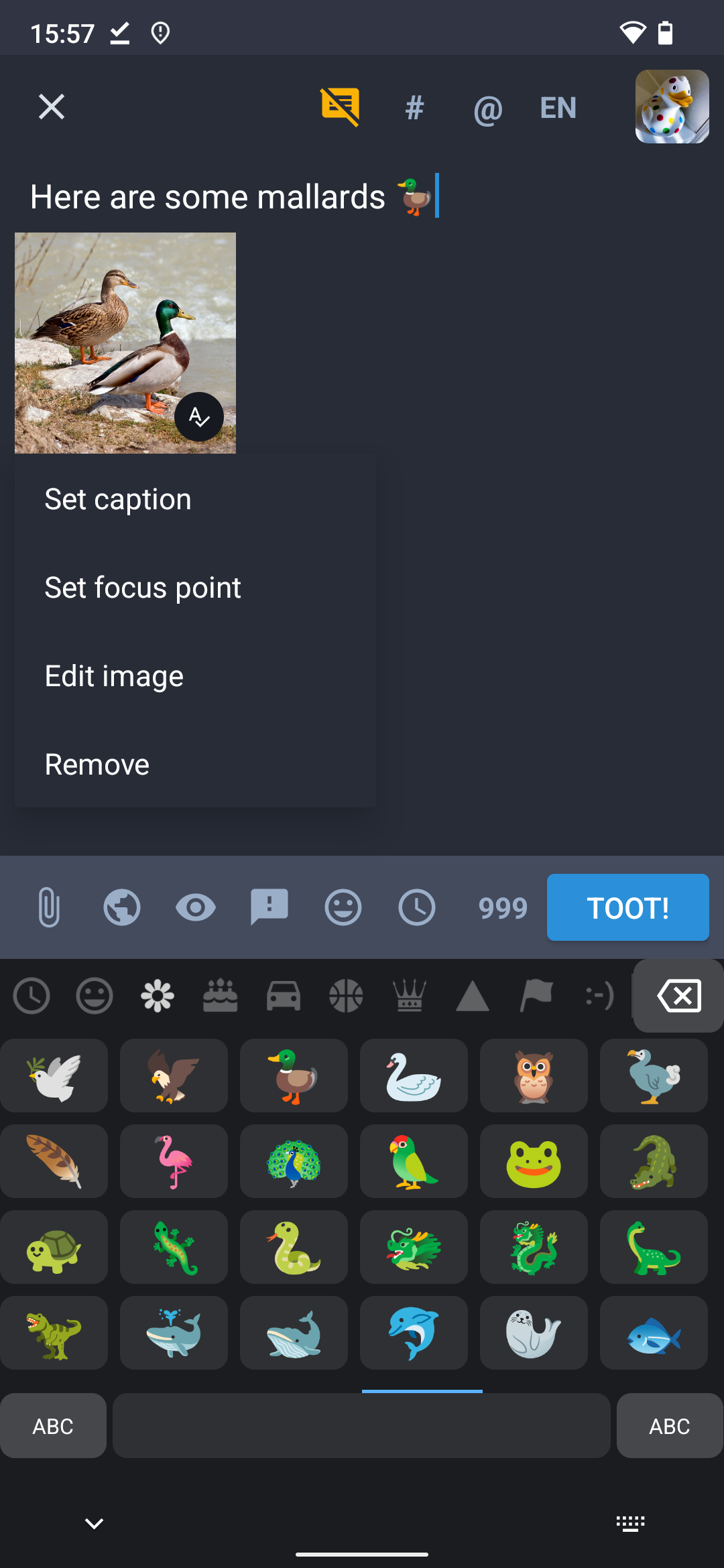
Screenshot of a post being edited in Tusky, showing an attached image and the emoji menu open.
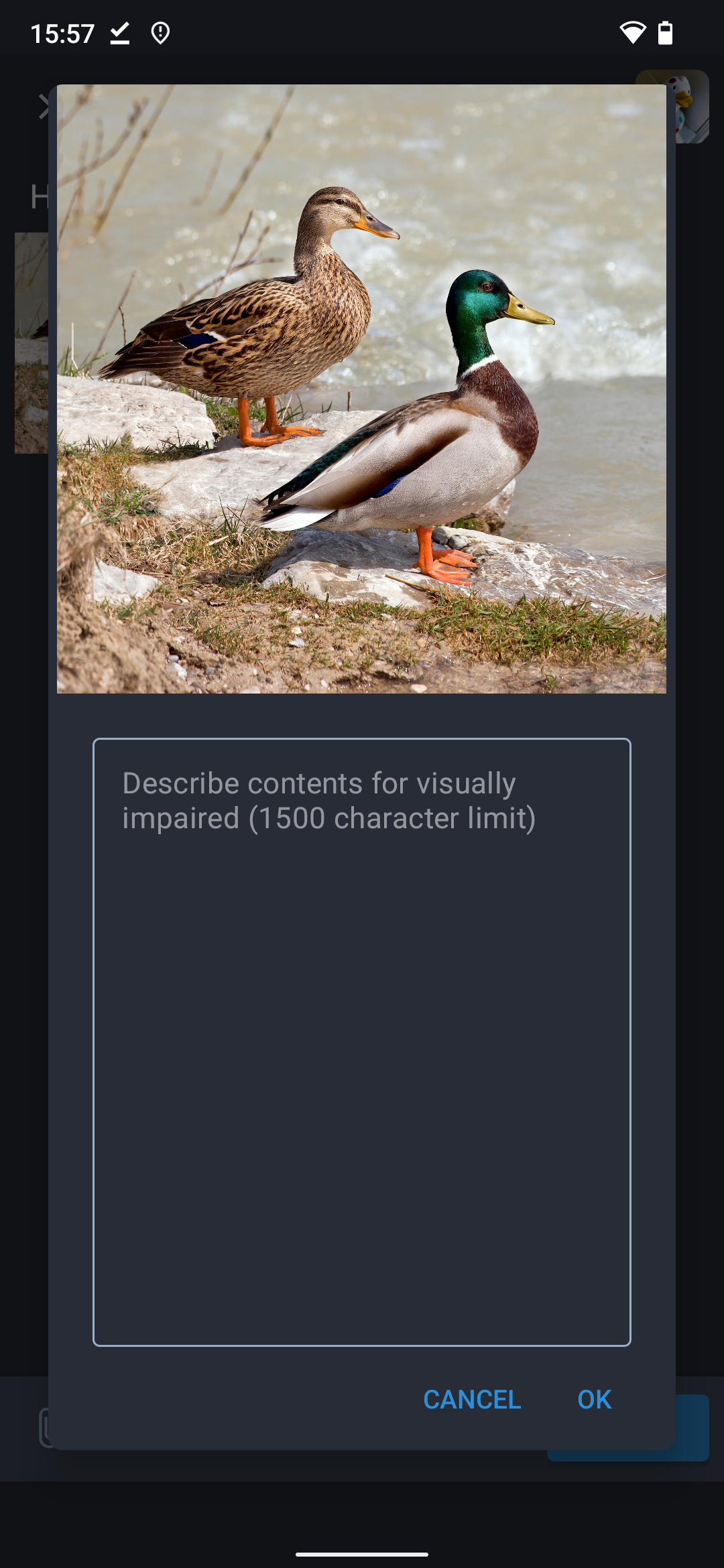
Screenshot of an image caption being edited in Tusky
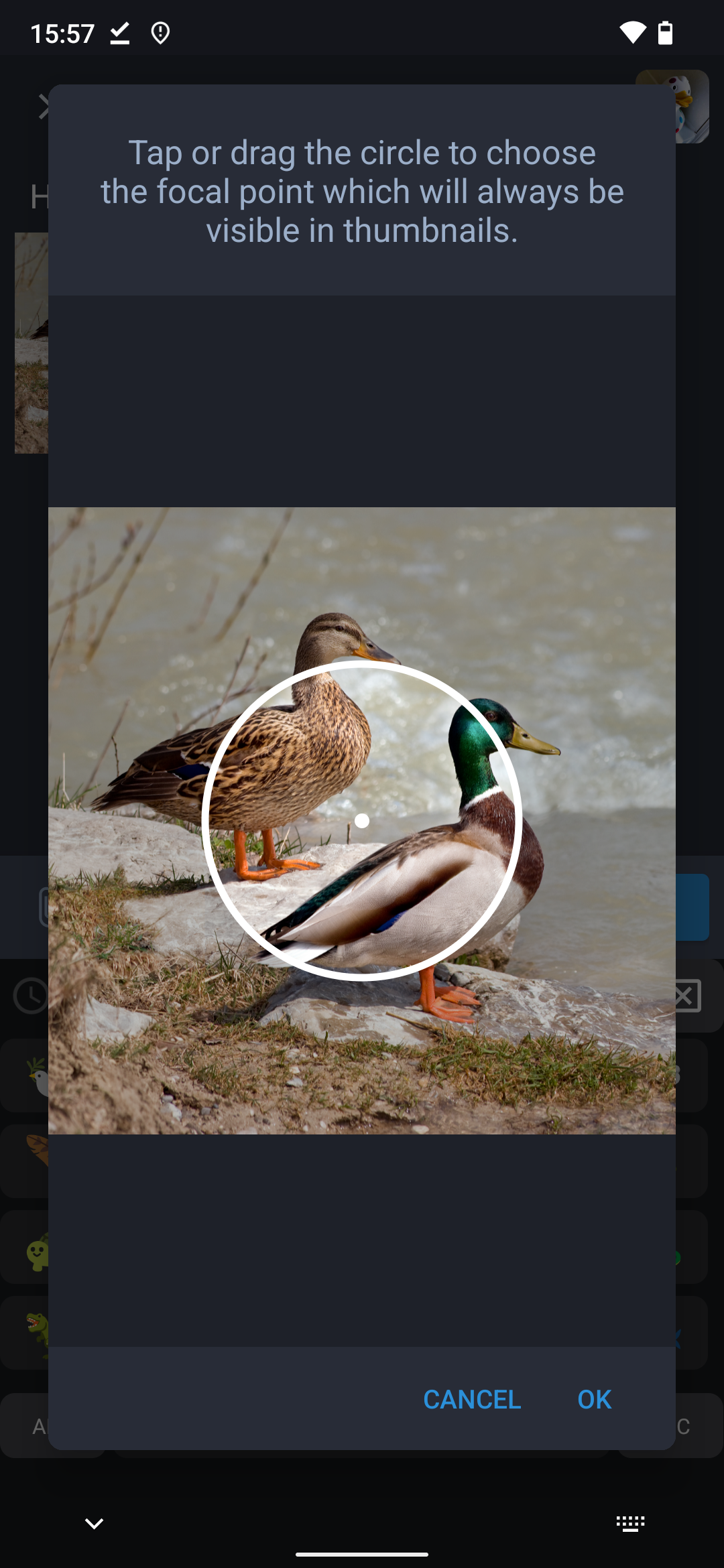
Screenshot of editing the focus on an image in Tusky
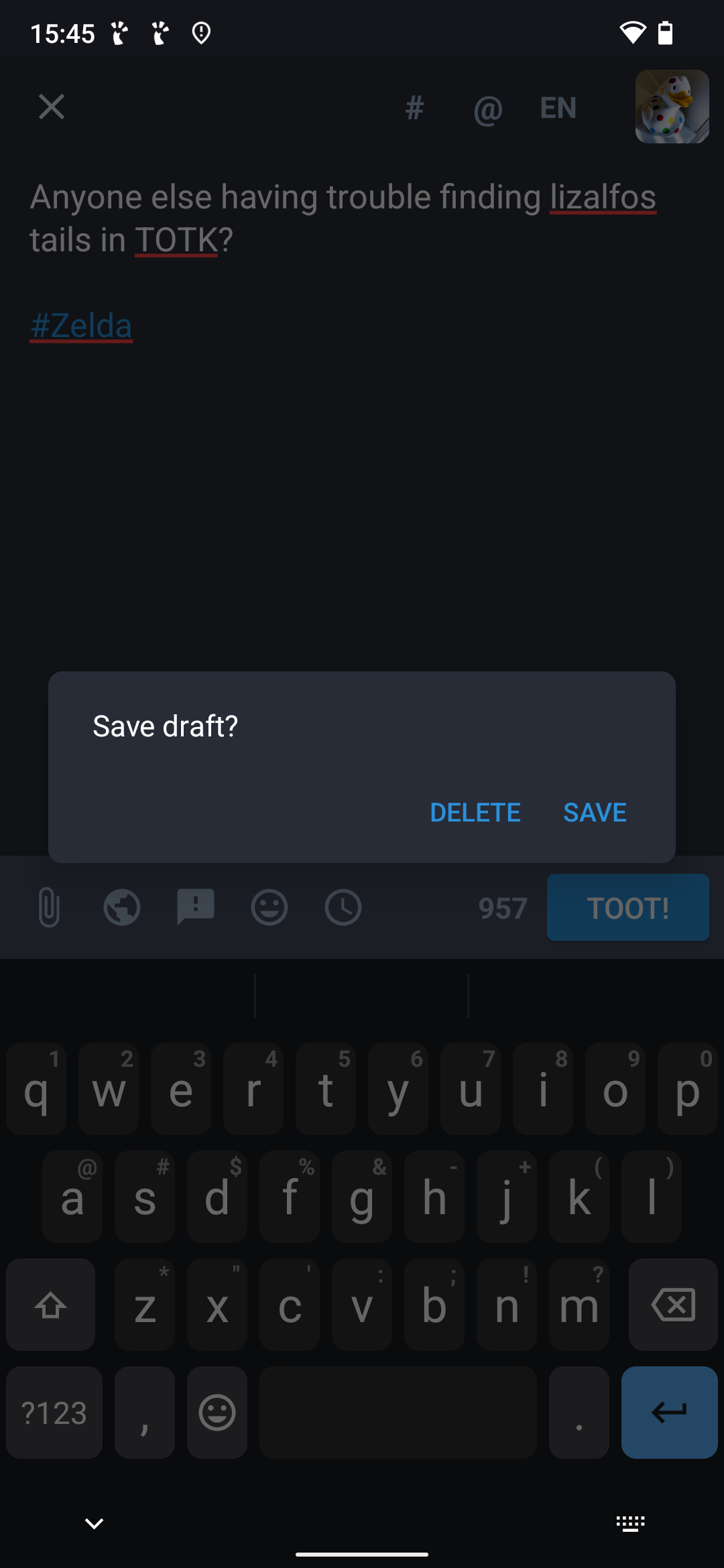
Screenshot of a message being edited in Tusky with a dialogue box asking if the user wants to save it as a draft.
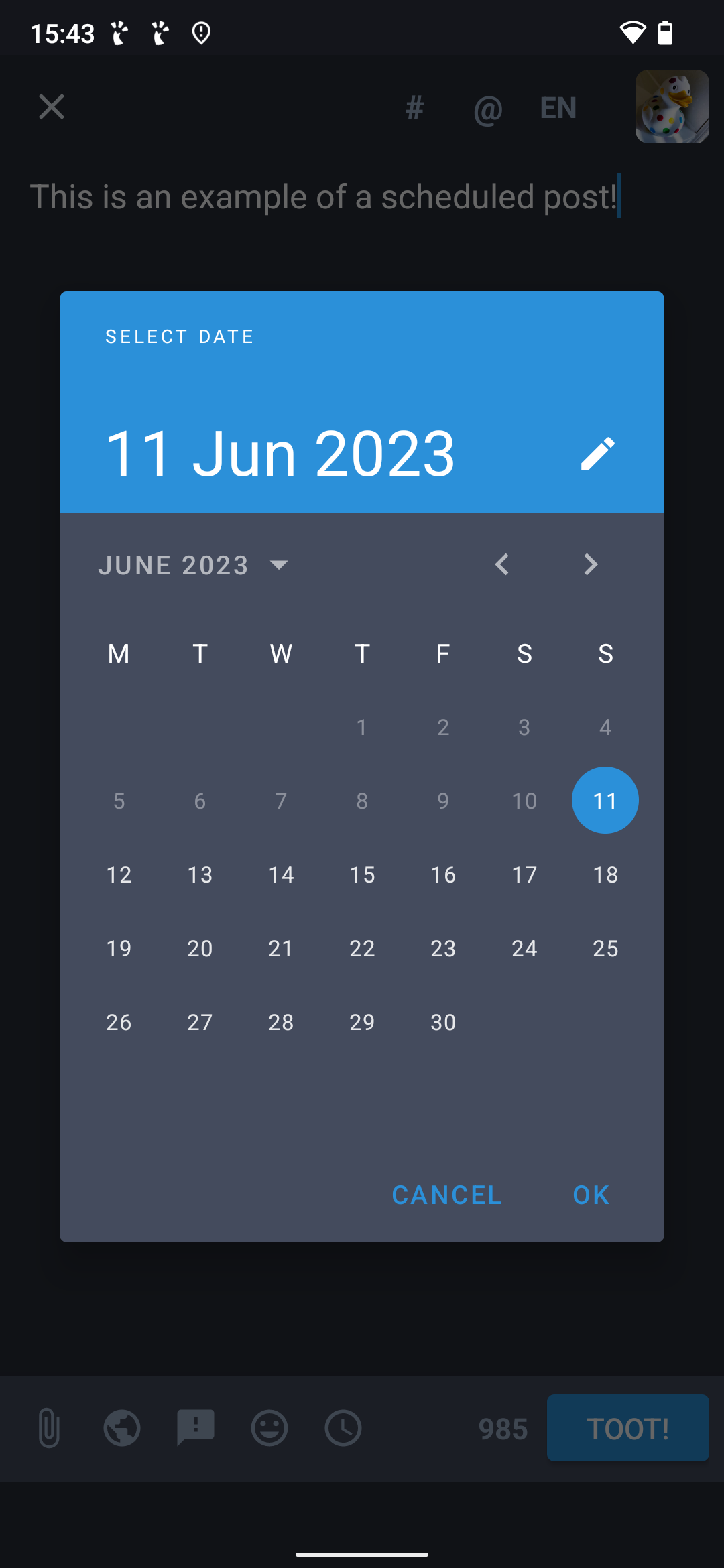
Screenshot of the post scheduling screen in Tusky showing a calendar.
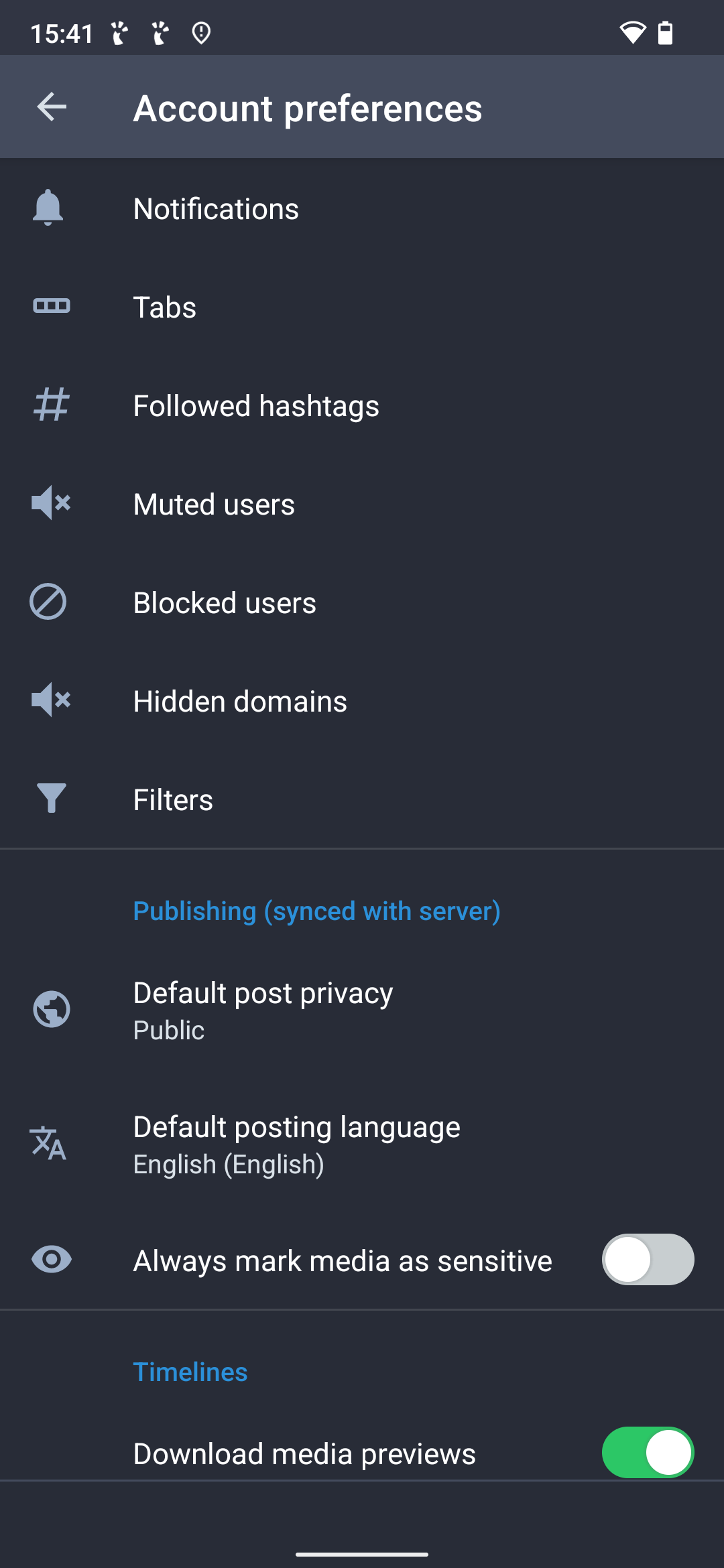
Screenshot of the account preferences menu in Tusky showing many options including Notifications, Tabs, Followed Hashtags, Muted and Blocked Users, Hidden Domains and Filters. More options are below this out of view of the screenshot.
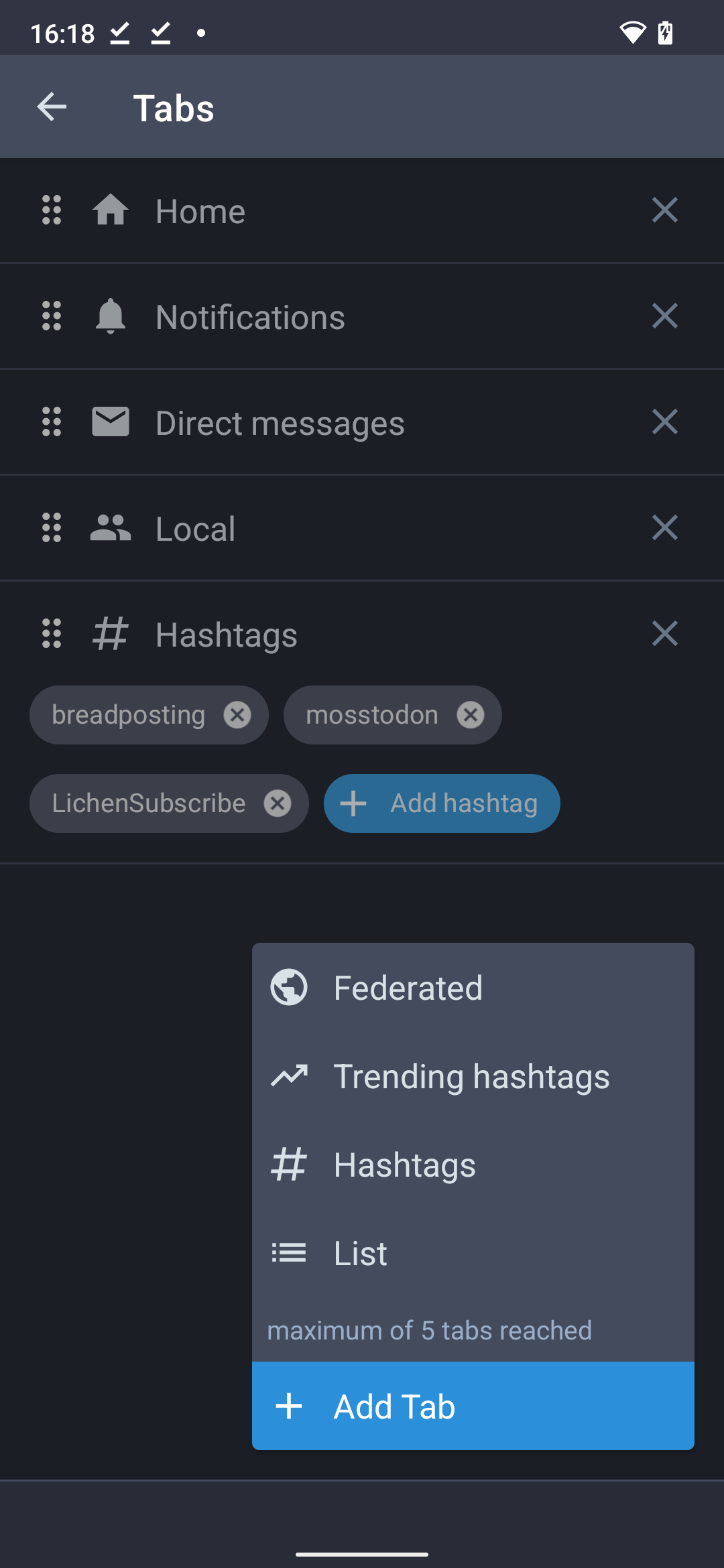
Screenshot of the custom tab settings page on Tusky where the main interface's tabs are chosen.
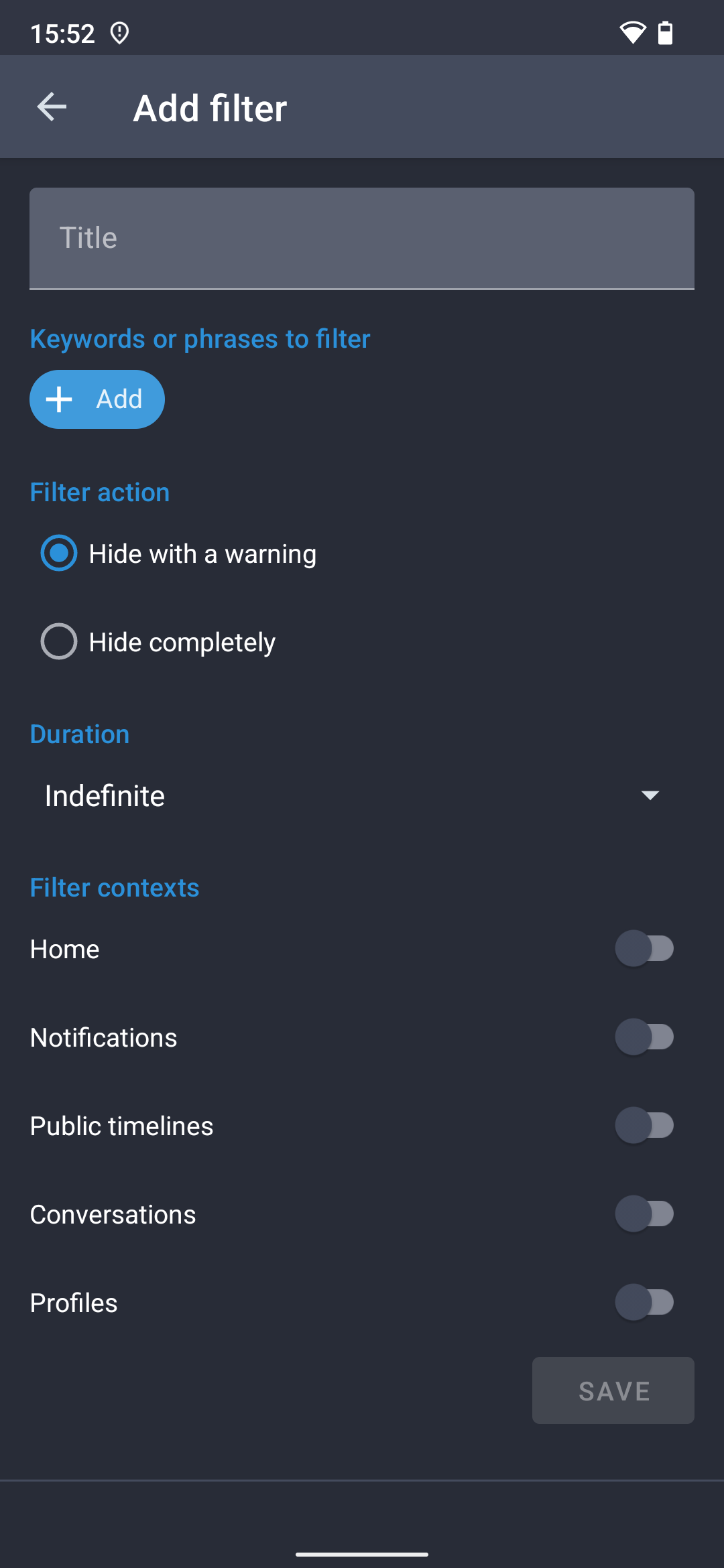
Screenshot of the Filter editing page on Tusky.
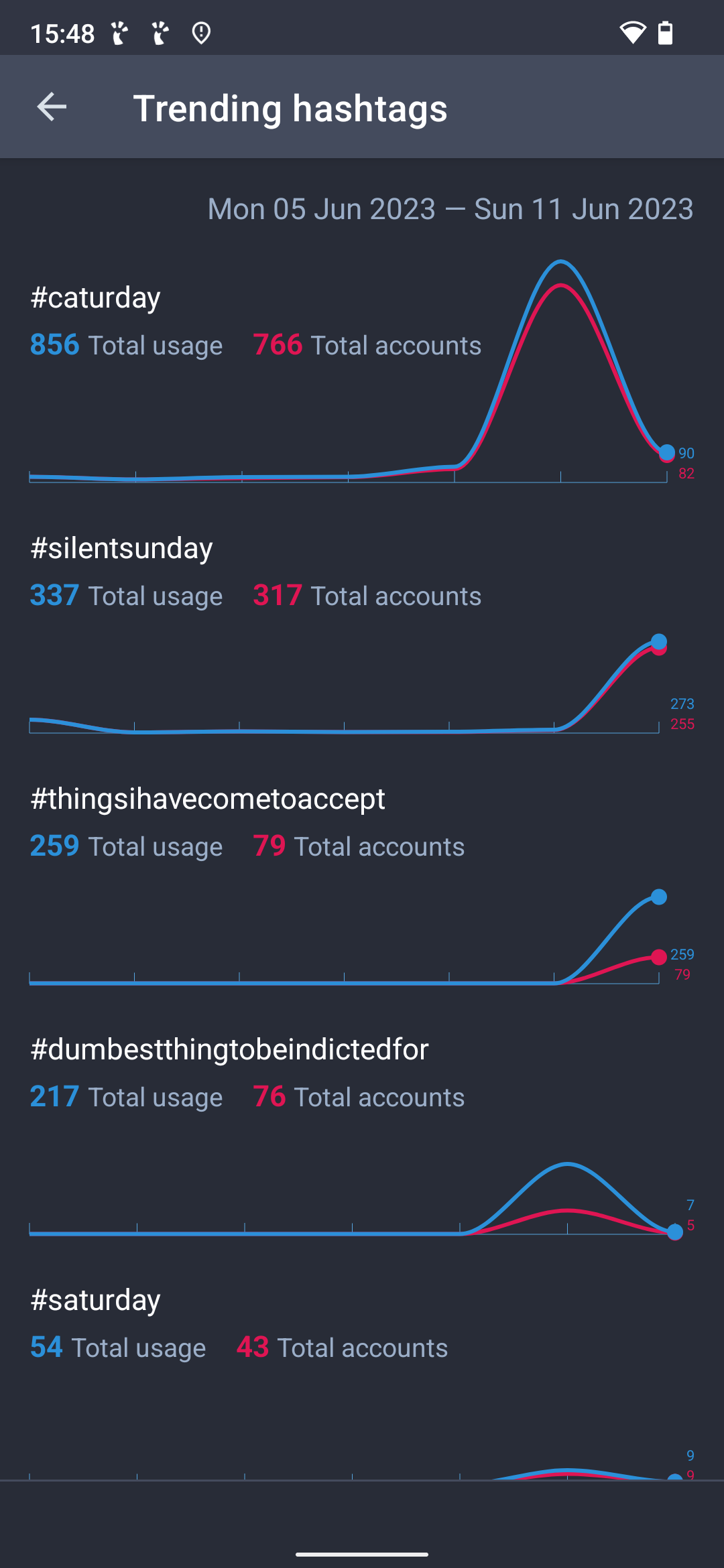
Screenshot of the trending hashtags page on Tusky showing many tags with graphs next to them showing their popularity over time.
Screenshot of the general app preferences page on Tusky.
Screenshots from Tusky v22.0

General impressions

Solid, reliable and mature with continual development and updates. Works the way you would expect it to, and matches up nicely with the website interface. This is what the official Android app should have been.

Nice stuff

  • One of the longest-supported Mastodon apps, been around longer than the official app
  • Feels very intuitive, arranged logically
  • Free open source software
  • Lots of features that are missing from the official app and/or website, such as scheduled posts, drafts, reversal of reading order, image cropping etc.
  • Other features include post editing, image focus editing, bookmarks, lists, polls, hashtag following, filters, private profile notes, all post visibilities including Unlisted, all timelines
  • Custom tabs, you can pick up to five from Home, Local, Federated, Notifications, DMs, Trending Hashtags, Lists, Hashtag Columns
  • Hashtag tabs can include multiple hashtags in one tab, and you can have multiple separate hashtag tabs, which is really useful for creating your own custom themed timelines
  • Switch between tabs very easily by swiping (swiping can be deactivated too)
  • Support for multiple accounts at once, with separate settings pages for each account
  • People sick of clout-chasing can switch off all the boost/favourite/follower numbers, which can be good for mental health
  • Warning icon to remind you to add text descriptions

Potential drawbacks

  • No option to view trending posts
  • Custom tabs are fantastic, but the five tab limit can be frustrating
  • Verification of links on profiles not very clear, the icon could be confused with fake verification icons made with custom emoji
  • Profile descriptions formatted slightly messily, especially metadata elements
  • Some people overlook the Add Poll button as it’s sort of hidden in the attachment menu

Hints & Tips

  • Tusky is a volunteer-run project providing free software, you can donate to keep it going at the Tusky Open Collective page ⧉
  • To see your own profile page, tap your profile icon twice (once to open the settings page, then again to show your profile page)
  • To make a draft, start writing a post and close it without actually posting it . You can find a complete list of drafts from the settings page.
  • To add a poll, click the attachment button 📎 and then select Add Poll

↩ Back to the front page

  •  

Kbin: Link aggregation and discussion communities on the Fediverse

Kbin is a Reddit-style link aggregator and discussion platform for the Fediverse. As it communicates using the ActivityPub protocol, Kbin servers can communicate with other Fediverse server types such as Mastodon etc.

It’s still in early beta testing, but already has servers up and running you can try out. Find out more from the official Kbin site ⧉ or try out its flagship server at kbin.social ⧉.

↩ Back to the front page

  •  

Toot! for iPhone & iPad

Third party Mastodon app, closed source, available from Apple’s App Store (paid) ⧉

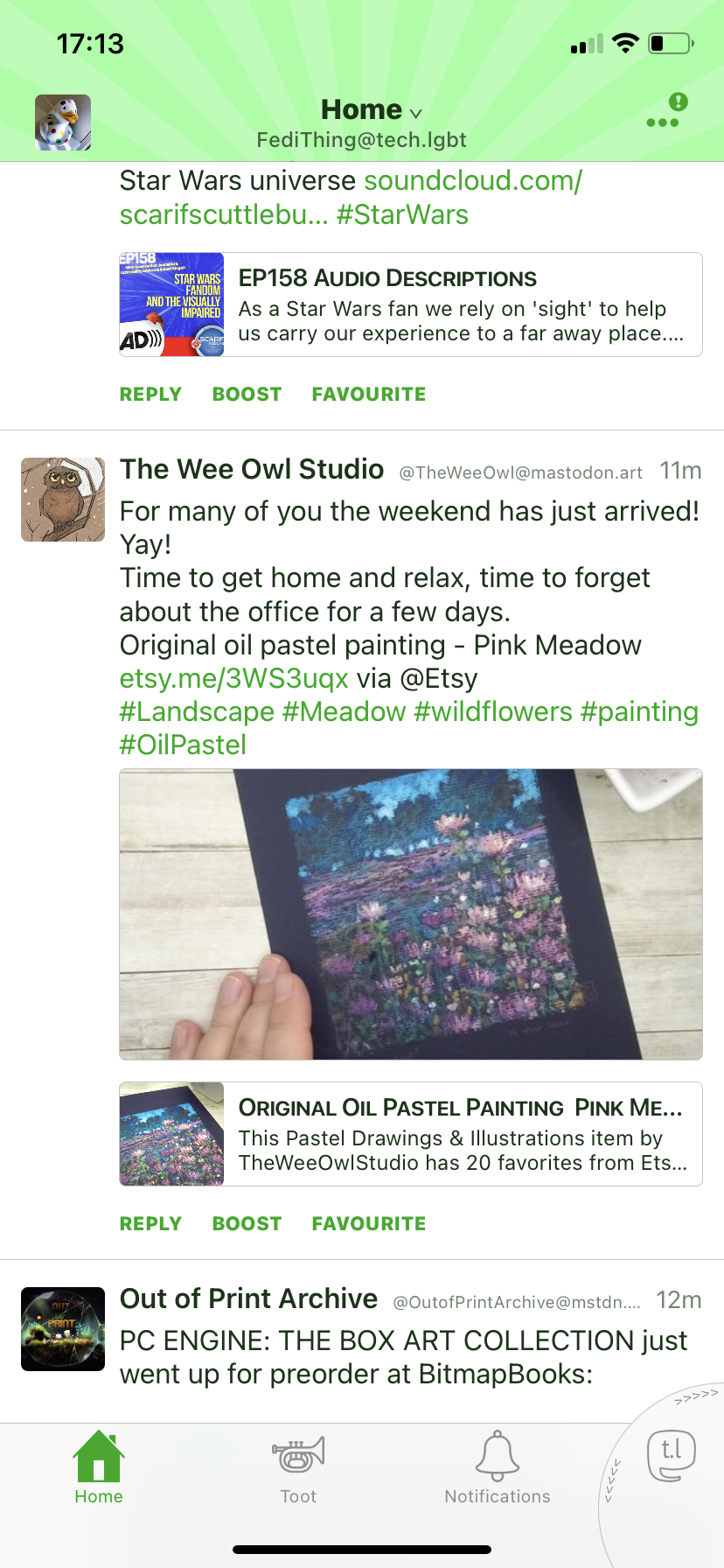
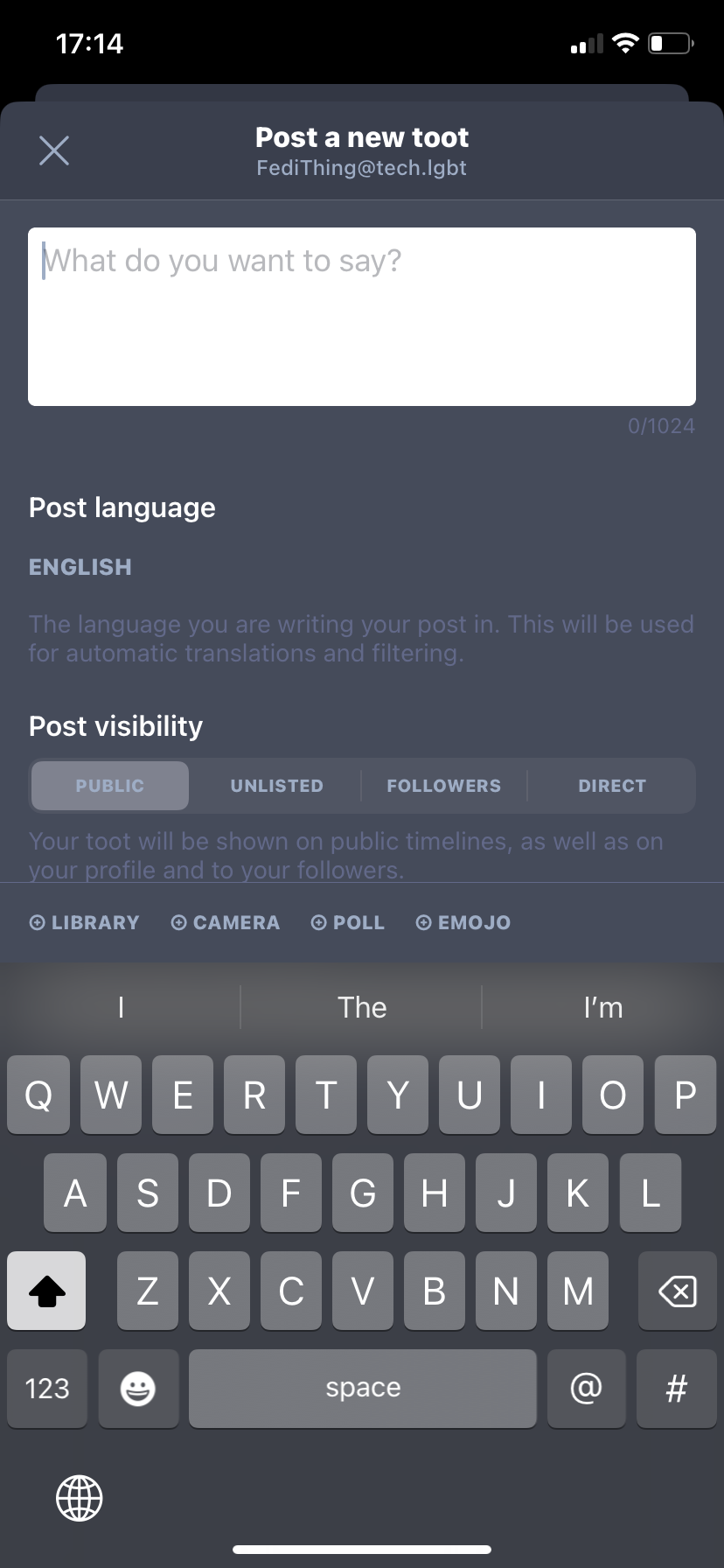
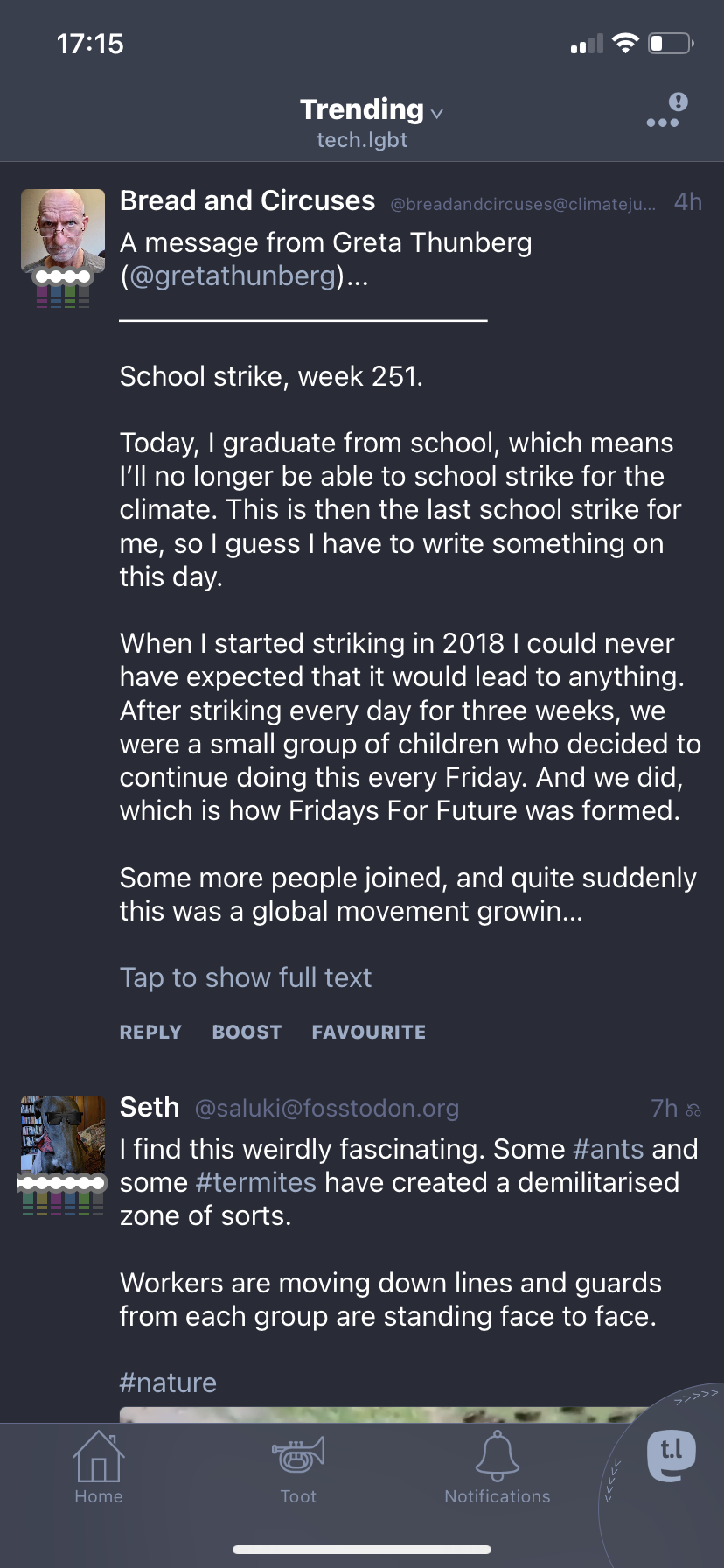
Screenshots from v21.1 of Toot! for iPhone

General impressions

Lots of personality, presented in a whimsical and fun style, not corporate at all.

Nice stuff

  • Mature and stable, one of the longest-maintained apps, been around longer than the official apps
  • Supports all timelines (home, federated, local), explore/trending tab, lists, hashtag following
  • Supports post editing
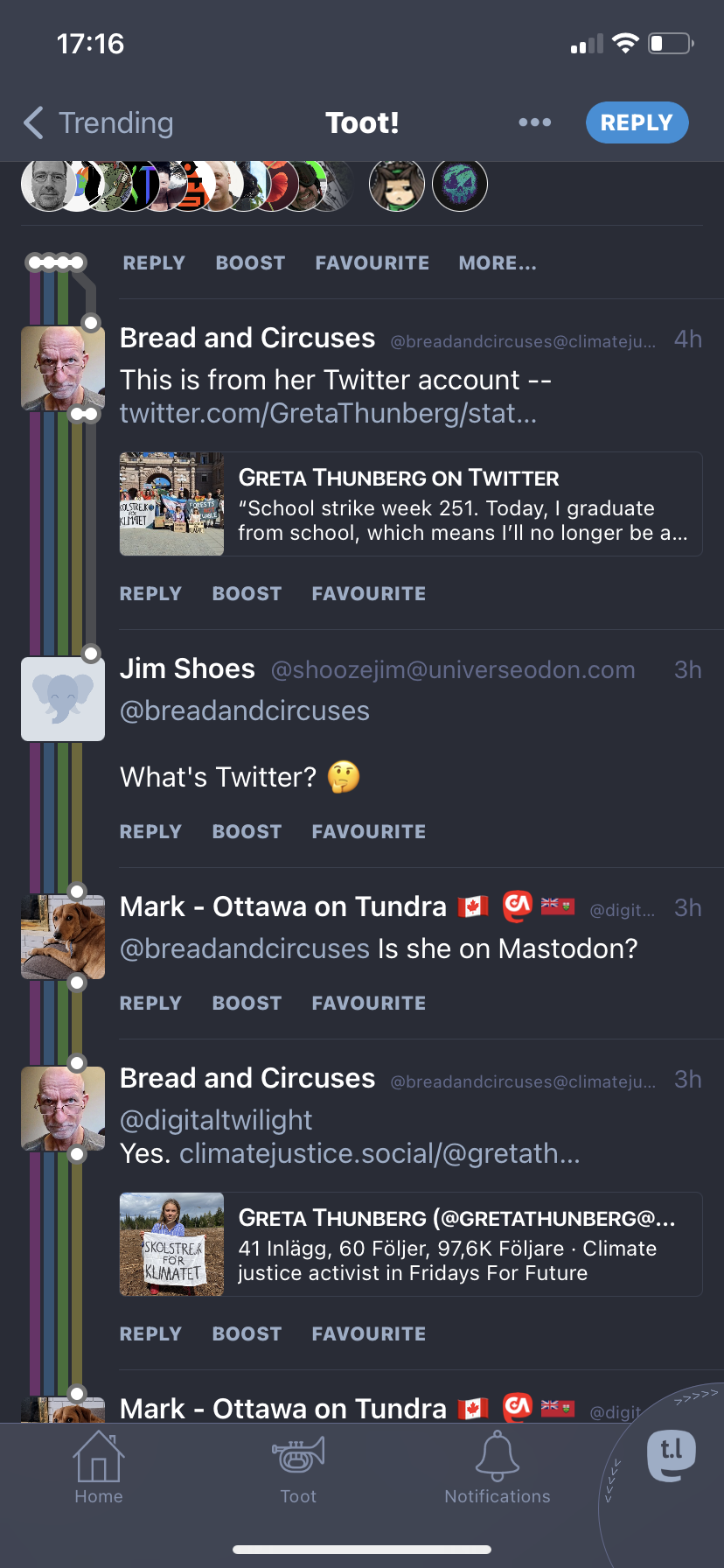
  • London Underground-style colourful discussion maps make threads much easier to navigate
  • Laid out clearly with text explaining things instead of blank icons, support for variable font size too
  • Allows multiple accounts at once and easy-to-use switcher in corner of screen
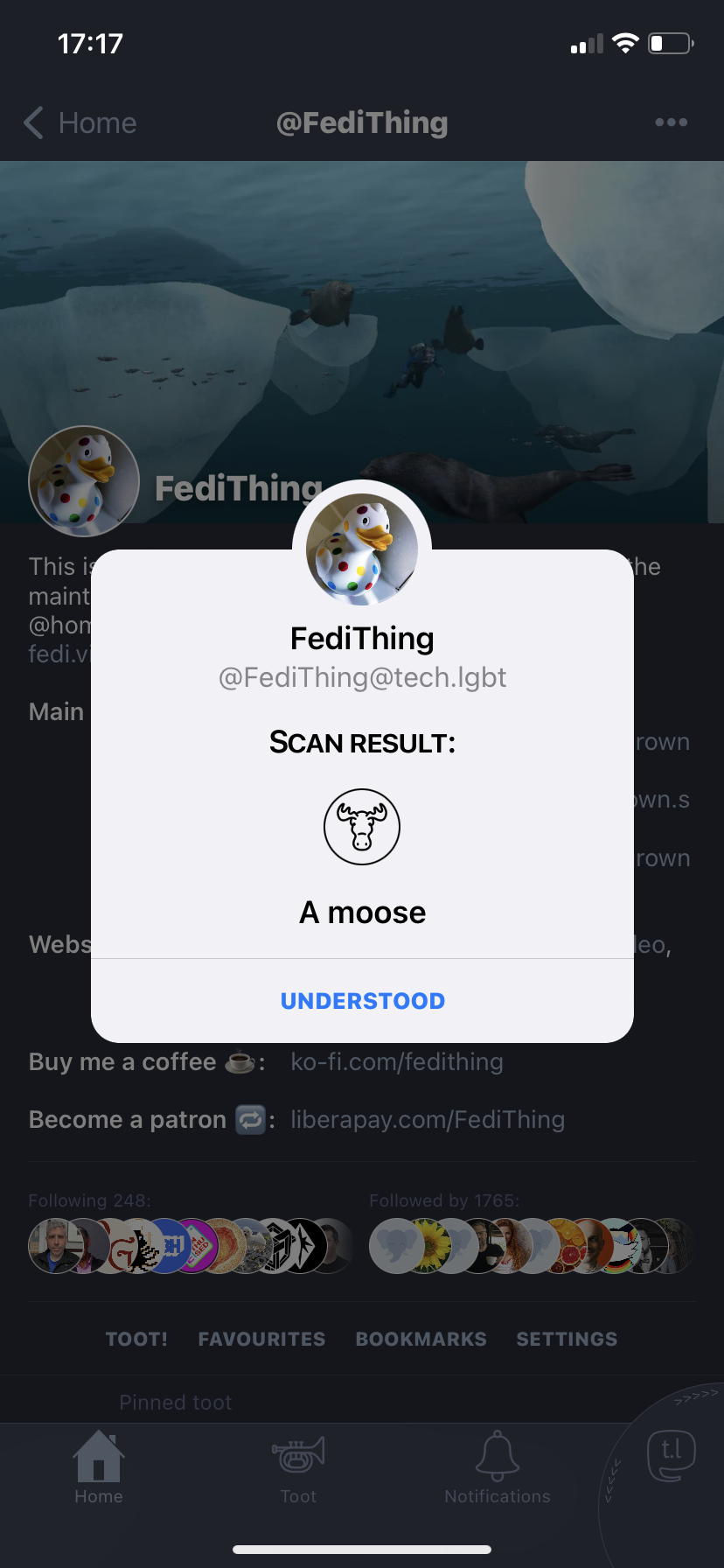
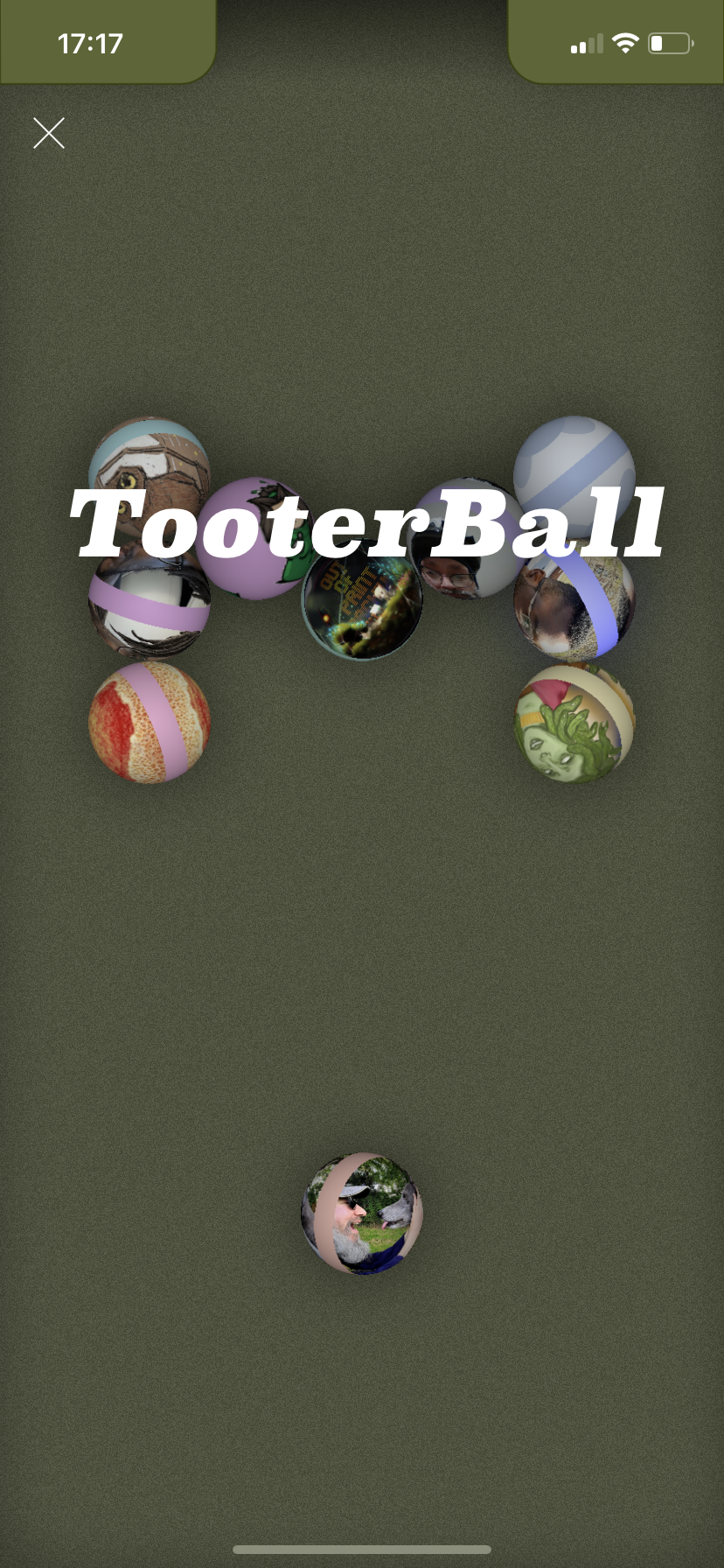
  • Unique and fun easter eggs including “user scanning”, a pool simulator with a mysterious scoring system and more
  • Timeline syncing between devices through iCloud
  • The “in-app purchases” are actually just parodies which you don’t need to buy, they don’t add any features

Potential drawbacks

  • Search box is awkwardly hidden in a menu
  • The message bubbles can feel a bit overwhelming when there are lots of them, but they can be switched off

Hints & Tips

  • You can find the search box by going to the Home or Notifications tab, then clicking ⋯ and then Search
  • To find the Explore, Local and Federated feeds, click your server’s icon in the bottom right corner and then select the feed you want from the menu at the top of the screen

↩ Back to the front page

  •  

Importing ready-made server blocklists on your own Mastodon server

Mastodon servers can choose to block other servers, and by default this is done manually one at a time. However, this can get cumbersome if there are lots of servers you need to block quickly, especially if you’re running a new server with no blocks at all yet.

To make the process easier, servers admins can import pre-written server-level blocklists from sites such as oliphant.social ⧉. Once you have a blocklist downloaded, here’s how to add it to your own server:

  1. Log in on your server’s website using your admin account.
  2. Go to Preferences > Moderation > Federation
  3. Click the Import button at the top
  4. Browse for the blocklist’s .csv file, then click Upload
  5. You will be presented with a list of servers to block. If there are servers with existing connections to your server, they will be automatically unticked. If you want to include these in the block, tick them.
  6. When you want to implement the blocklist, click Import in the top right corner of the list and click OK to confirm.

Once the list is successfully imported, the blocks will appear alongside your existing blocks. If necessary, you can remove blocks from the list just like any manually added block.

Will it block people that have already followed me, or that I already follow?

Before any blocks happen, the blocklist import process will highlight servers on the list that your server already has connections to. You will be given the option of either going ahead with blocking those servers, or leaving them off the blocklist. By default it will leave them off the blocklist, unless you choose to add them back in.

If you block a particular server, then all the follows and followers from that particular server will lose their connections to your server.

↩ Back to the front page

  •  

Deleting posts automatically in Mastodon after a certain time period

Posts in Mastodon can be set to automatically self-destruct after a certain time period, with exceptions made for posts you want to keep. Here’s how to do it:

  1. Log in through your server’s website
  2. Go to Preferences > Automated post deletion (on mobile you may need to click ☰ first)
  3. Choose the Age threshold to set how long posts are around before they’re deleted
  4. Set the exceptions for posts you want to keep
  5. Tick the box at the top marked Automatically delete old posts
  6. Click the Save changes button

If you want to stop deleting posts automatically, UN-tick the box and click the Save changes button.

I activated this but it hasn’t deleted posts that are way past the threshold. What’s going on?

If servers are busy, they create queues of tasks to work through. Automated deletion tends to go at the back of the queue, so it may take longer to happen than other tasks. If the settings are correct and it’s way past the deadline for the deletions to happen, ask your server’s admin for advice.

How does this affect server running costs?

When this feature is discussed, the issue of server running costs is often raised.

On the one hand, automated stuff always adds extra tasks for the server to carry out. On the other hand though, it would mean the server doesn’t have to store as much data so it would save money on storage costs, especially if the deleted posts have media attachments. It would also reduce storage for any servers that have federated the posts being deleted.

You would have to speak to your server’s admin to find out exactly how it affects their setup, as different servers may have different resources available.

I asked a couple of very large server admins for their thoughts on how this balances out. Both of them said the added tasks were insignificant compared to everything else the servers have to do. Both of them also said deleting posts (especially posts with media attachments) saves storage, but one of them added that there may be fees to be paid if the deletions happen for very recent posts. On their server, it would be cheaper to only delete posts more than 90 days old, and leave any newer posts intact.

↩ Back to the front page

  •  

How to use groups on Mastodon and the Fediverse

At the moment, most Fediverse groups work like this:

  1. Join a group by following its account address
  2. Posts from that group will start appearing in your Home timeline
  3. If you want to post something to the group, just include its account address in a public post
  4. If you want to leave a group, unfollow it

It’s somewhat similar to following hashtags, and people who have used email discussion lists will also find this structure very familiar.

The two main Fediverse group providers at the moment are Chirp ⧉ and Guppe ⧉. They are platform-neutral, and their groups can be followed from all kinds of Fediverse servers including Mastodon, GoToSocial, Friendica etc.

Where can I discover existing groups?

I’ve compiled a curated list of interesting Fediverse groups on fedi.directory ⧉. I’ve tried to only list active groups with a respectful atmosphere.

Chirp has its own directory at chirp.social ⧉, and Guppe has a list of their top 50 active groups at the bottom of their website at a.gup.pe ⧉.

How can I create a group? Are the groups moderated? What if I see something unsuitable?

Whatever kind of group you are on, you can mute, block and report just like you would with non-group posts. If you see something bad, report it!

Guppe groups don’t require any kind of registration, you can create a group simply by mentioning the group name in the form “@YourGroupNameHere@a.gup.pe”. However, because there’s no registration there is no way to moderate the group directly, and they rely on members reporting bad posts to their server admin.

Chirp groups require you to create an admin account on the chirp.social ⧉ website. Because groups have a registered admin, it means the admin can moderate the group themselves instead of relying on server admins.

Groups federate content more effectively than hashtags

Hashtag follows and groups have some overlap, and appear to work in a similar way on the surface, but there are significant differences behind the scenes.

The biggest advantage of groups is you automatically see all of the group’s posts, even if they’re from accounts that haven’t federated to your server before. Because all the group’s posts are shared to all the members’ servers, you never miss a thing.

With hashtag follows, this mass federation doesn’t happen. Hashtag following means you will only see posts from accounts that already federate with your server. Hashtags are essentially passive filters for your server’s Federated timeline and do not actively draw in any new content.

What about Mastodon’s own built-in groups feature?

Mastodon has been developing a built-in groups feature for some time now, but it hasn’t been released yet. From the screenshots posted so far, it seems it will be more of a Facebook Groups type forum rather than a public discussion list. (You can see highly technical details and screenshots of this upcoming Groups feature on their github page ⧉).

However, it is unclear if Mastodon groups will work across the Fediverse or only on Mastodon. Chirp and Guppe are platform-neutral, and will work on any kind of Fediverse server that supports microblogging including Mastodon, Friendica and others.

Groups on Friendica

The Fediverse server type Friendica includes built-in group support, which works in a similar way to Chirp and Guppe. Creating a Friendica group requires a Friendica account, but anyone can join the group from other Fediverse server types including Mastodon servers.

A Friendica group can be moderated by the person who created it, and they can also add additional moderators to the same group.

Is there anything like Reddit on the Fediverse?

Yes! There’s a Reddit-style link aggregation and discussion platform called Kbin.

↩ Back to the front page

  •  

You don’t need link shorteners on Mastodon

All links on Mastodon count as 23 characters towards your post’s character limit, no matter how long they really are. Because of this, there is no need to use link shortener services on Mastodon.

Mastodon does this because it’s much better for privacy that links remain in their original form, as link shortener services tend to track the people that click on them. It also means the links will continue to work in the future and aren’t dependent on the existence of the link shortener service.

The official iPhone/iPad app counts it as more than 23 characters?

There’s a known bug on the official iPhone/iPad app ⧉ which causes links to count for more than 23 characters. A fix has been proposed but it hasn’t been released yet. In the meantime, you can avoid this bug completely by using third party apps such as Toot!, Ice Cubes and Ivory, or by logging in through your server’s website.

But I want to track people who click on my links!

You can use link shorteners to track people, but you probably shouldn’t. Also, some people may wonder why you are using link shorteners when all links count for 23 characters anyway.

Why is it 23 characters?

Apparently Twitter’s original built-in link shortener used 23 characters. So when Mastodon removed the need for shorteners, they emphasised this by only counting 23 characters for all links.

↩ Back to the front page

  •  

Using relays and scripts to quickly expand a server’s view of the Fediverse

By default, brand new Mastodon and Fediverse servers will be totally blank, with no users or posts visible at all. Searches will produce no results.

As people start signing up and posting and following accounts from other servers, the timelines and search results will start to fill up as the server starts noticing more of the Fediverse. However, this discovery process can be very slow to begin with, and those on new servers may sometimes be frustrated by the slowness.

Server admins can speed up this process by subscribing to relays which push new content to their server from other servers, or using scripts that fetch missing posts from threads and profiles.

How to subscribe to a relay server on Mastodon

  1. Log into your server’s website using your server’s admin account
  2. Go to ⚙ Preferences > Administration > Relays
  3. Click Setup A Relay Connection
  4. Paste the URL of the relay into the box and click Save And Enable

⚠ WARNING: Some relays are better moderated than others. Some relays may contain content that breaks your own server’s rules, or may even be illegal in your country. It’s really important to check what kind of content a relay contains before you connect your own server to it. Relays are usually based on specific servers, so you can see such a relay’s content by browsing its server’s Federated feed and reading that server’s rules.

Also, bear in mind large and general relays may fill your server with content that you mostly aren’t interested in, and use up lots of resources at the same time. Smaller, more specific relays may be much better suited to your server’s resources.

Finding general relays

There’s a list of Fediverse relays at RelayList.com ⧉. Please bear in mind the warnings above before using this list, and check that the content on the relays is suitable for your server.

FediBuzz Relay: Custom relays on specific topics

This is a new service that lets you subscribe to custom relays based on specific hashtags or specific other servers. This can greatly reduce the amount of resources required by relays, as it only sends posts that are relevant to the topics you have selected for your server. You can find out more on its website at relay.fedi.buzz ⧉.

Using scripts to fill in missing posts from profiles and threads

There’s a new tool called FediFetcher ⧉ which can be used to automatically backfill missing posts from profiles and conversation threads. It runs independently of the Fediverse server, but it needs access tokens for every user that it backfills for, so it is generally aimed at single-user servers or servers where the admin knows all the users. It also requires good technical skills for running the tool.

↩ Back to the front page

  •  

How to post a poll on Mastodon

It’s really easy:

  1. Log in through your server’s website or on an app
  2. Start a new post
  3. Click the poll icon, this usually looks like a bar chart 📊
  4. Write your question in the main part of the post
  5. Add up to four responses, and describe each option (you can use emoji too)
  6. Set the duration, between 5 mins and 7 days
  7. Click Publish to post the poll!

Allowing multiple responses on polls

There’s a slightly hidden option when you’re posting a poll where you can allow people to choose more than one response. To switch on multiple responses:

  1. Log in through your server’s website
  2. Create the poll via the web interface as described above, but don’t post it yet
  3. Click on a circle next to one of the options, the circles will all change into rounded squares, and the poll will now allow multiple responses

If you want to go back to single response, click on a square to change it back to circles before you post.

Some third party apps also allow you to activate multiple responses for a poll.

↩ Back to the front page

  •  

How do I follow someone on Mastodon? How do I unfollow them?

You can follow someone on Mastodon by going to their profile page and clicking the Follow button.

You can unfollow them by clicking the same button again. The button may have a different label after you’ve followed someone (Unfollow, Following etc), but it will be in the same place on the screen.

If you’re trying to get someone’s profile page to appear so you can follow them, see the sections on discovering accounts to follow and using account addresses.

↩ Back to the front page

  •  

How do I delete a post on Mastodon?

To delete one of your posts:

  1. Go to the post you want to delete
  2. Click the ⋯ icon
  3. Select “Delete”

This should delete the post straight away on your own server. Most other servers where the post is visible will delete it too, though in some cases there may be a delay in the deletion happening (as the other server may have a queue of tasks to work through).

In a small number of cases a deletion may not happen on the other server, for example if the other server is not working properly. If you’re concerned about how widely a post may be seen, you can restrict its visibility when you post it.

What does “Delete and re-draft” mean?

There are actually two delete options on Mastodon, Delete or Delete and re-draft. The first just deletes the message, but the second deletes the message and sends a copy of it to the post writing box so you can make changes and repost it. However, since the introduction of post editing on Mastodon this second option has been largely obsolete. The only time you would be likely to want to use re-drafting is if you want to change the visibility of a post, as this cannot be done through editing.

Bear in mind that both delete options delete the post, and any shares will be lost, links will break and replies will be orphaned. If you just want to make changes to the content, editing is a much better option.

Can I set old posts to self-delete automatically?

Yes! Click here to see instructions on how to delete posts after a certain time period.

↩ Back to the front page

  •  

Browsing a Mastodon account’s posts that use a particular hashtag

You can find a particular account’s posts using a particular hashtag by using the following web address:

(Mastodon account’s web address)/tagged/(hashtag without #)

For example if you wanted to browse posts with the hashtag #pixelfed made by the FediTips account, the address would be:

https://mstdn.social/@feditips/tagged/pixelfed

If you’re not sure what an account’s web address is, go to the account’s original page and the address will be shown at the top of your web browser.

↩ Back to the front page

  •  

Recommending accounts to follow for new users on your Mastodon server

When a new user joins your Mastodon server, by default they are shown a list of accounts to follow. This recommendation list is drawn from two different places in the admin settings.

The first place is a manual list of accounts you want to always be recommended, which is always shown at the top of the list.

The other place is an automatic pool of accounts that are randomly recommended to new users. The pool is based on which accounts your existing users are following, but you can edit this pool if you want to remove accounts from it.

Set accounts that your server always recommends to new users:

  1. Log into your server’s website with your admin account
  2. Go to Preferences > Administration > Server Settings > DIscovery > Always recommend these accounts to new users
  3. Paste in the account addresses of the accounts you want to recommend, separated by commas. They can be accounts from your server or from other servers, as long as the account address is written in full.
  4. Click the Save changes button

Edit the random pool of recommended accounts:

  1. Log into your server’s website with your admin account
  2. Go to Moderation > Follow Recommendations
  3. To remove an account from the pool, tick the box next to it and click Suppress follow recommendation
  4. To bring an account back into the pool, click the Suppressed link at the top of the list, then tick the account you want to bring back and click Restore follow recommendation
  5. You can set different recommendation pools for different languages by clicking the For language dropdown menu

↩ Back to the front page

  •  

How to add custom emoji to your own Mastodon server

One of the most fun features of running your own Mastodon server is the ability to add custom emoji. All members of your server can use them, and they will be visible in your member’s posts that federate to other servers. You can also clone custom emoji from other servers, or block them if you see something unsuitable.

To access emoji settings, log into your server’s website with your administrator’s account, then go to Preferences > Administration > Custom emoji.

When you first log in, you will see a long list of all the custom emoji visible to your server, including your own and those of all the servers you federate with. To show just your own click the Local tab at the top, to show just those on other servers click Remote.

Adding your own custom emoji

Custom emoji can be PNG or GIF files up to 50kb in size, and can be still or animated. They can also contain transparent backgrounds. (If you want to create your own from scratch, there’s a useful guide by Laura Kalbag here ⧉.)

To add your own custom emoji:

  1. Log in with your admin account on your server’s website
  2. Go to Preferences > Administration > Custom Emojis
  3. Click the Upload button in the top right corner
  4. Add a shortcode, which is a word or words which describes what the emoji looks like. If you use several words, write them as CamelCase or with underscores separating them. Shortcodes are really important as they let blind people hear emoji through screen reader apps.
  5. Browse for the image file and click the Upload button at the bottom

Cloning emoji from other servers

To clone an emoji from another server, tick the box next to it on the custom emoji admin list, and click Copy. If you’re looking for a particular emoji on a long list, use its shortcode in the search box.

Blocking emoji from other servers

To block an emoji from another server, for example if it is offensive, tick the box next to it on the emoji admin list and click Disable or Delete.

↩ Back to the front page

  •  

Customising your Mastodon server’s appearance with CSS

You can give your Mastodon server’s website interface a unique appearance by using the Custom CSS feature:

  1. Log into your server’s website using the admin account
  2. Go to Preferences > Administration > Server Settings
  3. Click the Appearance tab and go to the Custom CSS section
  4. Add the CSS code you want in the box, then click Save Changes

If you’re comfortable editing CSS, have a look at this excellent tutorial for customsing a Mastodon server’s colour scheme ⧉.

↩ Back to the front page

  •  

What do I call my server? What kind of domain name or subdomain should I use?

When a Fediverse server is created, you have to give it its own name. This can be a domain name (example.com) or subdomain (social.example.com). People can use this server name when signing into their account on an app, or when using the server through a web browser.

The best domain names are usually short, easy to spell and memorable. You may want to avoid offensive words, as they can make it difficult to tell people about your server on other platforms. If you already own a domain, you can use subdomains for your servers.

It’s also probably a good idea to use a name that doesn’t mention the software that it is running. For example, if you were making a Mastodon server you probably shouldn’t mention the word Mastodon in the domain or subdomain. Software projects tend to change over the years, in their content, leadership or maintenance, and it may be that in the future you want to switch to a different kind of software on your server. It could be confusing for your users if your server mentions one kind of software but runs another. Alternatively, software projects sometimes rename themselves, and this too can cause confusion for your server’s users. On top of this, some software projects trademark their names and only let servers use the name if they’re running that specific software. This could make it legally difficult for your server to transition to another kind of software in the future.

↩ Back to the front page

  •  

How do I create my own server on Mastodon and the Fediverse?

There are three different ways you can make your own server on the Fediverse:

  • Easiest by far is to use a managed hosting service, where you pay a monthly fee to the hosting company and they do all the technical stuff behind the scenes, including installation, upgrades, maintenance etc. This is so easy that it allows non-technical people to have their own servers. You can find out a lot more about this by visiting my other site Grow Your Own Services, especially the section on growing your own social network ⧉.
  • A medium difficulty option is getting a VPS or home computer and installing special software intended for people who run their own servers, such as YunoHost ⧉, FreedomBox ⧉ or LibreServer ⧉. This requires some technical knowledge, especially to install the software, but after the initial set-up the process the rest is done through a graphical interface and relatively painless.
  • The most difficult option is to install and maintain everything from scratch. This demands the most technical knowledge, but also provides the most flexibility. You can find installation instructions for all Fediverse platforms in their documentation, usually on their official website. For example, Mastodon’s installation instructions are here ⧉.

Some Fediverse server types are available to set up through all three options, others may only be available by manually installing from scratch.

↩ Back to the front page

  •  
❌